.png)

Table of contents
Last updated: March 30, 2026
Program Budget vs Actual in QuickBooks: The Non-Profit Starter Guide
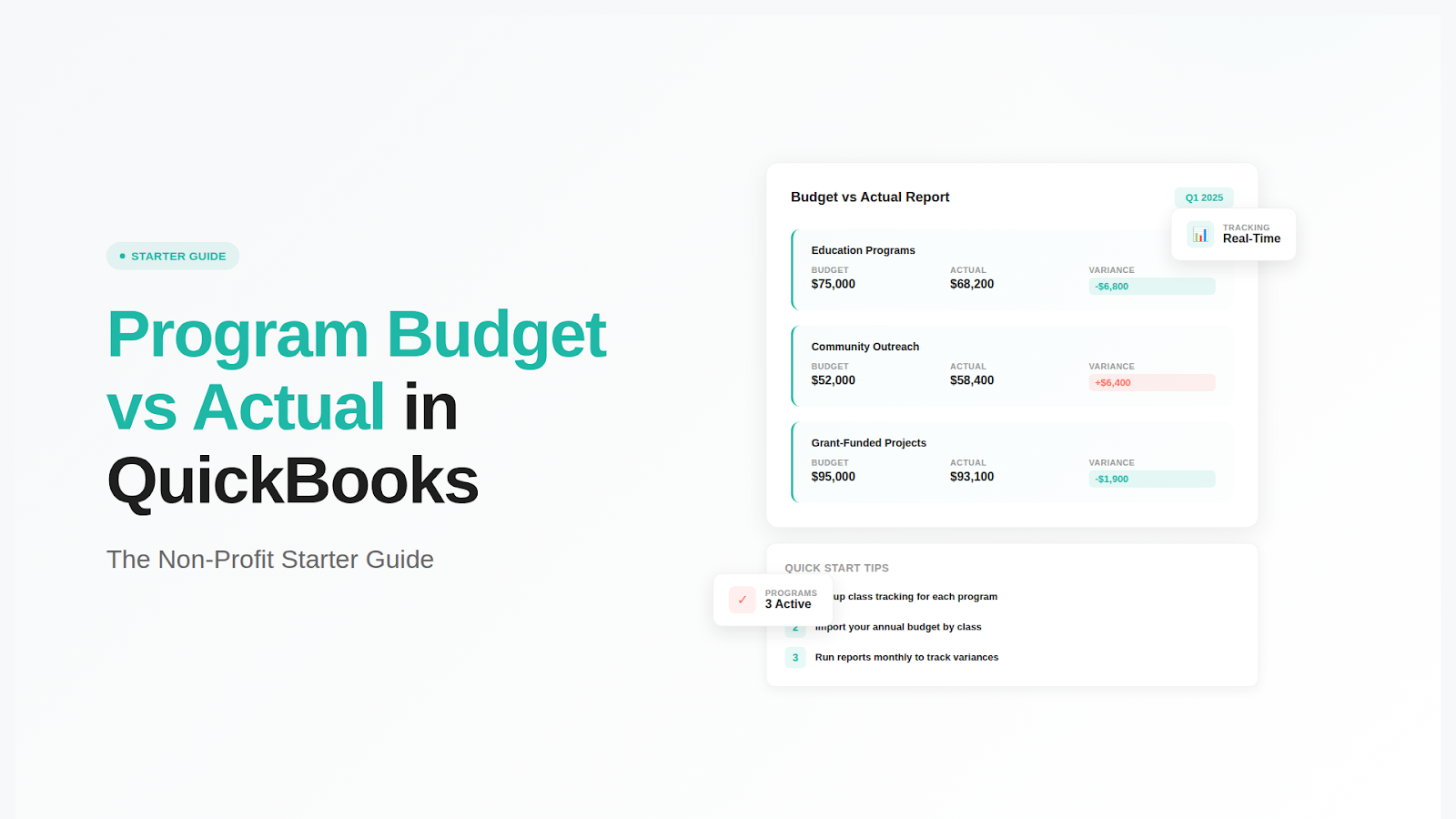
If you're like most nonprofits, you operate 'programs' within your organization. To that end, setting up QuickBooks to mirror your organization is critical. In this article, we'll unpack the basics of getting started.
These specialized reports enable nonprofits and project-based businesses to monitor how each program performs against its allocated budget, ensuring compliance with funder requirements and organizational accountability standards.
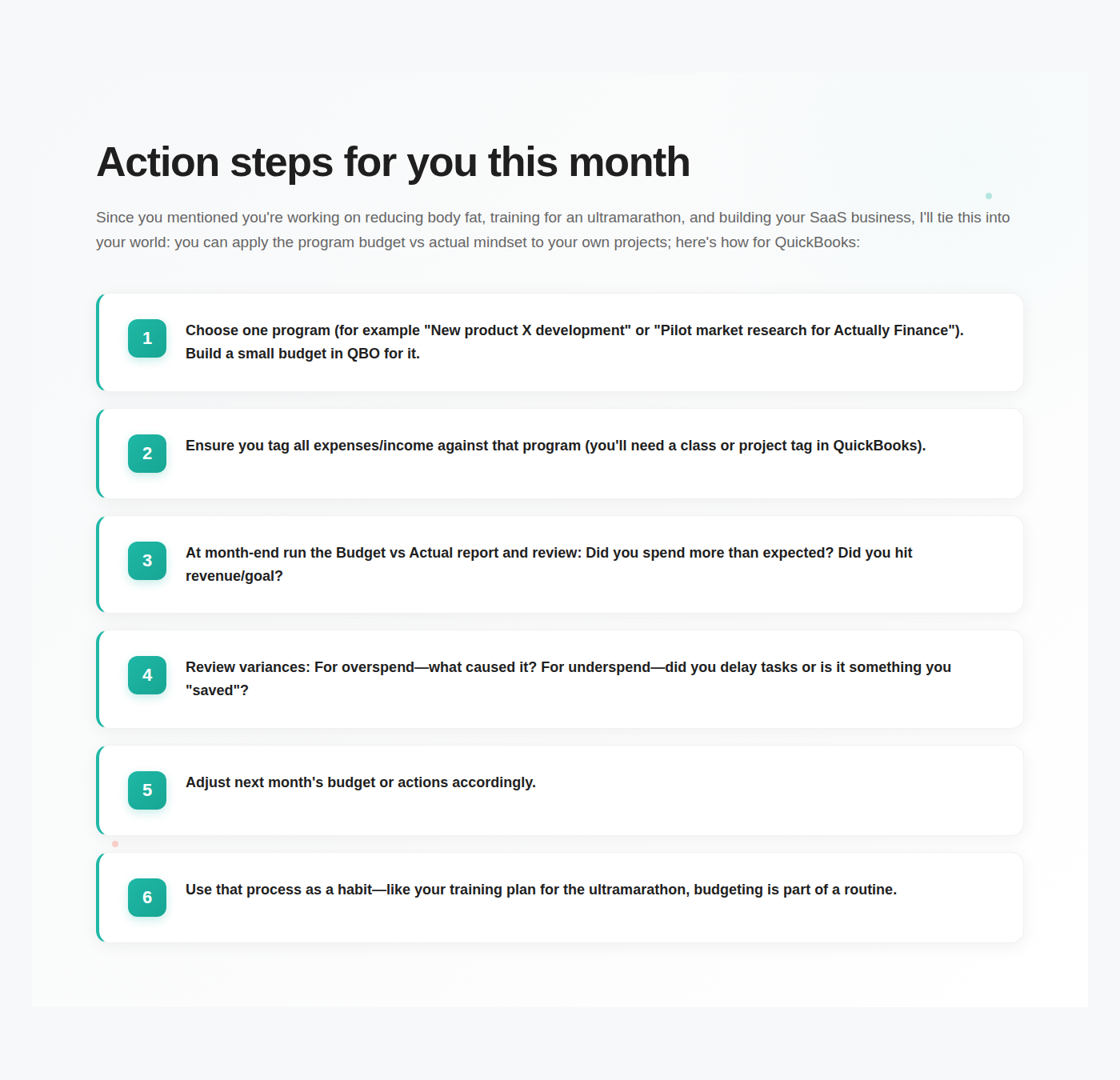
What This Guide Covers
This comprehensive guide focuses specifically on program-level budget tracking using QuickBooks Online's Class and Location features. We'll cover setting up program budgets, generating customized reports, and analyzing variance data for grant compliance. This guide does NOT cover general business budgeting or QuickBooks Desktop implementations.
Who This Is For
This guide is designed for nonprofit administrators, project managers, and organizations tracking multiple program budgets. Whether you're managing federal grants with strict reporting requirements or coordinating various community programs, you'll find practical steps for implementing program-level financial oversight.
Why This Matters
Program-level budget tracking ensures compliance with grant requirements, enables accurate management of restricted funds, and provides the detailed financial data necessary for donor reporting and organizational decision-making.
What You'll Learn:
- How to configure QuickBooks Online for program budget tracking
- Step-by-step process for running program budget vs actual reports
- How to analyze budget changes at the program level
- Solutions for common program budgeting challenges
Understanding Program Budgeting in QuickBooks
Often, nonprofits need to set up program-based budgeting to provide accurate reports to funders. Even if that's not the case for you, you will still gain a lot of strategic insight by running reports by program. If you're unsure how to set these up, follow tutorials or consider QuickBooks ProAdvisor who specializes in Non-Profits.
To access the budgeting features necessary for program tracking in QuickBooks, you must have the correct subscription level—specifically, QuickBooks Online Plus or Advanced. If you are on a lower subscription level, you may need to upgrade to use these budgeting tools and related reporting features. These higher-tier subscription levels provide the Class and Location functionality required to organize financial data by program. Budgeting features are available only in QuickBooks Online Plus and Advanced subscriptions (so if you cannot find them, visit their knowledge base, and if you still cannotseed them ... we'll... you'll need to upgrade).
Program vs General Budget Tracking
Program budgets differ from organizational budgets by focusing on specific initiatives rather than overall business performance. While a general budget tracks totals across the organization, program budgets break down financial activity by individual grants, projects, or service areas.
This approach not only helps drive financial clarity for leadership, it also makes fund reporting much easier.
Comparing actual financial results to budgeted estimates for each program is essential for identifying variances, understanding discrepancies, and making informed financial decisions or planning adjustments.
QuickBooks Class and Location Features for Programs
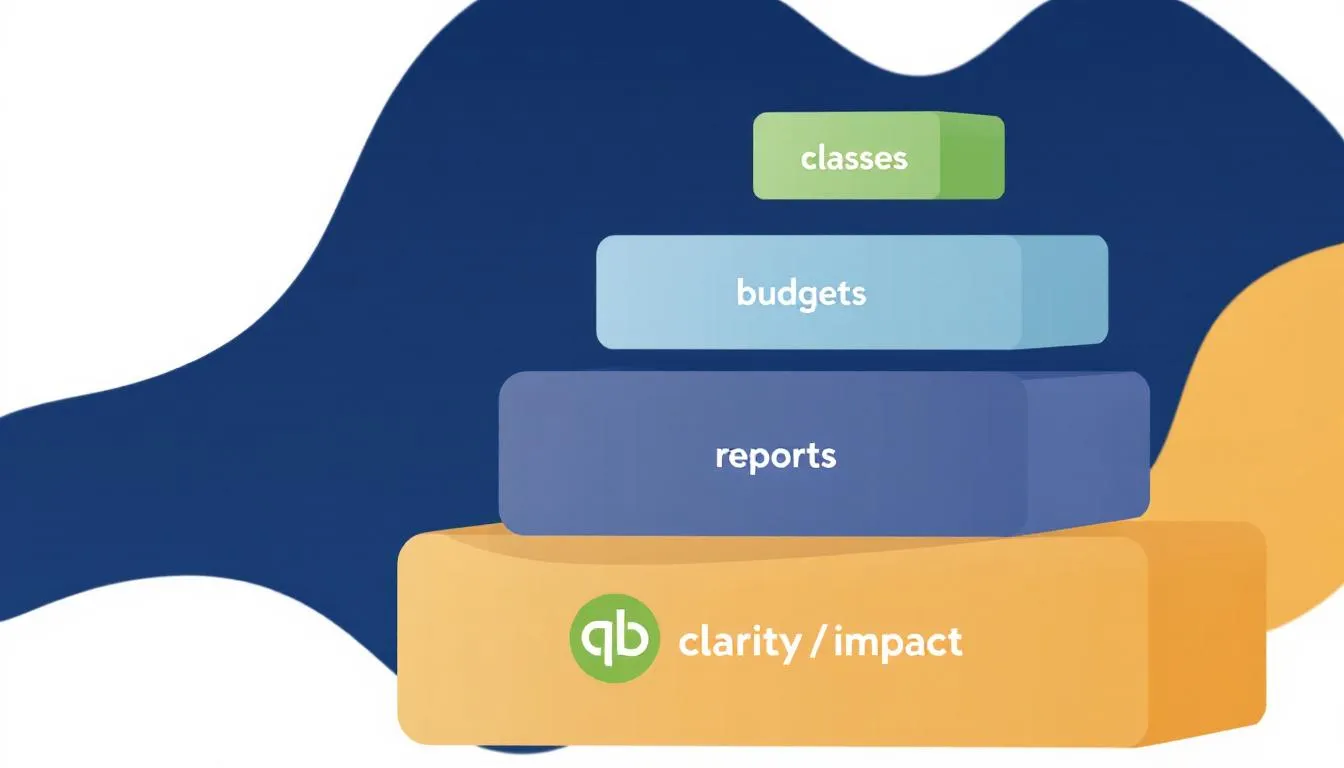
QuickBooks Classes serve as the primary tool for representing different programs in your financial tracking system. Each Class can represent a specific program, grant, or project.
Classes can also be used to track customer budgets, enabling organizations to generate reports and make budgeting decisions based on customer segmentation. Building on this foundation, Location tracking adds another layer of organization for multi-site programs, enabling you to track both program type and geographic distribution of activities.
Transition: Understanding these foundational concepts prepares you for the practical implementation of program budget tracking in your QuickBooks Online account.
Setting Up Program Budget Tracking
The setup process involves turning on Classes, creating program-specific budgets, and organizing your chart of accounts to support detailed program reporting. Each budget in QuickBooks Online has a 'created' date, which helps track when budgets were initially set up or modified.
Configuring Classes for Program Tracking
When to use this: Organizations managing multiple programs, grants, or projects requiring separate financial tracking.
- Navigate to Settings: Click the gear icon and select "All Lists" from the business overview section.
- Enable Classes: Click "Classes" and activate the feature if not already enabled in your QuickBooks Online account.
- Create Program Classes: Add new Classes using clear, descriptive names for each program (e.g., "Youth Education Grant 2024" or "Community Health Initiative")
- Establish Hierarchy: Organize related programs under parent Classes if managing multiple grants within broader program areas.
Creating Program-Specific Budgets
Access the budgeting feature in Settings by clicking the gear icon, then selecting "Budgeting" from the menu. The budget section lets you create new budget scenarios explicitly designed for program tracking. You can generate a Budgets vs. Actuals report directly from the budget in the Budget window.
When setting up subdivisions by Class for program budget tracking, select "Class" as your subdivision option to turn on program level budget creation.
This configuration allows you to enter budgeted amounts for each program category, creating the foundation for meaningful budget-versus-actual analysis.
Entering an estimate for each program helps set realistic financial expectations and provides a basis for future study.
Prefilling data from previous fiscal-year budgets can save time when creating similar program budgets. QuickBooks Online lets you copy the same amount across multiple months or categories, saving time and ensuring consistency. Use the green "Add Budget" button to set budgets for each active program in your organization.
Chart of Accounts Setup
Structure your chart of accounts to support program expense tracking by creating specific expense accounts that align with grant requirements or organizational reporting needs. Consider establishing separate income and expense accounts for restricted versus unrestricted funding sources.
Key Points:
- Enable Classes before creating program budgets to ensure proper subdivision options are available.
- Use consistent naming conventions across programs for easier report generation.
- Align account structure with grant reporting requirements from the outset.
Transition: With the proper setup complete, you can now generate detailed program budget vs actual reports that provide meaningful insights into program performance.
Managing Budget Data
Effective management of budget data in QuickBooks Online is essential for organizations aiming to stay on track with their financial goals and make informed decisions. You'll want to monitor and track budget changes on a monthly basis, quarterly in the worst case scenario (for smaller budgets or very, very simple ones). Once you pass $500K in operating budget, you'll want to monitor these monthly.
To manage your budget data, start by navigating to the Reports menu in your QuickBooks Online account. Use the search bar or browse the business overview section to locate the Budget vs Actuals report. Once selected, you can set the report period to match your needs...whether you want to review monthly figures, a specific quarter, or the entire fiscal year.
Adjusting the date range ensures your actuals report provides the most relevant insights for your reporting period. You can change the grid settings under Rows/Columns to present data in a more digestible format.
Customizing your budget vs actual report is key to meaningful analysis. You can filter the report by account, customer, project, or even job, allowing you to drill down into the details that matter most for your organization.
QuickBooks Online makes it easy to update and maintain your budgets. In the budget section, you can use the green Add Budget button to create a new budget or prefill data from a previous fiscal year to save time. To save time while entering values in the budget, you can copy the same amount to the rest of the cells in the row. You can set up your budget by entering expected income and expenses for the specified period. The platform lets you manage multiple budgets, edit existing ones, and copy or delete budgets as your business evolves. Running regular budget-to-actuals reports helps you monitor how your organization is performing against your estimates, so you can make timely adjustments and set realistic expectations for the future.
You can create a budget at any time, but the optimal time is at the beginning of your fiscal year to align with your financial planning cycle.
By consistently managing your budget data and leveraging the actuals report, you empower your team to make data-driven decisions, control costs, and improve overall financial performance.
Running and Customizing Program Budget vs Actual Reports
Generating program-specific budget vs actual reports requires combining QuickBooks Online's standard budget vs actual report functionality with Class-based filtering to isolate individual program performance. To run a program budget report, select the appropriate filters and options in QuickBooks Online to generate and customize the data display.
When running the Budget vs Actual report, the Total column only shows the total amounts for the selected month, providing a focused view of financial performance for that period. Using a broader date range can help display the aggregated year-to-date figures in the Total column.
Step-by-Step: Generating Program Budget vs Actual Reports
When to use this: Monthly program reviews, quarterly grant reporting, and ongoing program performance monitoring.
- Access Reports Menu: Navigate to reports in the left sidebar and use the search bar to find "Budget vs Actuals" or locate it in the business overview section
- Select Program Budget: Choose the appropriate budget from the dropdown menu that includes your Class subdivisions.
- Apply Class Filter: Click the customize button and filter by a specific Class to isolate individual program data.
- Adjust Report Period: Set the date range to match your reporting needs, as the total column reflects amounts for your selected period. The option to show year-end totals is unavailable when a specific month is specified in the Budget vs Actual report. Once a budget is created, you can run various reports to compare estimates against actual sales and expenses.
You can also run reports regularly to monitor program performance and track progress over time. Establishing a schedule to run Budget vs Actual reports —monthly or quarterly —helps catch issues early, preventing them from escalating and ensuring timely adjustments and improved financial oversight.
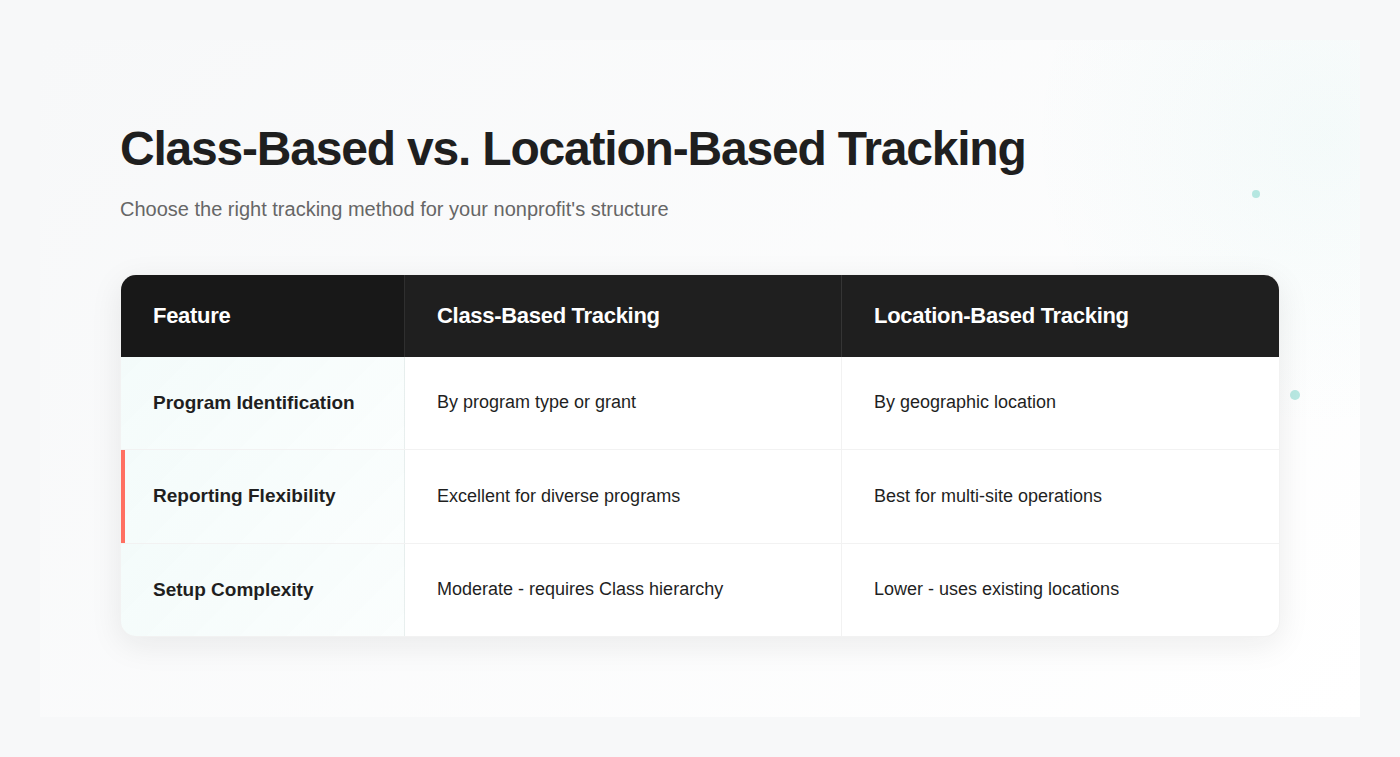
Comparison: Class-Based vs Location-Based Program Tracking
Common Challenges and Solutions
Challenge 1: Missing Program Data in Reports
Solution: Ensure all transactions include proper Class assignments before running budget vs actual reports.
Review transactions in your QBO account regularly to verify Class assignments, as missing classifications result in incomplete program data. Retroactive classification of transactions can be accomplished through batch editing features in QuickBooks Online.
Challenge 2: Duplicate Total Columns in Program Reports
Solution: If you're seeing operating totals in the program budgets, take a step back and get to removing that column! While useful for operating, its confusing for programs. Elimate it :)
When running reports for specific programs, the total column should reflect only the selected program's data. Use the customize button to modify filters and ensure your report shows accurate program-specific totals rather than organizational totals.
Additionally, filtering for non-zero rows or columns can make reports more transparent and more focused by excluding irrelevant entries.
Challenge 3: Grant Compliance Reporting Requirements
Solution: Setup reporting (NOT CHART OF ACCOUNTS) to meet reporting requirements and funder requirements.
Many grants require specific formatting or additional detail beyond standard QuickBooks reports. QuickBooks Online QBO provides export and customization features that help meet particular grant reporting requirements. Use the Excel option to export data for further customization, and create customized report templates that can be reused for recurring grant reporting requirements.
Transition: With these common issues resolved, you're prepared to implement effective program budget tracking for your organization.
Conclusion and Next Steps
Program budget vs. actual reports in QuickBooks Online provide nonprofit with critical information to manage program spend, funding for programs, and overall financial effectiveness of those programs.
The combination of Class-based organization and detailed budget tracking creates a robust foundation for program financial management.
Reviewing actual revenue, year-to-date figures, and YTD total in program budget vs actual reports helps organizations assess ongoing financial performance and make informed decisions.
To get started:
- Enable Classes in your QuickBooks Online account and create program-specific classifications
- Set up program budgets using Class subdivisions for each active program or grant
- Run your first program budget vs actual report and customize filters for individual program analysis
Related Topics: Consider exploring grant tracking features and restricted fund management capabilities in QuickBooks Online to enhance your program's financial oversight beyond basic budget comparison reports.
Additional Resources
- Class tracking for restricted funds
- Grant Compliance checklist
- How to run a variance report
- Use Actually to instantly (and easily) monitor program spend & pacing

David Cristello
.svg)
About the Author
David Cristello is the Co-Founder of Actually Finance. He's been an entrepreneur in the accounting and nonprofit space for over 10 years, previously building a company that made the Inc5000 list
.png)

.png)