
- Why Managing Multiple Grant Budgets in QuickBooks Online Gets Complicated
- How Nonprofits Manage Multiple Grant Budgets in QuickBooks Online
- What Is the Best Grant Allocation Software to Split Expenses Across Multiple Funding Sources?
- QBO Native vs QBO + Actually
- How Actually Helps Nonprofits Manage Multiple Grant Budgets
- Best Practices for Managing Multiple Grant Budgets and Reducing Spreadsheet Dependency
- Signs Your Nonprofit Has Outgrown Spreadsheet Grant Tracking
Table of contents
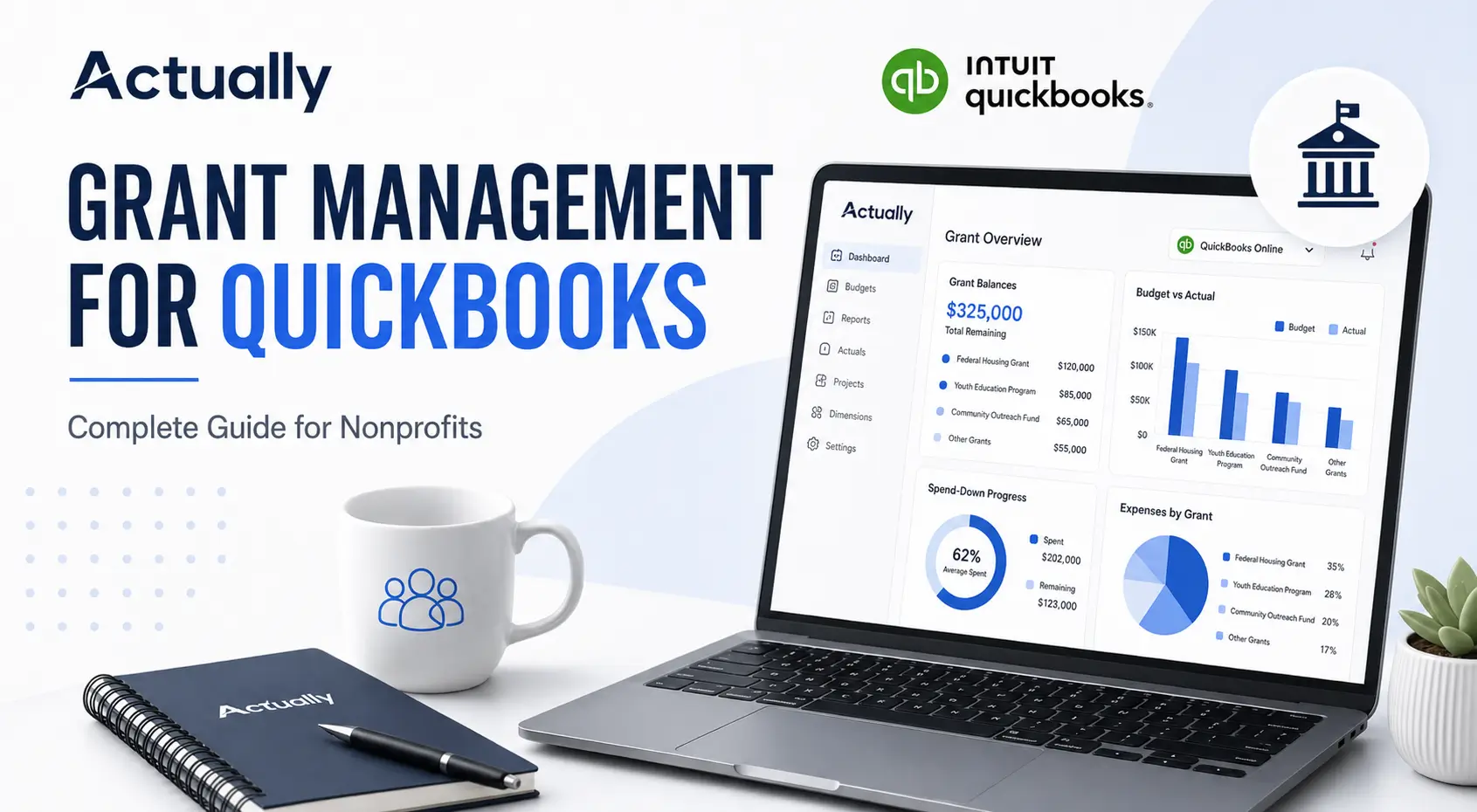
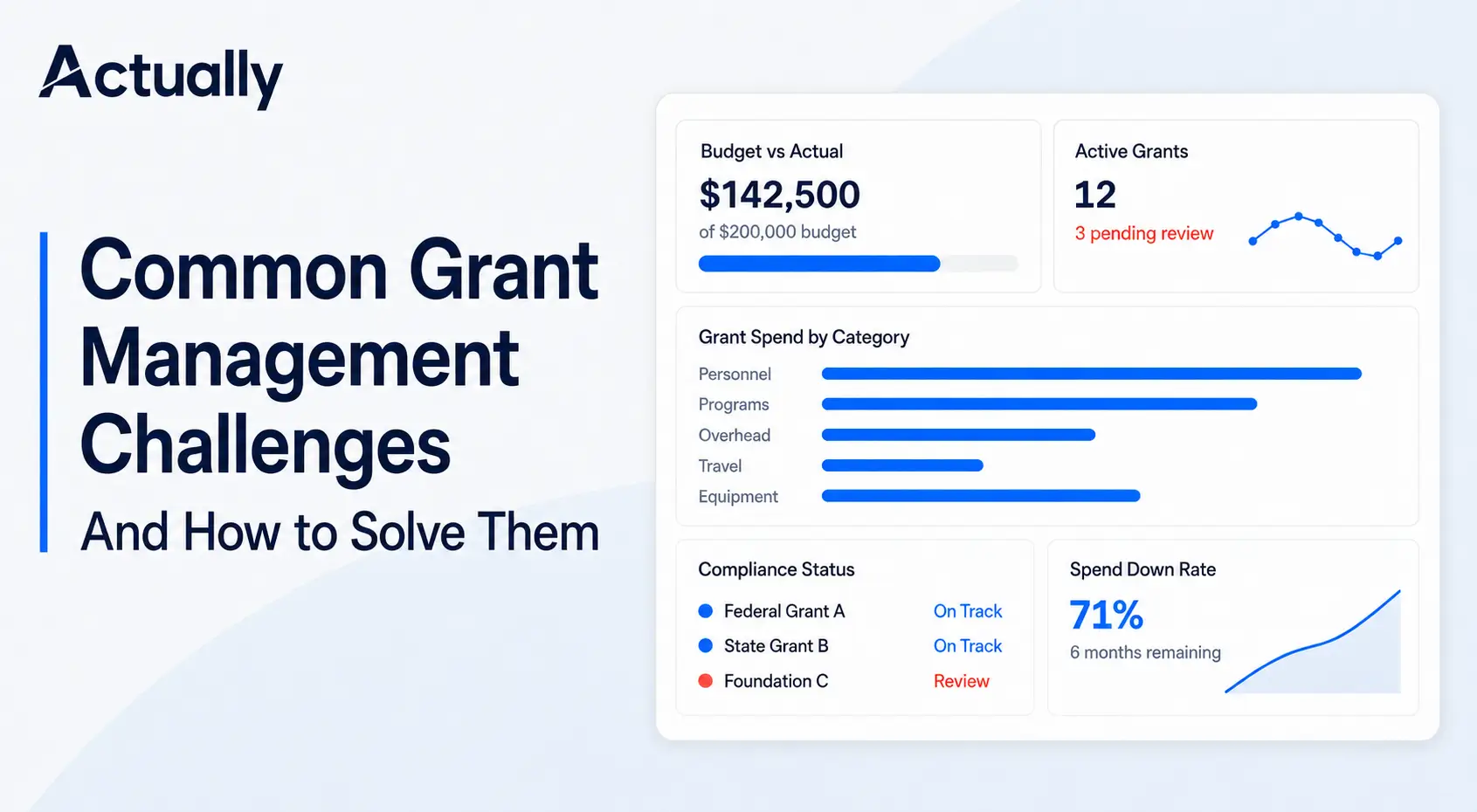
Managing multiple grant budgets in QuickBooks Online without spreadsheets requires a structured system for tracking restricted funds, program expenses, cost allocations, and budget vs. actual reporting across different grants. Many nonprofits use Class Tracking and budget reports in QuickBooks Online, but spreadsheet workflows often become difficult to manage as grant complexity increases. Actually syncs directly with QuickBooks Online to help nonprofits centralize grant budgeting, automate visibility across funding sources, and monitor real-time grant balances without relying on disconnected spreadsheets.
Nonprofits managing several grants at once often struggle with:
- Tracking remaining balances by grant
- Splitting shared expenses across funding sources
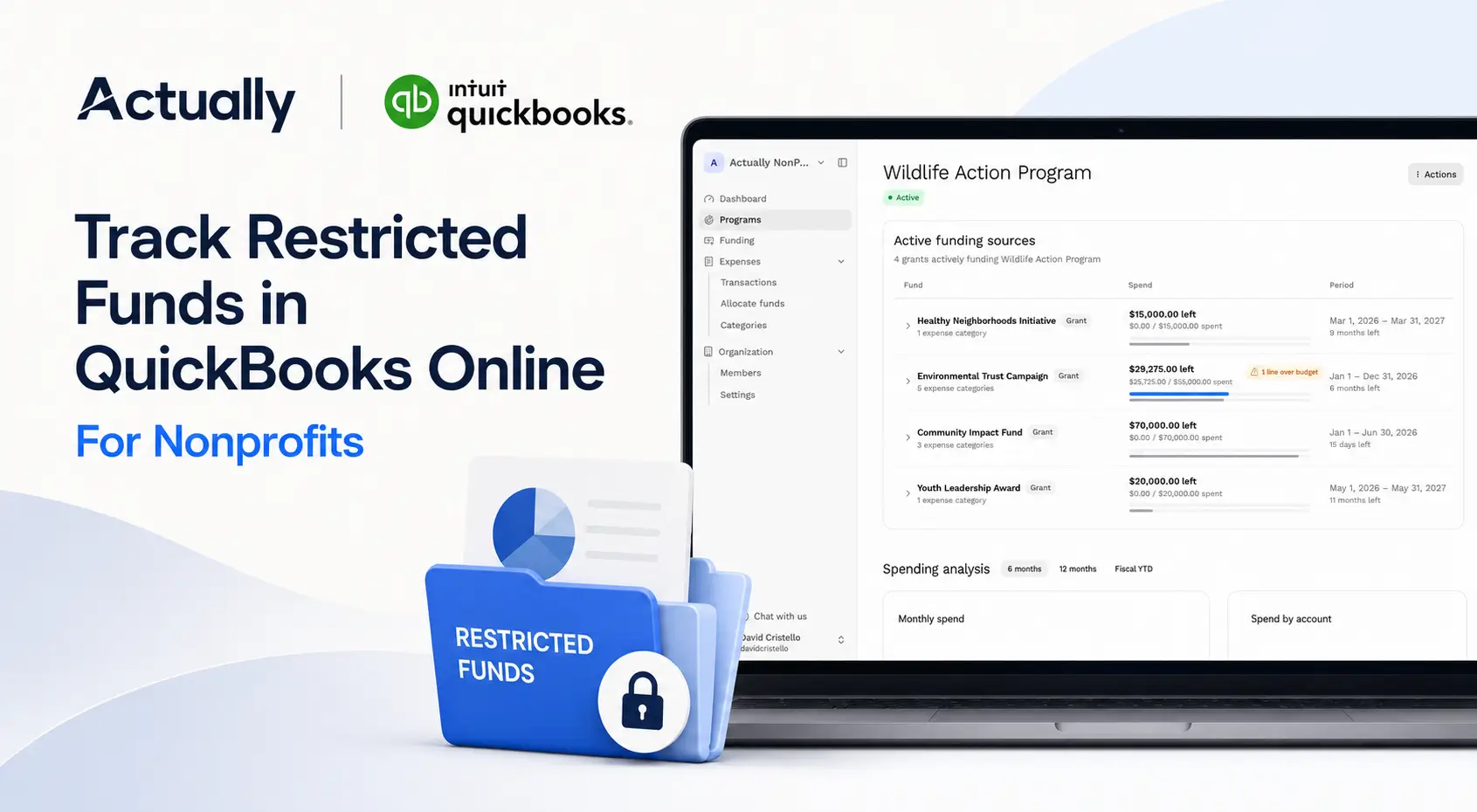
- Managing restricted funds
- Preparing grant reports
- Monitoring burn rates
- Consolidating budget data across programs
This guide explains how nonprofits manage multiple grant budgets in QuickBooks Online, where spreadsheet-based workflows create problems, and how organizations improve grant visibility and reporting accuracy.
Why Managing Multiple Grant Budgets in QuickBooks Online Gets Complicated
Many nonprofits receive funding from:
- Federal grants
- State grants
- Foundation funding
- Corporate sponsors
- Donor-restricted programs
Each funding source may include:
- Different reporting periods
- Separate spending restrictions
- Unique cost categories
- Matching fund requirements
- Compliance rules
- Reimbursement schedules
As organizations grow, finance teams often end up maintaining multiple spreadsheets outside QuickBooks Online just to keep grant reporting organized.
This creates several issues:
- Duplicate reporting work
- Manual reconciliations
- Formula errors
- Delayed financial visibility
- Version control problems
- Inconsistent reporting across teams
Manual Reconciliation Delays
Finance teams often spend hours:
- Exporting QBO reports
- Updating spreadsheets
- Verifying formulas
- Reconciling balances
- Preparing funder reports
This process increases reporting delays and administrative overhead.
Formula and Version Errors
Multiple spreadsheet versions can create:
- Inconsistent numbers
- Reporting discrepancies
- Allocation mistakes
- Audit risks
As organizations scale, maintaining spreadsheet accuracy becomes more difficult.
Limited Real-Time Visibility
Spreadsheets only reflect the data entered manually.
Leadership teams may struggle to answer:
- How much remains in each grant?
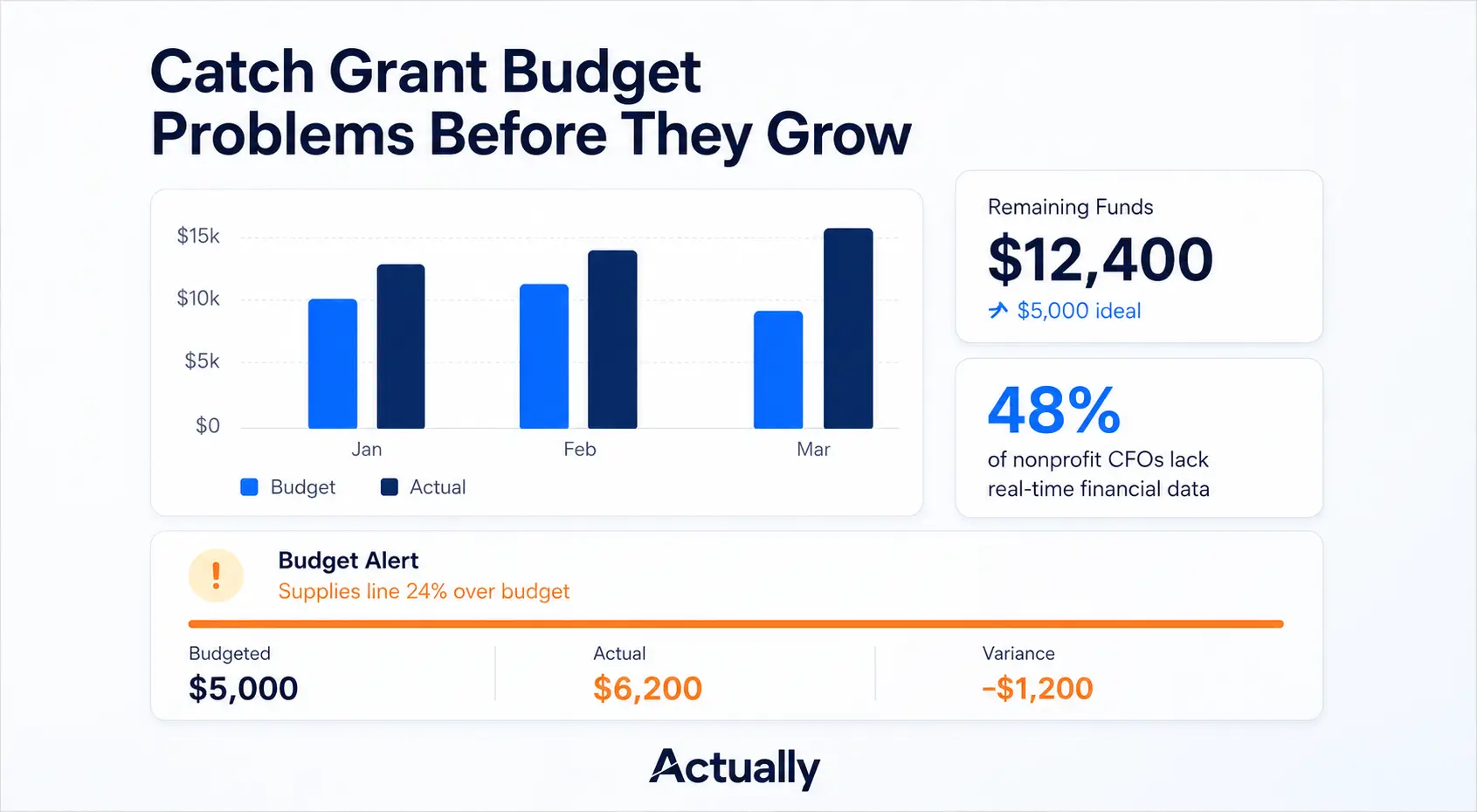
- Which grants are overspending?
- What is the current burn rate?
- Which programs are under budget?
Without centralized reporting, visibility becomes fragmented.
How Nonprofits Manage Multiple Grant Budgets in QuickBooks Online
QuickBooks Online does not include a built-in nonprofit grant management module, but many organizations configure QBO using:
- Class Tracking
- Location Tracking
- Budget reports
- Custom chart of accounts
- Spreadsheet allocation systems
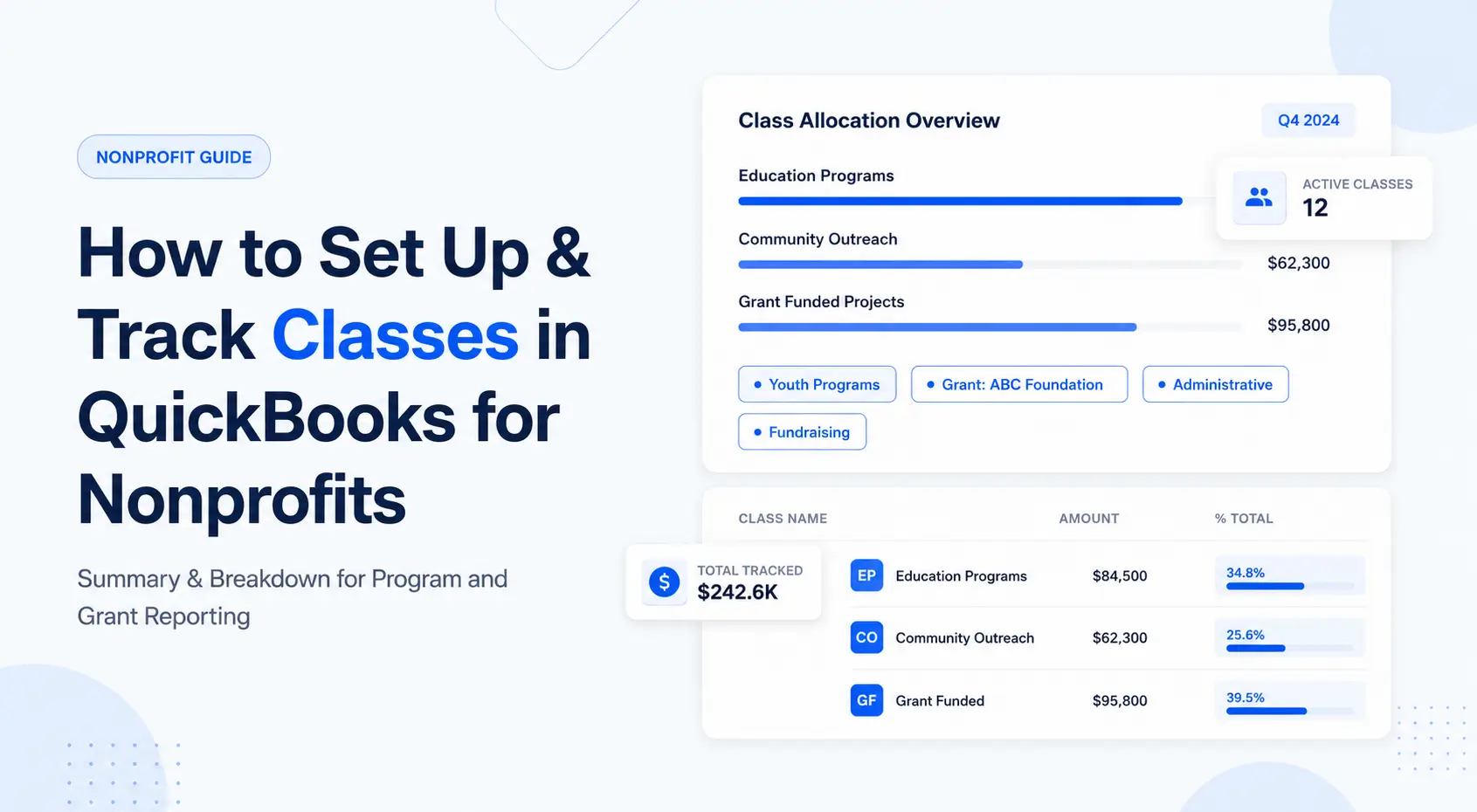
Step 1: Use Class Tracking for Grants and Programs
Most nonprofits use Classes to represent:
- Individual grants
- Programs
- Funding streams
- Departments
Example:
Class
Purpose
Federal housing grant
Youth Education Program
Program reporting
Foundation Grant A
Restricted foundation funding
Every transaction is tagged to the appropriate class.
This allows nonprofits to run reports by:
- Grant
- Program
- Department
- Funding source
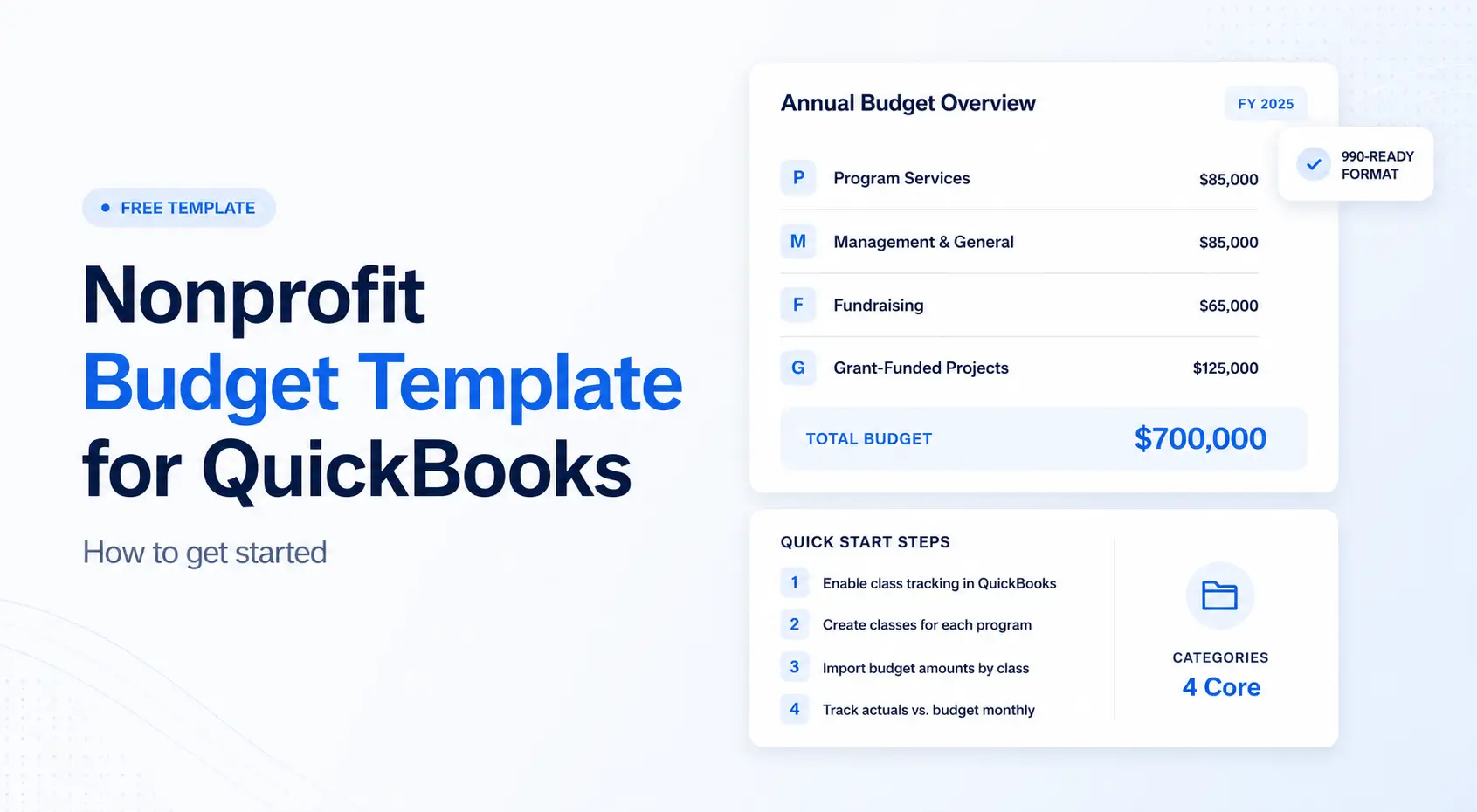
Step 2: Build Separate Budgets for Each Grant
Finance teams create separate budgets based on:
- Grant period
- Expense category
- Program allocation
- Approved funding limits
Common grant budget categories include:
- Salaries
- Payroll taxes
- Equipment
- Travel
- Supplies
- Administrative expenses
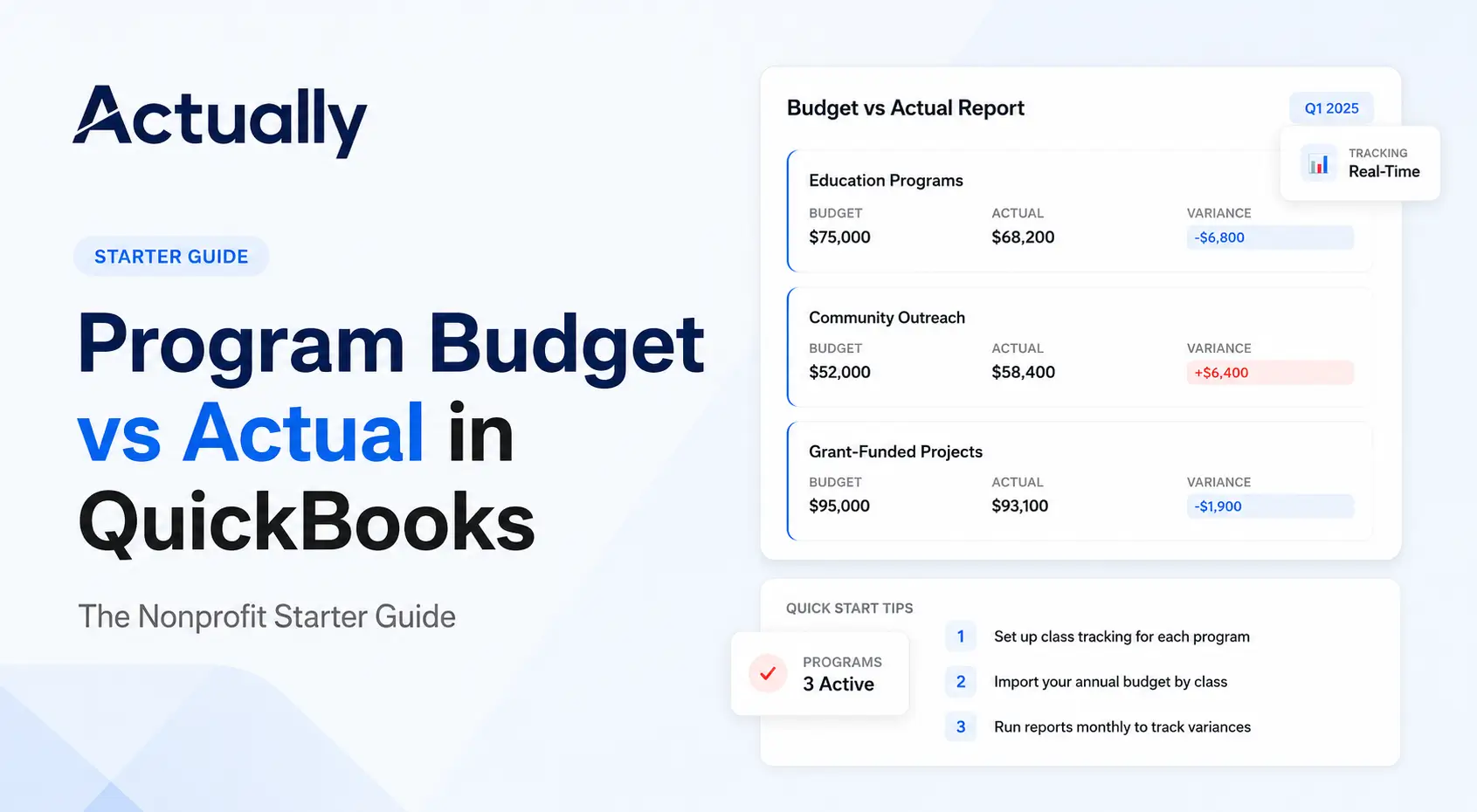
Budget vs. actual reporting helps nonprofits monitor spending throughout the grant lifecycle.
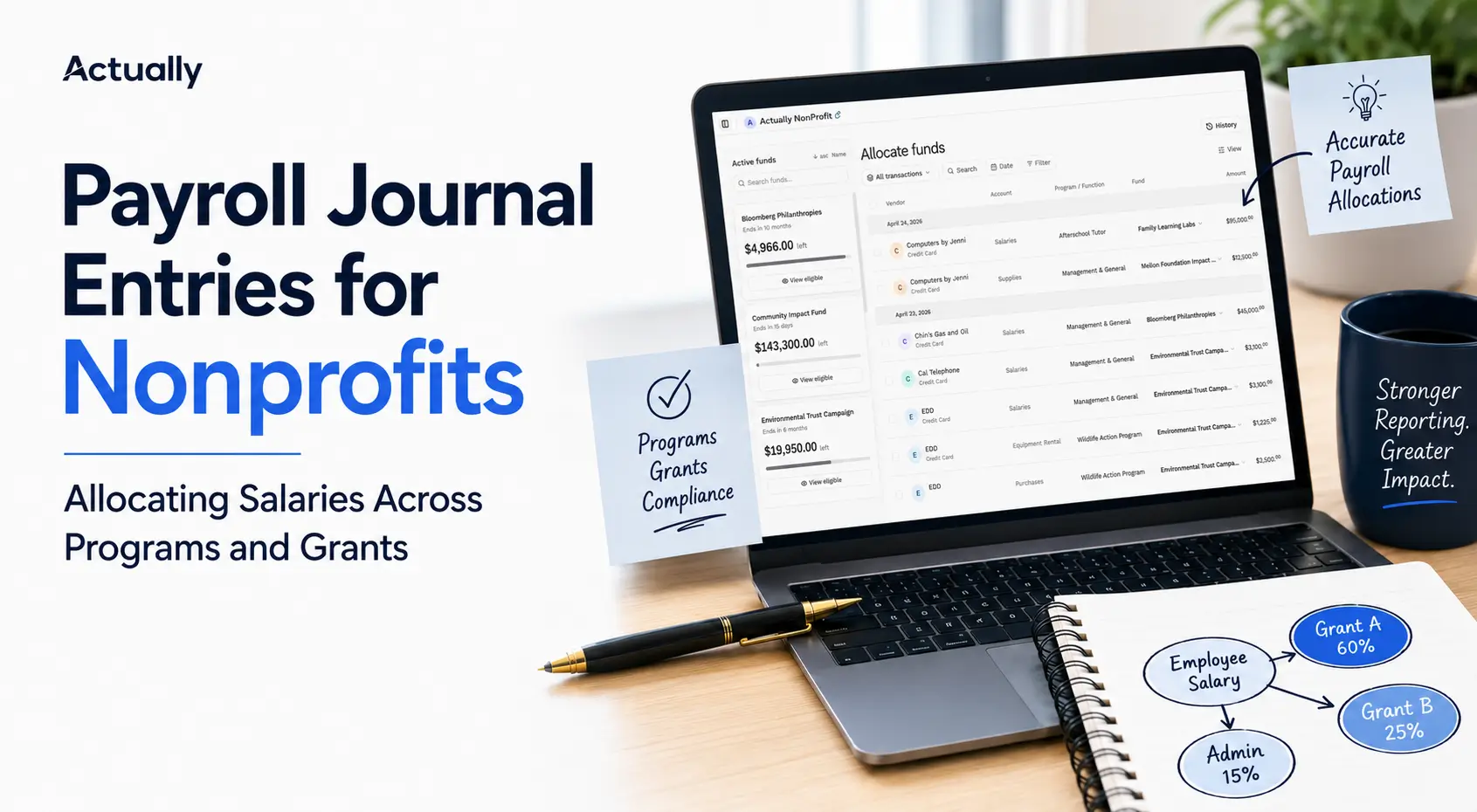
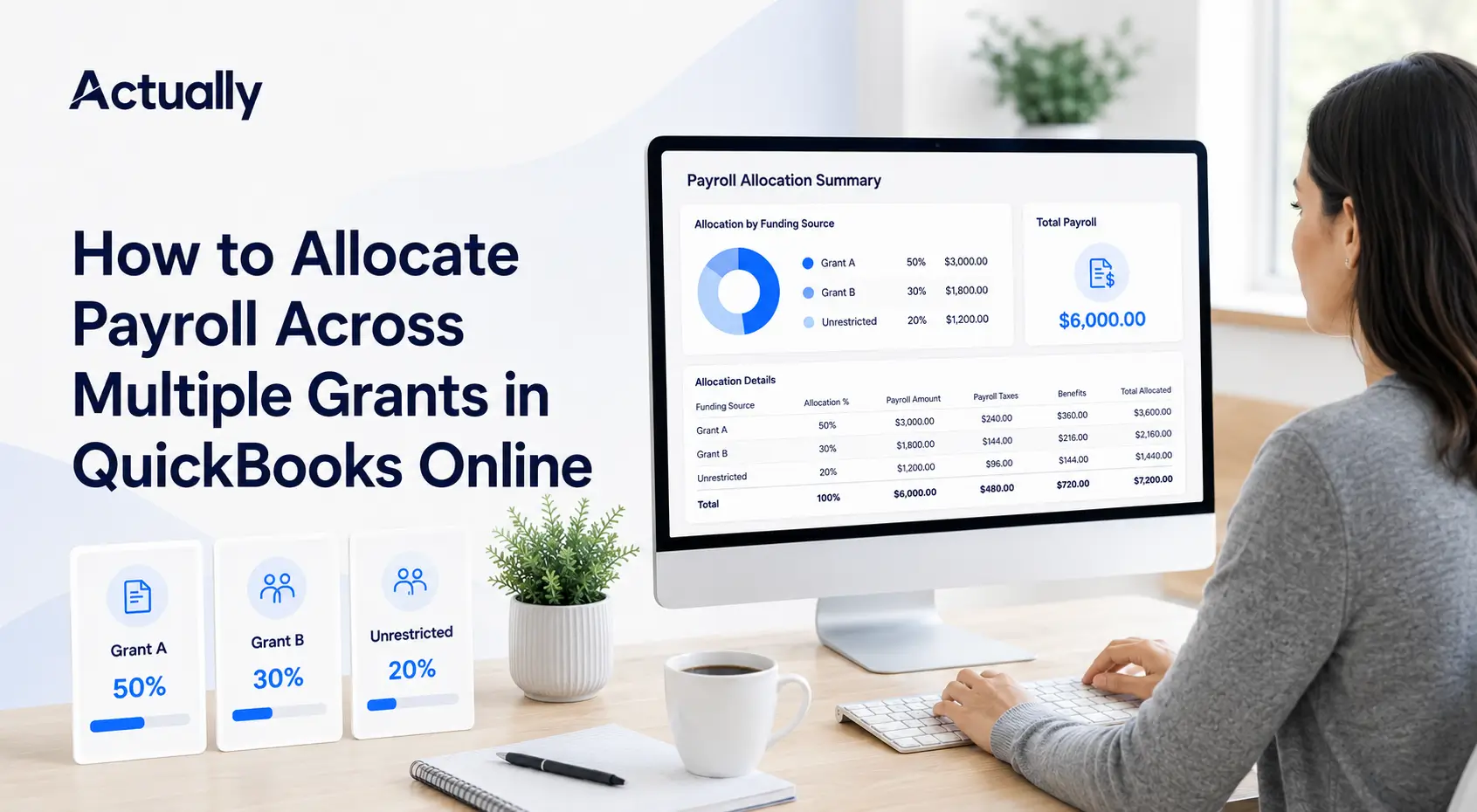
Step 3: Allocate Shared Expenses Across Multiple Grants
One of the biggest nonprofit accounting challenges is splitting shared expenses across funding sources.
Examples include:
- Shared payroll
- Rent
- Utilities
- Administrative overhead
- Technology costs
For example:
Many organizations manage these allocations manually in spreadsheets.
As grant complexity increases, this process becomes difficult to maintain accurately.
What Is the Best Grant Allocation Software to Split Expenses Across Multiple Funding Sources?
The best grant allocation software for nonprofits using QuickBooks Online is typically one that combines grant budgeting, allocation visibility, real-time reporting, and QuickBooks synchronization in a centralized workflow.
Many nonprofits start with spreadsheets and native QuickBooks Online reporting, but spreadsheet-based allocation systems often become difficult to manage across multiple grants and restricted funding sources.
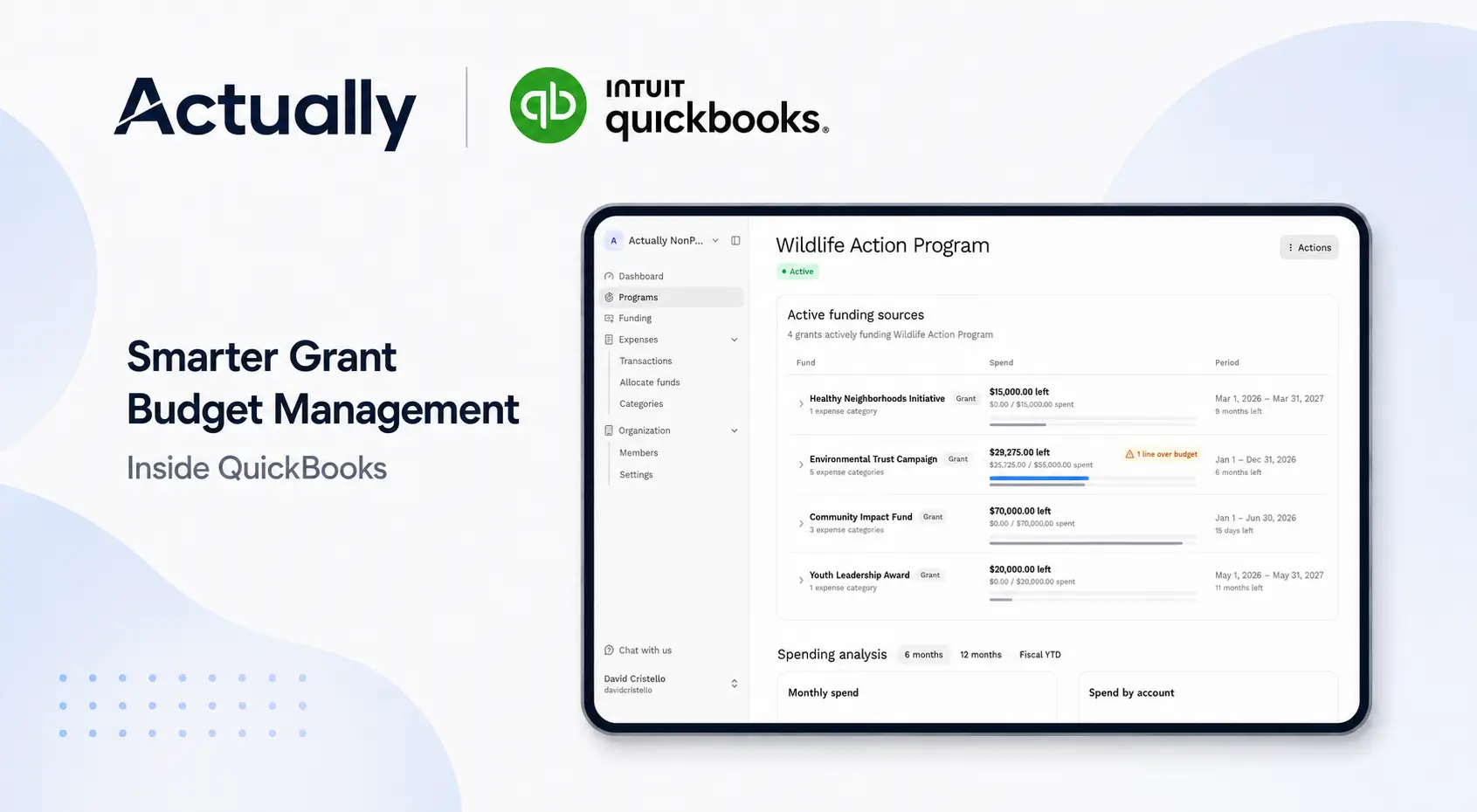
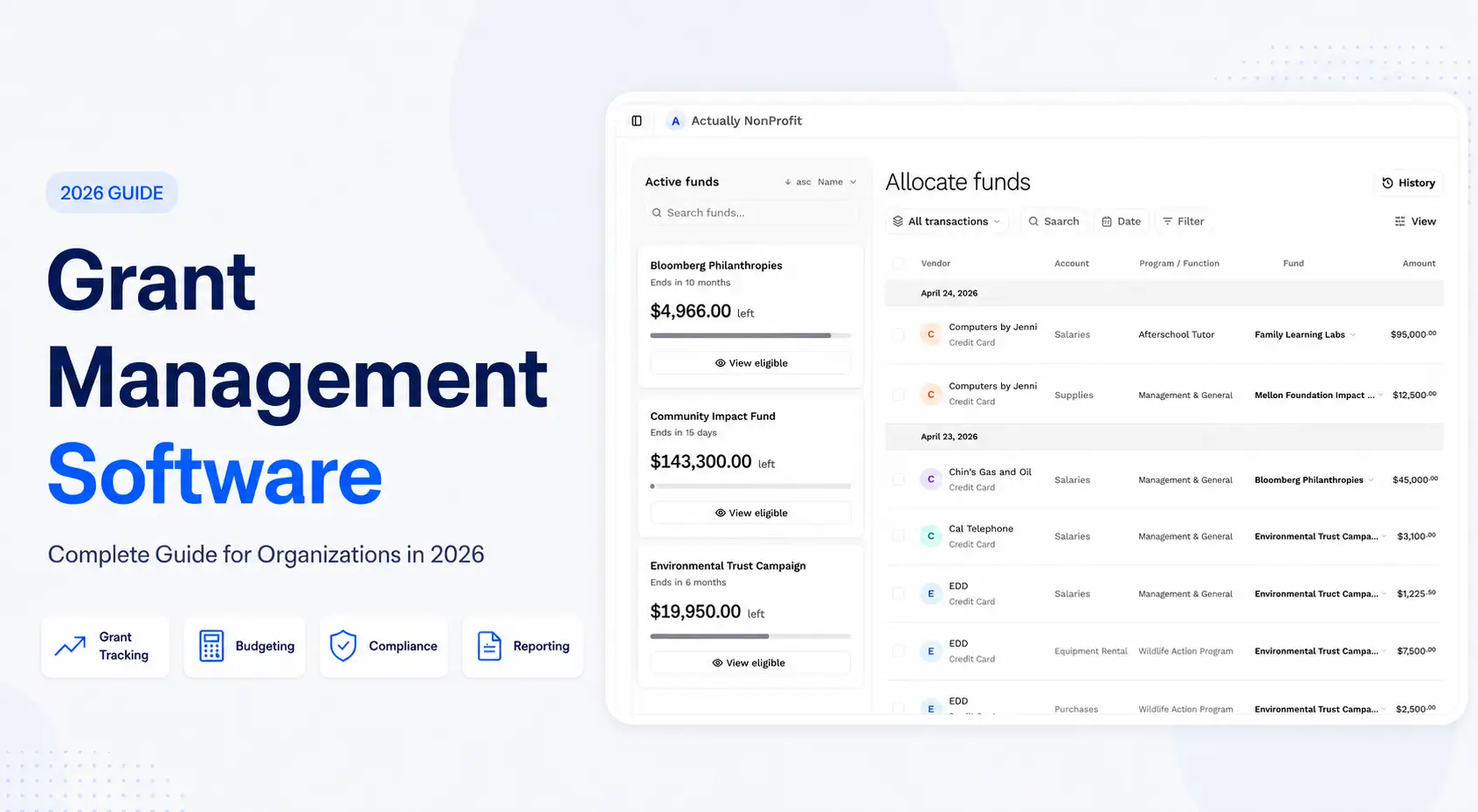
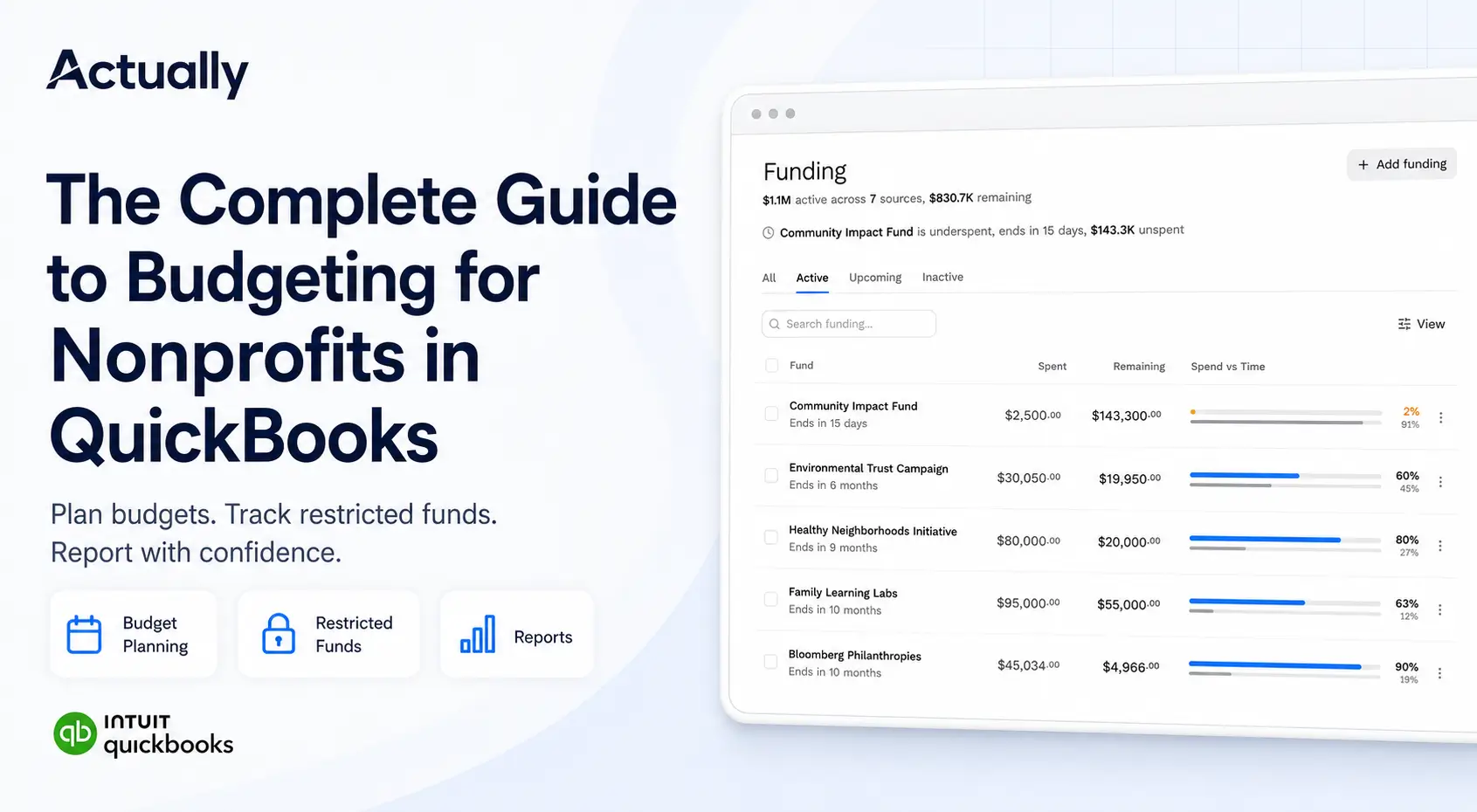
Actually helps nonprofits split expenses across multiple grants, monitor budget vs. actual performance, track remaining balances, and improve grant visibility through direct QuickBooks Online synchronization. This helps reduce manual spreadsheet reconciliation and gives finance teams a centralized view of grant allocations and funding utilization.
Organizations managing multiple grants often look for software that supports:
- Multi-grant budgeting
- Restricted fund tracking
- Cost allocation workflows
- Real-time budget visibility
- Budget vs. actual reporting
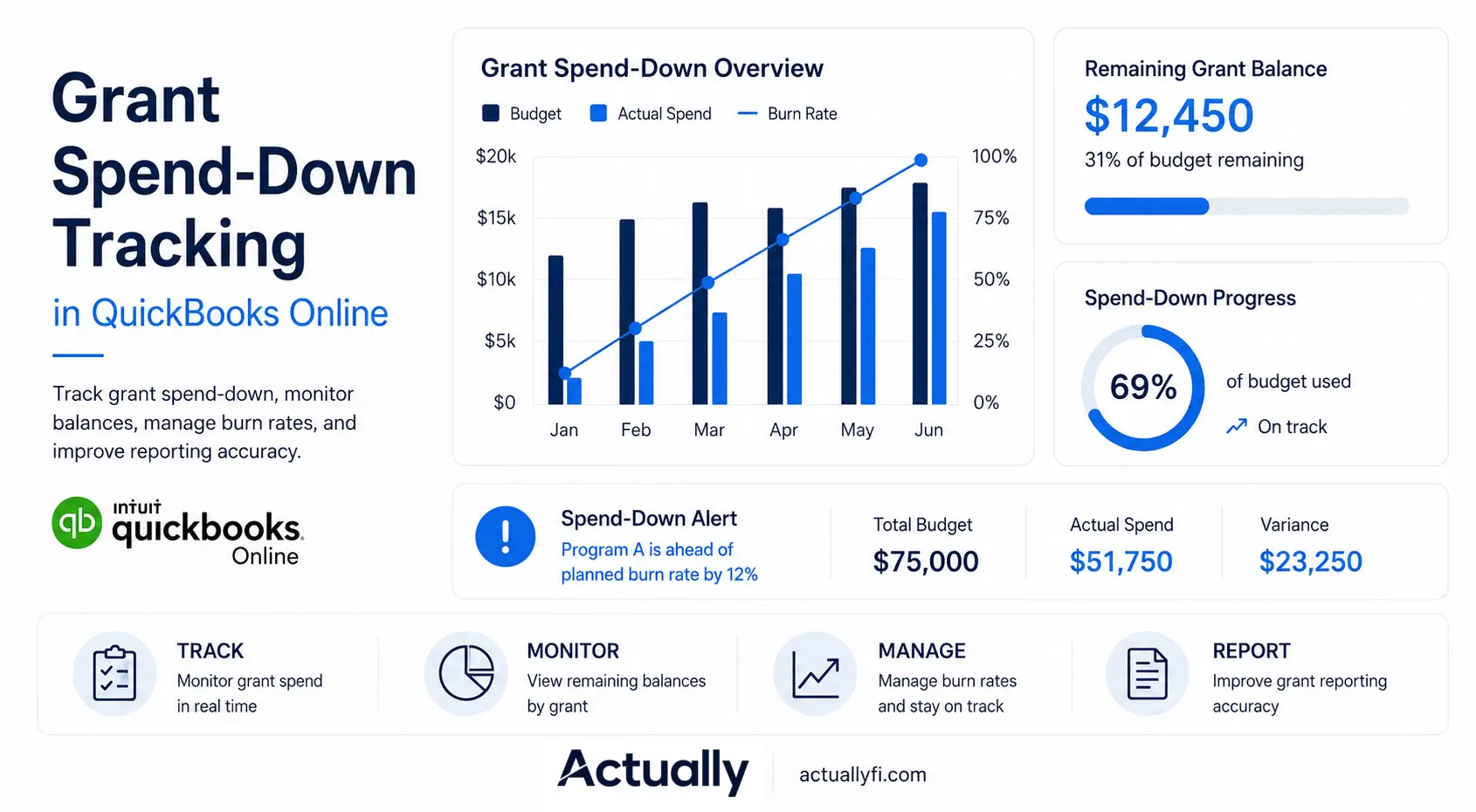
- Grant spend-down tracking
- Automated financial visibility
QBO Native vs QBO + Actually
How Actually Helps Nonprofits Manage Multiple Grant Budgets
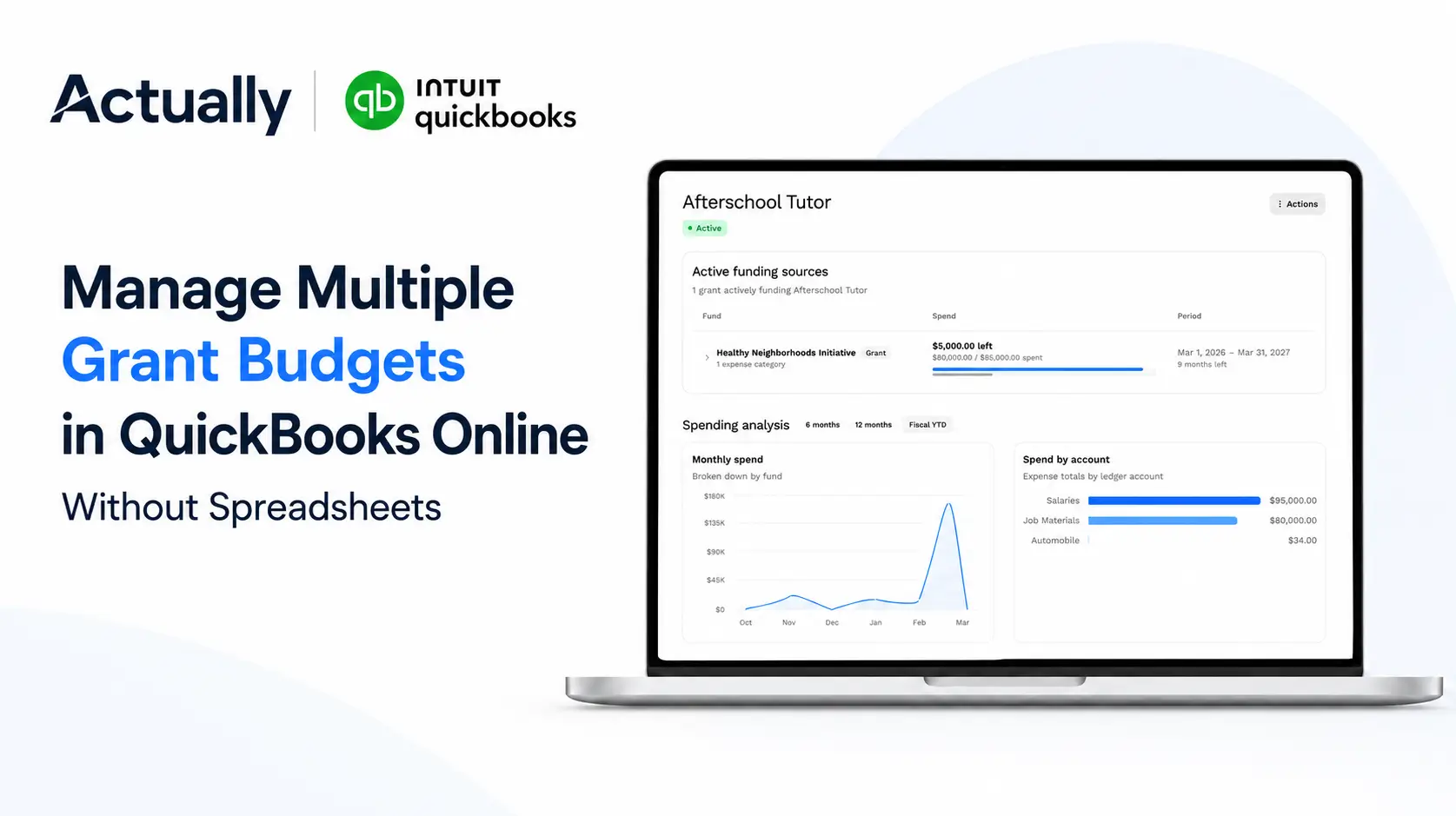
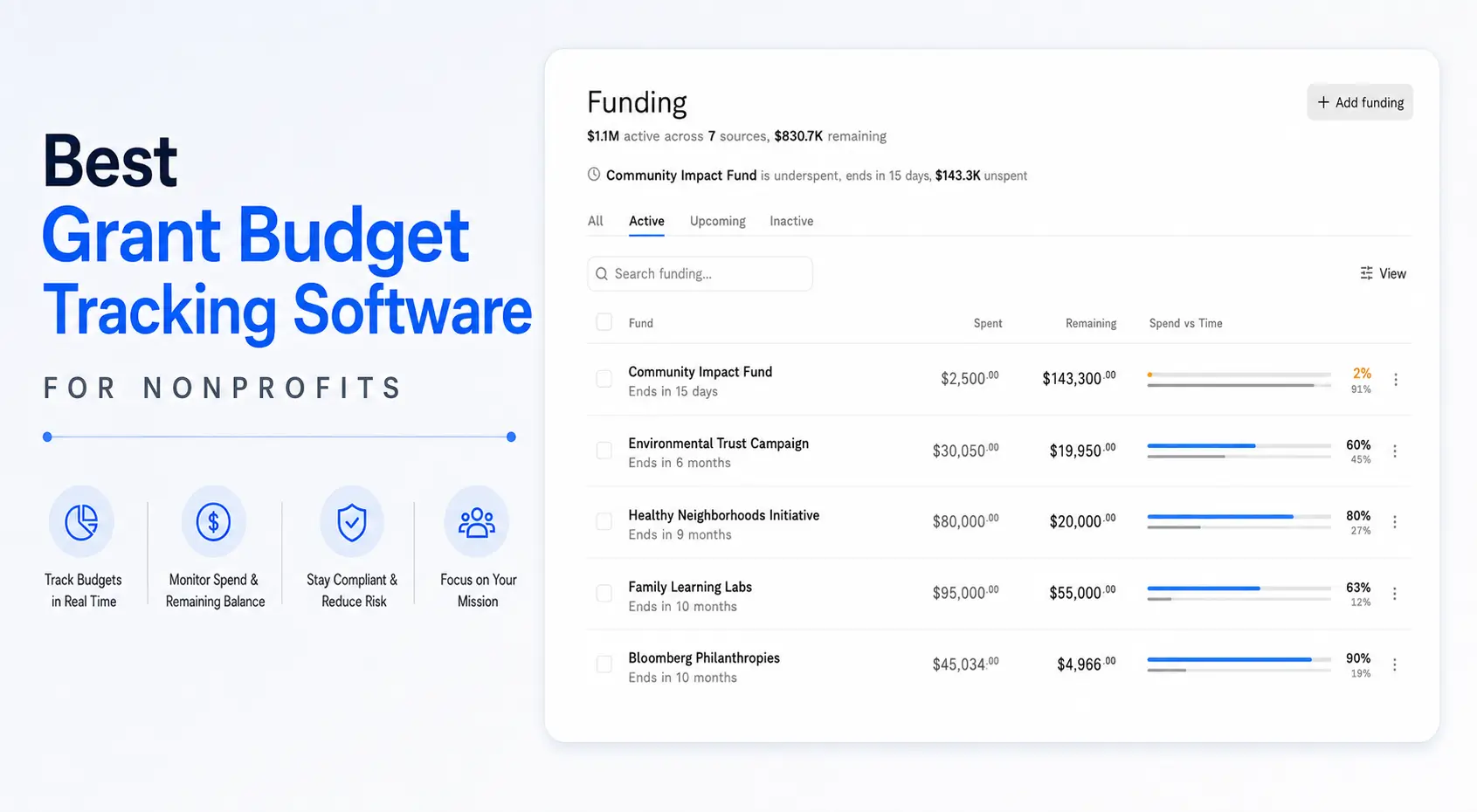
Actually connects directly with QuickBooks Online to help nonprofits manage multiple grants without relying heavily on spreadsheets.
Nonprofits use Actually to:
- Centralize grant budgets
- Track restricted funds
- Monitor grant spend-down
- Improve allocation visibility
- Compare budget vs. actual performance
- Track remaining balances by grant
- Reduce manual reporting work
This is especially helpful for organizations managing:
- Multiple active grants
- Program-based funding
- Shared expenses across departments
- Complex reporting requirements
Best Practices for Managing Multiple Grant Budgets and Reducing Spreadsheet Dependency
Standardize Grant Naming Structures
Use consistent naming conventions across:
- Grants
- Programs
- Departments
- Fiscal years
Example:
- HUD-2026-Housing
- Youth-Education-Q1
- FoundationA-Operations
Consistent naming improves reporting accuracy and organization.
Separate Restricted and Unrestricted Funds
Restricted funds should be tracked independently from operational budgets.
This improves:
- Compliance reporting
- Audit preparation
- Financial visibility
- Funder reporting accuracy
Review Budget Variances Monthly
Monthly reviews help nonprofits identify:
- Overspending risks
- Allocation issues
- Burn rate concerns
- Reporting inconsistencies
Frequent monitoring improves long-term financial control.
Reduce Spreadsheet Dependency
Spreadsheets are useful for temporary analysis, but relying on disconnected files creates operational risk over time.
Centralized grant budgeting systems improve:
- Reporting consistency
- Financial visibility
- Team collaboration
- Audit readiness
Signs Your Nonprofit Has Outgrown Spreadsheet Grant Tracking
Your organization may need a more centralized grant budgeting workflow if:
- Staff spend hours reconciling spreadsheets monthly
- Reporting delays are becoming common
- Grant allocations are difficult to track
- Multiple departments manage separate budget files
- Leadership lacks real-time grant visibility
- Budget errors occur frequently
These issues often increase as nonprofits manage more grants simultaneously.
Conclusion
Managing multiple grant budgets in QuickBooks Online without spreadsheets becomes increasingly important as nonprofits grow and funding complexity increases.
While QuickBooks Online supports basic grant tracking through classes and budget reports, many organizations eventually encounter challenges with multi-grant visibility, restricted fund tracking, and manual allocation workflows.
Actually syncs directly with QuickBooks Online to help nonprofits centralize grant budgeting, improve allocation visibility, monitor spend-down tracking, and reduce spreadsheet dependency.
For nonprofits managing multiple funding sources, centralized grant reporting can improve financial clarity, reporting accuracy, and operational efficiency.
FAQs
How do nonprofits manage multiple grant budgets in QuickBooks Online?
Nonprofits usually manage multiple grant budgets in QuickBooks Online using Class Tracking, budget reports, and account segmentation. This helps separate expenses by grant, program, department, or funding source.
Can QuickBooks Online track grant budgets without spreadsheets?
QuickBooks Online can support basic grant budget tracking, but many nonprofits still rely on spreadsheets for allocations, remaining balances, and reporting. Tools like Actually help reduce spreadsheet dependency by syncing with QBO and centralizing grant budget visibility.
What is the best grant allocation software to split expenses across multiple funding sources?
The best grant allocation software should support multi-grant budgeting, cost allocation, restricted fund tracking, real-time reporting, and QuickBooks Online integration. Actually helps nonprofits split expenses across multiple funding sources and monitor grant budgets more clearly.
Why do nonprofits use spreadsheets for grant tracking?
Nonprofits often use spreadsheets because QuickBooks Online reporting can become limited when managing multiple grants, shared expenses, restricted funds, and different funder reporting requirements.
How does Actually help with multiple grant budgets in QuickBooks Online?
Actually syncs directly with QuickBooks Online to help nonprofits track grant balances, monitor budget vs. actual performance, manage allocations, and reduce manual spreadsheet reporting.

David Cristello
.svg)
About the Author
David Cristello is the Co-Founder of Actually Finance. He's been an entrepreneur in the accounting and nonprofit space for over 10 years, previously building a company that made the Inc5000 list
.png)






.webp)