
- Introduction
- How Payroll Allocation Works in QuickBooks Online
- How to Allocate Payroll Across Multiple Grants in QuickBooks Online
- How to Allocate and Reconcile Third-Party Payroll
- Compliance, Best Practices, and Grant Visibility
- Conclusion
- Frequently Asked Questions
Table of contents
Last Update: August 2026
Payroll is often one of a nonprofit's largest grant expenses. It is also one of the easiest costs to misstate when an employee supports several grants, programs, or administrative functions during the same pay period.
To allocate payroll across grants in QuickBooks Online, a nonprofit needs two connected systems: a reasonable method for determining how staff time should be divided and a consistent accounting structure for recording that division. QuickBooks can record the allocation through classes or projects, but the organization still needs reliable time or activity records, documented approval, and regular reconciliation.
Key Takeaways
- QuickBooks Online Payroll can split an employee's payroll among multiple classes or projects when payroll is run.
- Salaried pay can be divided by percentage, hourly pay by hours, and commissions or other pay types by dollar amount.
- Class tracking is available in QuickBooks Online Plus and Advanced, not Simple Start or Essentials.
- If payroll is processed outside QuickBooks, the payroll report can be recorded or allocated through a balanced journal entry. Do not enter payroll twice if a provider sync has already posted it.
- Federal grant payroll charges must be supported by records that accurately reflect the work performed. Budget estimates alone are not sufficient as final support.
- Payroll allocations should be reconciled to the payroll register, general ledger, time records, and grant budget every pay period or month.
This guide explains the current QuickBooks Online workflow, the journal-entry alternative for outside payroll providers, and the controls that make a payroll allocation defensible.
How Payroll Allocation Works in QuickBooks Online
Can You Allocate Payroll Across Multiple Grants in QuickBooks Online?
Yes. QuickBooks Online Payroll allows payroll expenses to be assigned across multiple classes or projects while payroll is being prepared.
According to Intuit's current payroll guidance, users can allocate:
- Salaried pay by percentage
- Hourly pay by hours
- Commissions and other pay types by dollar amount
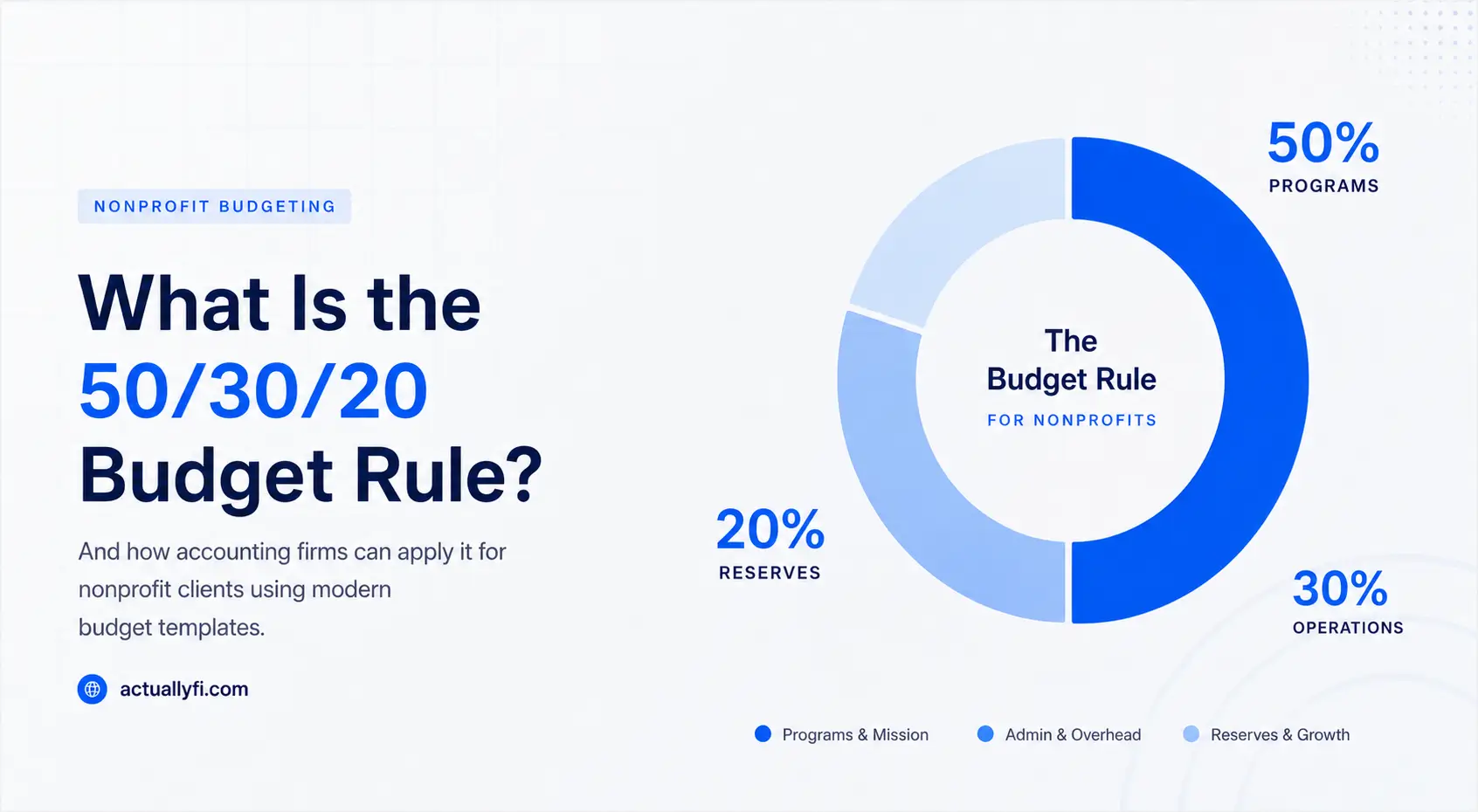
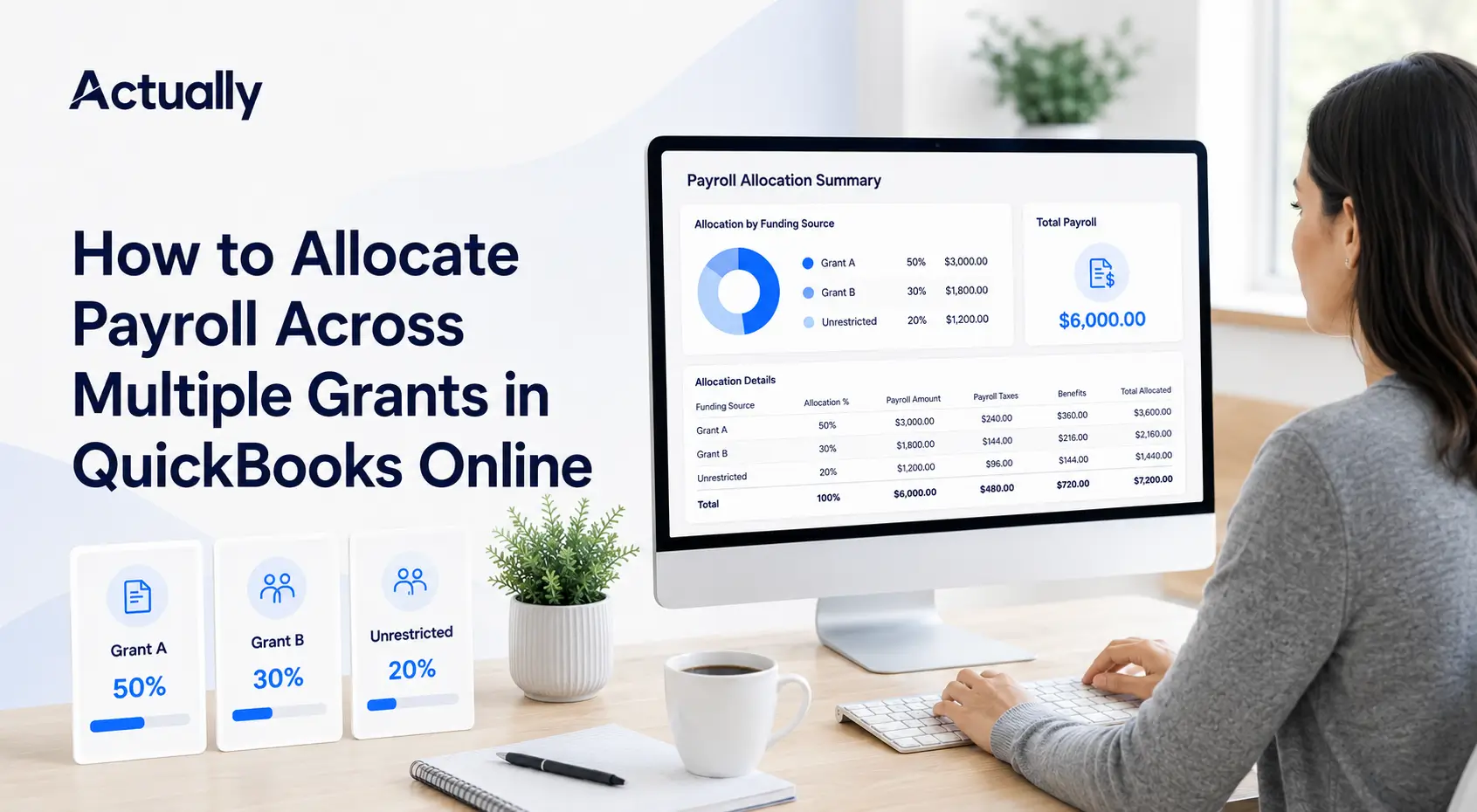
For example, a salaried program manager's pay might be assigned 50% to Grant A, 30% to Grant B, and 20% to unrestricted operations. An hourly outreach worker's payroll could instead be divided using the actual hours recorded for each grant.
QuickBooks can then show the resulting payroll expenses in reports such as Profit and Loss by Class or Profit and Loss by Customer, depending on whether classes or projects were used.
There are two important limitations to understand:
- Class tracking requires QuickBooks Online Plus or Advanced. Intuit does not include classes in Simple Start or Essentials.
- QuickBooks records the accounting allocation, but it does not decide whether the allocation is allowable under a grant. The nonprofit remains responsible for using an appropriate basis, retaining support, and following each award's terms.
What Payroll Costs Should Be Allocated?
A complete QuickBooks payroll grant allocation may include more than gross wages. Depending on the award terms and the nonprofit's written accounting policies, relevant costs may include:
- Gross salaries and hourly wages
- Employer payroll taxes
- Employer-paid health insurance
- Retirement contributions
- Workers' compensation
- Paid leave or other fringe benefits
Not every cost should automatically follow the same percentage. The basis should match the organization's written policy and the nature of the cost.
For example, benefits that apply evenly to an employee may be allocated in proportion to salary. A benefit tied to a specific employee or activity may need to be charged directly. Federal rules at 2 CFR 200.431 address the allowability and allocation of fringe benefits charged to federal awards.
Always review the grant agreement before charging payroll taxes or benefits. A cost may be reasonable and properly calculated but still excluded by a particular award.
Before You Start: Choose a Grant-Tracking Structure
QuickBooks needs a consistent dimension for each grant before payroll can be split correctly.
Option 1: Use Classes for Grants
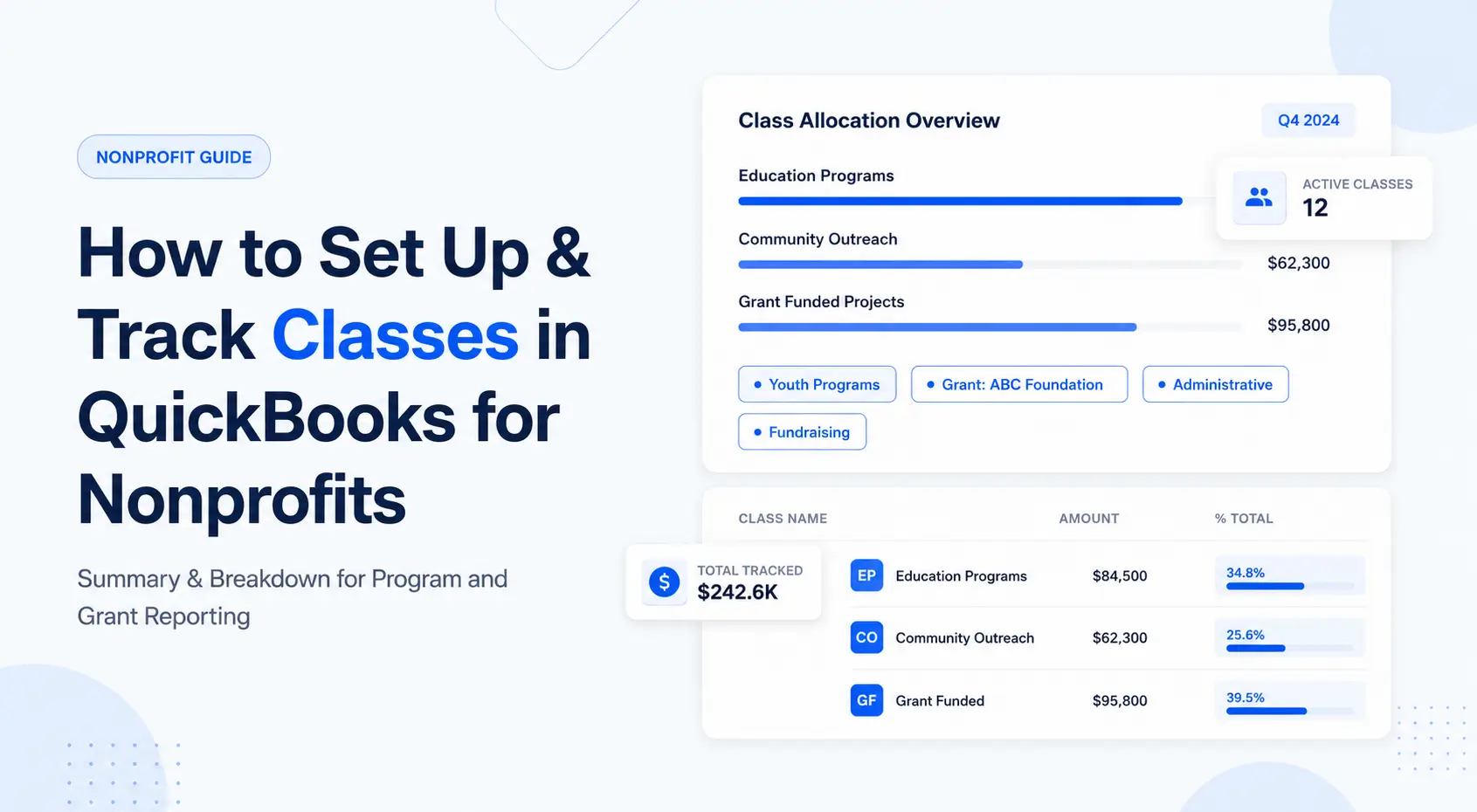
Classes are commonly used to track income and expenses by grant, program, department, or other segment. Intuit specifically identifies class tracking as one way nonprofits can track individual funds in QuickBooks Online.
A simple class list might look like this:
Classes work well when grant-level profit and loss reporting is the main need. They are available in QuickBooks Online Plus and Advanced.
Option 2: Use Projects for Grants
Projects can also collect income, expenses, and payroll costs for a defined initiative. They may be useful when the organization wants project-level cost reporting and has a suitable customer or project structure.
However, projects are not a substitute for a complete restricted-fund accounting policy. The setup should be reviewed with the nonprofit's accountant before grants are mapped to projects.
Do Not Use One Class to Mean Two Different Things
A common mistake is using some classes for grants and other classes for programs, then expecting QuickBooks to report both dimensions independently. One class field cannot simultaneously represent two separate reporting structures on the same transaction.
Decide what classes mean throughout the organization. If classes represent grants, use another supported structure for programs, or maintain the additional program-to-grant relationship in a connected reporting system.
How to Allocate Payroll Across Multiple Grants in QuickBooks Online
Native QuickBooks Online Payroll Workflow
The exact menu labels can change as Intuit updates the interface, but the current process follows these steps.
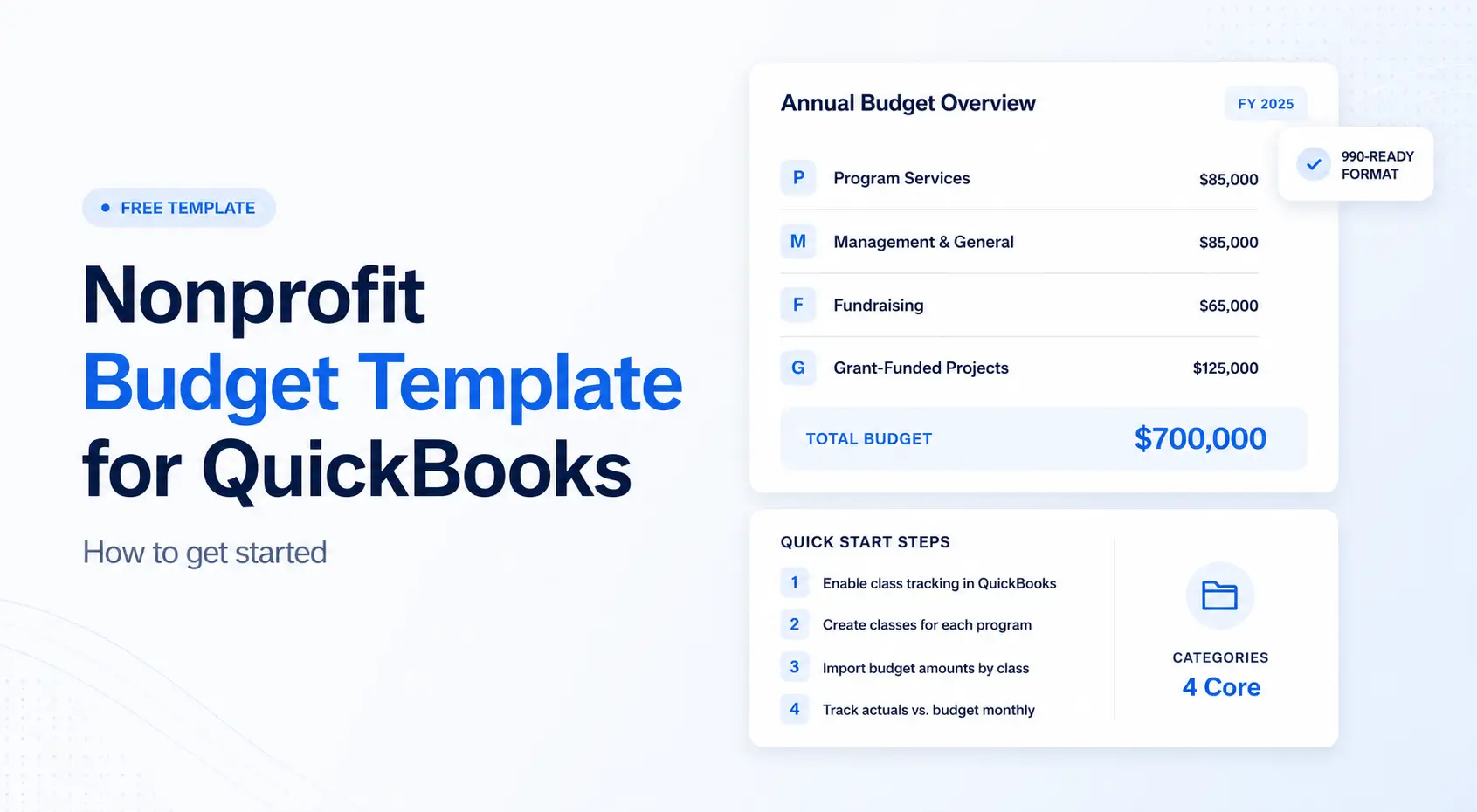
Step 1: Turn on class tracking
In QuickBooks Online Plus or Advanced:
- Go to Settings.
- Select Account and settings.
- Select Advanced.
- Open Categories.
- Turn on Track classes.
- Choose the class-assignment option that fits the accounting workflow.
- Save the settings.
Turning on class tracking applies to future activity. It does not automatically classify payroll transactions that were already recorded.
Step 2: Create and review the grant classes
Create one clearly named class for each active grant that will receive payroll charges. Include an unrestricted or administrative class when part of an employee's work is not chargeable to a grant.
Use names that staff can identify easily. Including a short grant name, funder, or award code can reduce selection errors.
Avoid creating duplicate classes for the same award. Also close or make inactive any class that should no longer receive new charges.
Step 3: Prepare the allocation support
Before running payroll, collect the records used to determine each employee's allocation. Depending on the employee and award, these may include:
- Approved time entries by grant
- Work schedules tied to grant activities
- Activity reports
- Supervisor-approved allocation summaries
- A documented interim percentage allocation
- Notes explaining a change from the prior pay period
The allocation should cover the employee's total compensated activity, not only grant-funded work. If an employee spends part of the pay period on unrestricted administration or fundraising, that portion should also be recorded.
Step 4: Enter the split during payroll
In the current QuickBooks Online Payroll workflow:
- Go to Payroll, then Employees.
- Select Run Payroll.
- Prepare the paychecks as usual.
- Select Edit classes and projects.
- Choose the class or project for each employee and each pay type.
- For salaried employees, enter the percentage assigned to each grant.
- For hourly employees, enter the hours assigned to each grant.
- For commission or other supported pay types, enter the dollar amount.
- Add additional classes or projects until the employee's pay is fully assigned.
- Confirm the allocation and complete payroll.
For salaried employees, confirm that the percentages total 100%. For hourly employees, confirm that grant hours plus unrestricted or other hours agree with the total hours paid.
Step 5: Review the posting
After payroll posts:
- Run the payroll summary or payroll details report.
- Run Profit and Loss by Class if grants are represented by classes.
- Compare the grant-level wage expense with the approved allocation support.
- Check that no material payroll amount appears in Not Specified or another unassigned category.
- Review payroll taxes and benefit-related accounts to confirm that they follow the organization's intended accounting treatment.
Do not assume that seeing wages by grant proves every related payroll cost was allocated correctly. Review the actual accounts and reports used by the organization.
How to Allocate and Reconcile Third-Party Payroll
How to Allocate Payroll When You Use an Outside Payroll Provider
If payroll is processed through ADP, Paychex, Gusto, or another outside system, the allocation may enter QuickBooks through an integration or a journal entry.
Intuit's guidance for recording third-party payroll recommends using payroll reports from the outside provider to prepare the accounting entry.
First, determine what has already posted
Before creating any entry, check whether the payroll provider has already synced:
- Gross wages
- Employer payroll taxes
- Employee deductions
- Payroll liabilities
- Net pay or payroll cash
If a complete payroll entry already exists, entering it again would duplicate payroll expense and liabilities. In that case, the organization may need a reclassification entry rather than a second payroll entry.
Use a balanced allocation entry
A payroll journal entry normally includes debit lines for payroll expenses and credit lines for liabilities and cash or a payroll clearing account. Grant classes can be assigned to the relevant expense lines.
If the original payroll expense has already posted to an unallocated class, a reclassification entry can move the expense among grant classes without changing total payroll expense. The exact entry depends on how the payroll integration posts and which accounts are involved.
Journal entries affect the general ledger. They do not replace payroll filings, employee pay records, or corrections that must be made in the payroll system. A qualified accountant should review the setup and any correction involving payroll liabilities or filed tax information.
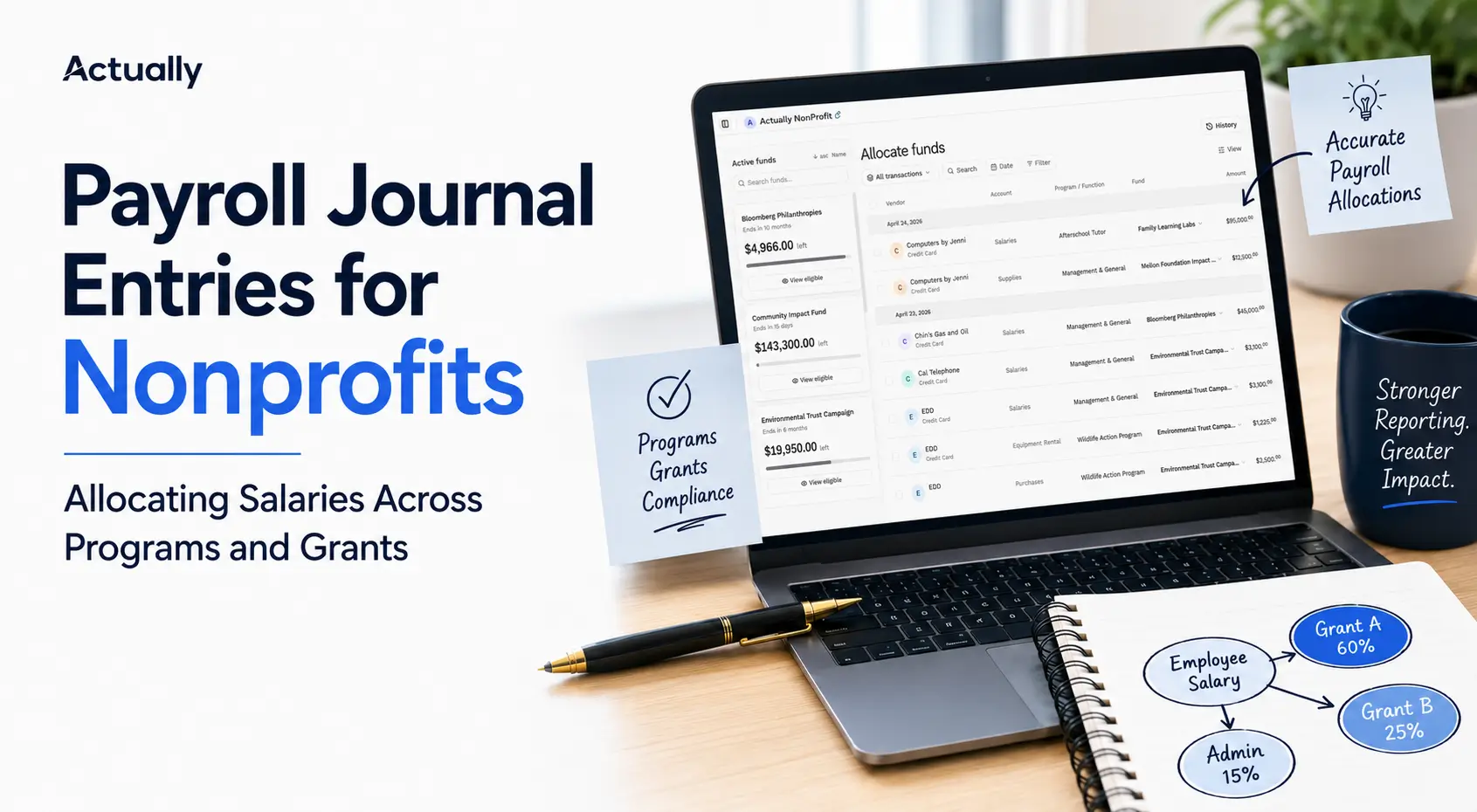
For a detailed explanation of the accounting entry itself, see Payroll Journal Entries for Nonprofits: Allocating Salaries Across Programs and Grants.
Worked Payroll Allocation Example
Assume a program director has the following monthly employer cost:
- Gross salary: $6,000
- Employer payroll taxes: $480
- Employer-paid benefits: $720
- Total employer cost: $7,200
Approved records show the employee's work was distributed as follows:
- Grant A: 50%
- Grant B: 30%
- Unrestricted operations: 20%
If the nonprofit's written policy allocates payroll taxes and benefits in proportion to salary, the calculation is:
The arithmetic is only one part of the process. The nonprofit should also retain the support for the 50/30/20 split, document the review, and confirm that each grant permits the charged costs.
Compliance, Best Practices, and Grant Visibility
How to Choose a Defensible Allocation Basis
The best allocation method is the one that reasonably reflects the work performed and follows the award terms and written policies.
Actual hours
Actual hours are often appropriate when employees move between grants during a pay period. Staff record the hours spent on each grant, program, and non-grant activity.
This method provides detailed support but depends on timely, accurate time entry and supervisor review.
Percentage of total activity
Percentage allocations may be appropriate for salaried employees when records reasonably reflect total activity. Percentages should cover all compensated work and total 100%.
For federal awards, a percentage is not defensible merely because it appeared in the original grant budget. It must be supported by the organization's records and internal controls.
Documented schedule or other activity measure
A stable work schedule or another quantifiable activity measure may be suitable in some circumstances. The organization should document why the basis reflects the way labor benefits each grant and update it when duties materially change.
Federal award requirements
For salaries and wages charged to federal awards, 2 CFR 200.430 requires records that accurately reflect the work performed and are supported by internal controls.
The rule also states that:
- Records should reflect the employee's total compensated activity.
- Budget estimates alone do not qualify as final support.
- Budget estimates may be used for interim accounting when they reasonably approximate the work, significant changes are captured, periodic after-the-fact reviews occur, and necessary adjustments are made.
- Nonexempt employees also need records showing the total hours worked each day, consistent with applicable labor requirements.
These are federal standards. A state, local, foundation, or other grant may impose different or additional requirements. The award document always matters.
How to Reconcile Grant Payroll Allocations
A reliable reconciliation connects four records:
- Payroll register: What the organization paid and accrued
- Allocation support: How each employee's work was divided
- QuickBooks general ledger: What was charged to each grant and account
- Grant budget and award terms: What the grant allows and how much remains
Use this monthly or pay-period checklist:
- Confirm total allocated gross wages equal the payroll register.
- Confirm allocation percentages total 100% for every salaried employee.
- Confirm allocated hours equal paid hours for every hourly employee.
- Reconcile employer taxes and benefits to the general ledger.
- Investigate payroll costs assigned to Not Specified or Unclassified.
- Compare grant-level payroll with approved budget categories.
- Identify charges outside the grant period.
- Review whether each employee actually worked on the charged grant.
- Document and approve corrections.
- Retain the report package with the period's accounting records.
When an allocation changes after payroll is processed, document the reason and make a controlled correction. Do not overwrite support in a way that removes the original calculation or approval trail.
Reports to Review in QuickBooks Online
The most useful reports depend on the configuration, but nonprofits commonly review:
Profit and Loss by Class
This report shows income and expenses by class. When each grant is a class, it provides a grant-level view of payroll and other activity.
Review the Not Specified or Unclassified column. A balance may indicate that a transaction or payroll line was not assigned correctly.
Payroll Summary or Payroll Details
Payroll reports help validate wages, taxes, deductions, and employer costs. Compare them with the class-based accounting report rather than relying on either report alone.
Transaction Detail by Account
This report can help trace payroll expense entries by account, date, amount, and class. It is useful when the grant total does not agree with the approved allocation.
Budget versus actual reporting
Grant payroll should also be compared with the approved personnel budget. A correct accounting allocation can still create a budget problem if the grant is spending too quickly or the salary category has insufficient remaining funds.
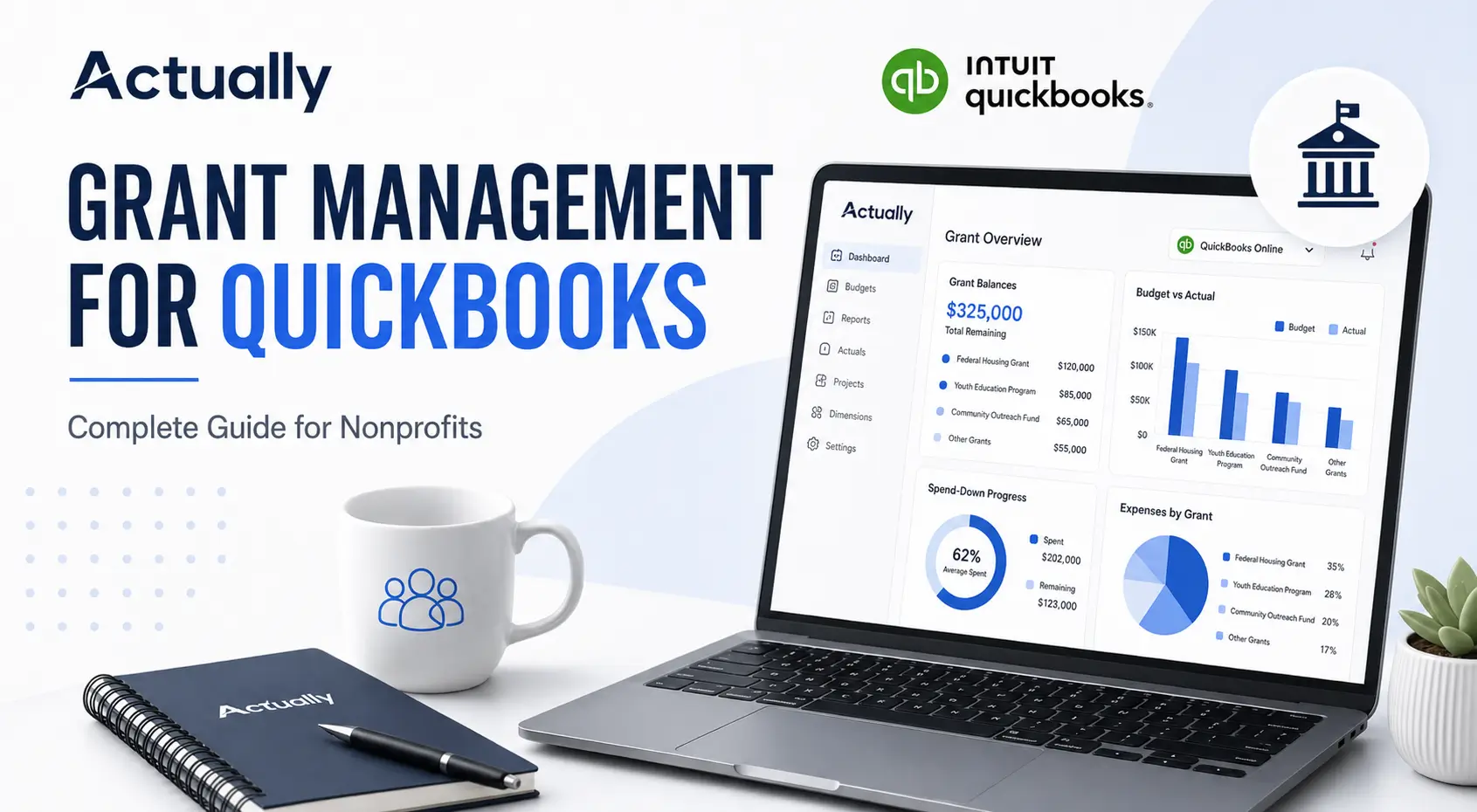
For a broader grant workflow, see Grant Management for QuickBooks: Complete Guide for Nonprofits.
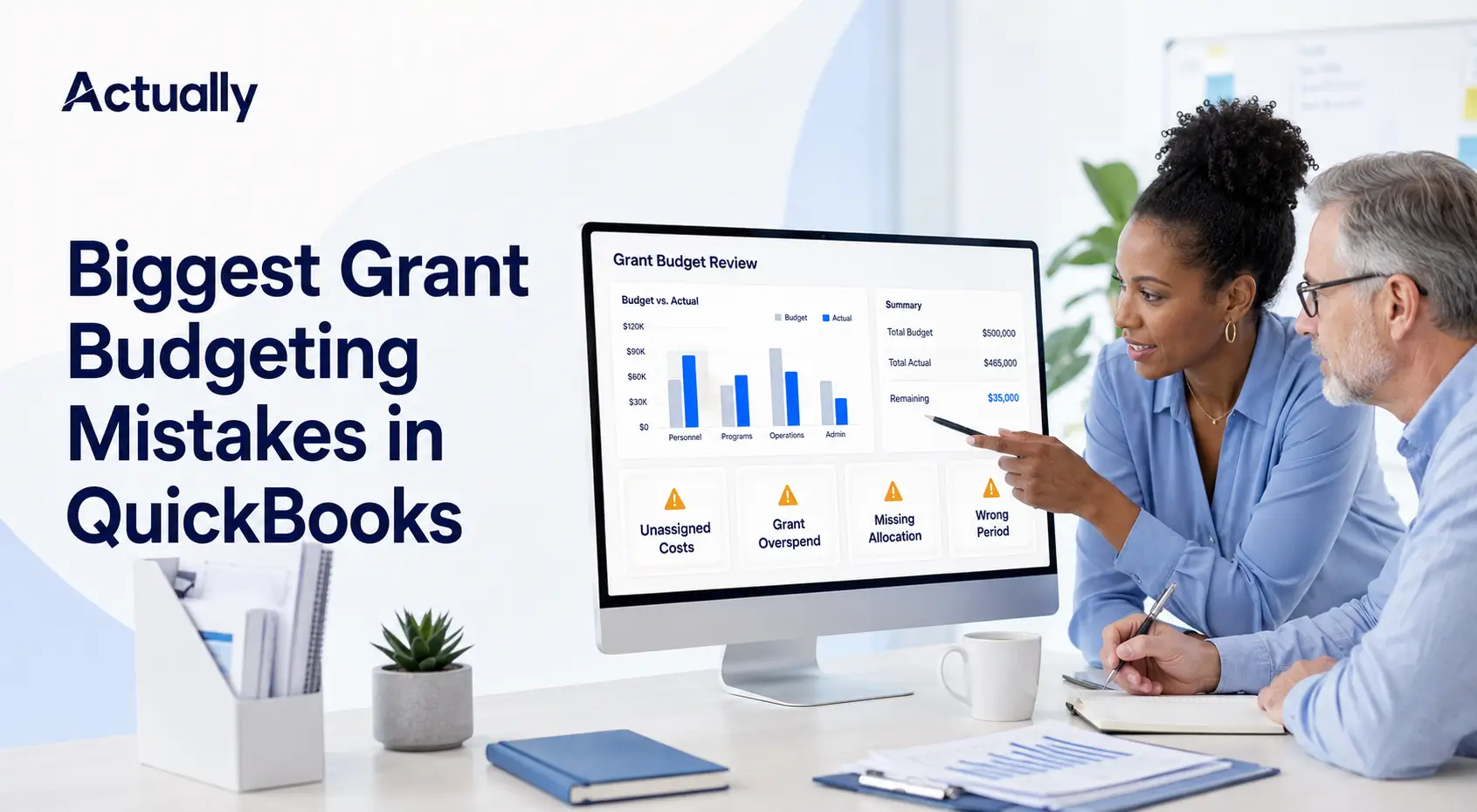
Common QuickBooks Payroll Grant Allocation Mistakes
Using budget percentages without reviewing actual work
A proposal may budget an employee at 40% on a grant, but that does not prove the employee performed 40% of their work for the grant in every pay period.
Use budget percentages only in a manner permitted by the award and the organization's policies. For federal awards, complete the required after-the-fact review and adjustments.
Allocating only salary
Some teams split gross wages but leave employer taxes and benefits in an unrestricted class. This can understate grant costs and overstate unrestricted spending, unless that treatment is intentional and consistent with the award and policy.
Charging 100% to the employee's main grant
An employee's title or primary assignment does not justify charging all compensation to one award when the employee also works on other grants, administration, or fundraising.
The IRS gives a similar functional-allocation example in the Form 990 instructions: when an employee spends 40% of time on fundraising and 60% on program management, the salary must be split accordingly rather than reported entirely as program expense.
Mixing grants and programs in one class list
This creates inconsistent reports and makes it difficult to understand what each class total represents. Establish one purpose for the class dimension.
Duplicating an external payroll entry
If the outside payroll provider has already synced to QuickBooks, a second full journal entry will duplicate expenses and liabilities. Inspect the existing posting before adding any manual entry.
Correcting filed payroll through the general ledger only
A journal entry can correct accounting classification, but it does not correct employee pay records or payroll tax filings. Corrections to payroll data must be handled through the appropriate payroll process.
Ignoring unassigned payroll
Amounts in Not Specified or Unclassified can make grant reports incomplete. Review this column every period and resolve unexplained balances.
Best Practices for Splitting Payroll Between Grants
- Maintain a written payroll allocation policy.
- Define whether grants, programs, departments, or funds own the class dimension.
- Use consistent grant names and award codes.
- Require staff to record time or activity close to when the work occurs.
- Require supervisor or grant-manager approval.
- Include all compensated activity in the allocation.
- Reconcile every pay period or at least monthly.
- Allocate related taxes and benefits using a documented, consistent basis.
- Review each grant's allowability rules and budget period.
- Preserve original calculations, approvals, corrections, and reports.
- Limit who can create classes, edit allocations, and post journal entries.
- Test reports before relying on them for a funder submission.
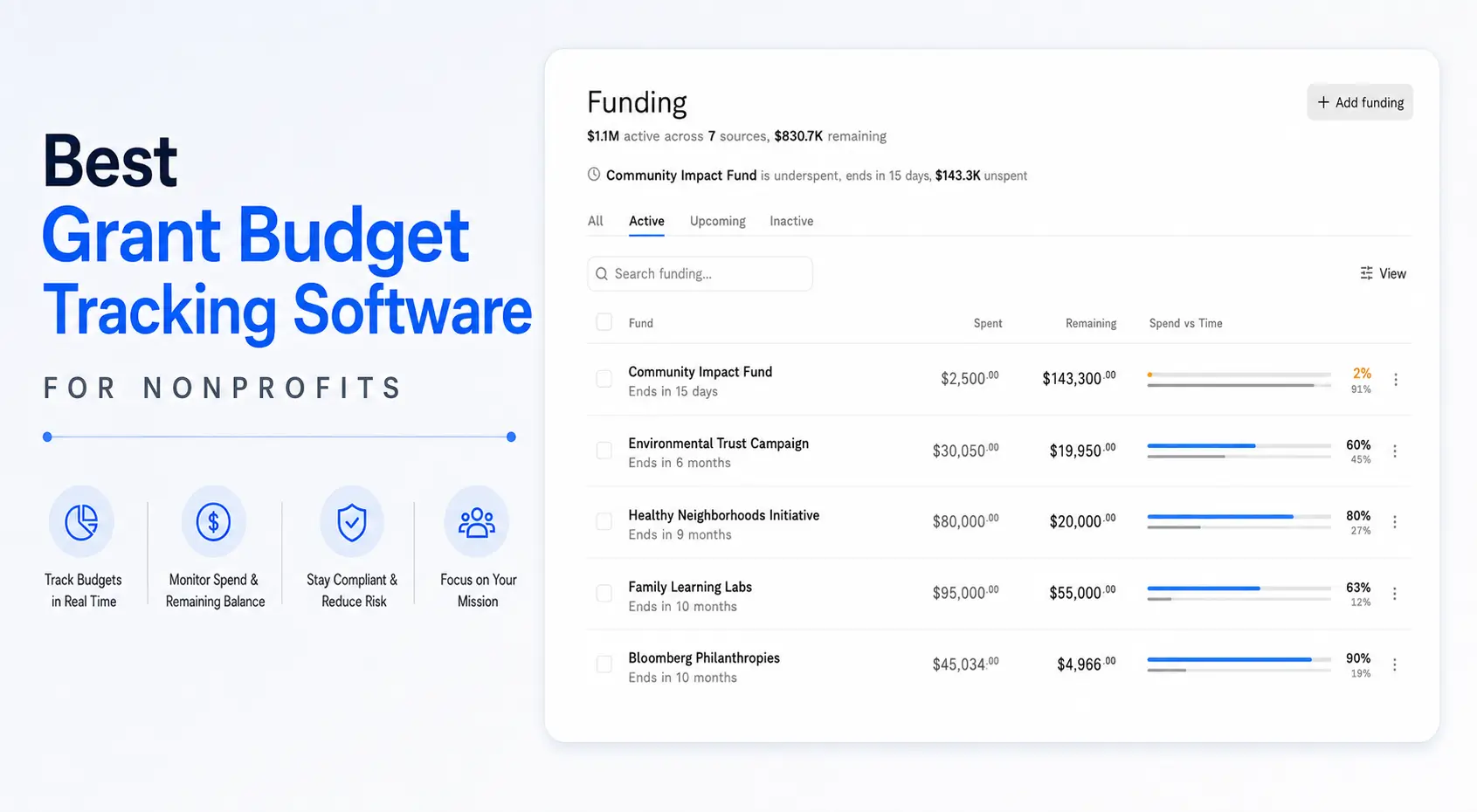
How Actually Adds Grant-Level Visibility
QuickBooks Online records payroll and other accounting transactions. The harder question is often what those transactions mean for each grant budget.
Actually integrates with QuickBooks Online to help nonprofits view grant budgets, spending, remaining balances, restricted funds, and allocations in one place. Once payroll costs are recorded and categorized correctly in QuickBooks, clearer grant-level reporting can help finance and program leaders answer questions such as:
- How much personnel budget remains for each grant?
- Is payroll spending on pace with the award period?
- Which grants are approaching their salary budget limits?
- How do current allocations affect unrestricted funds?
- Where does actual spending differ from the approved budget?
Actually does not replace the payroll system, source time records, or the organization's responsibility to determine allowability. It adds financial visibility around the QuickBooks data so teams can monitor the effect of payroll allocations alongside the rest of each grant budget.
If your nonprofit is managing several awards, learn how Actually supports grant management alongside QuickBooks Online.
Conclusion
The most reliable way to split payroll between grants in QuickBooks is to connect documented employee activity with a consistent class or project structure.
QuickBooks Online Payroll can divide salaries by percentage, hourly earnings by hours, and other supported pay types by dollar amount during the payroll run. Organizations using an outside payroll provider can record or reclassify payroll through properly constructed journal entries, provided they first confirm what has already posted.
The software step is only part of the process. Accurate grant payroll also requires support for the work performed, review of award terms, reconciliation to payroll and the general ledger, and timely corrections. When those controls are in place, nonprofits can produce more reliable grant reports and understand the true personnel cost of every funded program.
Frequently Asked Questions
Can QuickBooks Online split one employee's payroll between multiple grants?
Yes. In QuickBooks Online Payroll, an employee's payroll can be split among multiple classes or projects. Salaried earnings can be divided by percentage, hourly earnings by hours, and commissions or other pay types by dollar amount.
Which QuickBooks Online plan supports payroll allocation by class?
Class tracking is available in QuickBooks Online Plus and Advanced. It is not included in Simple Start or Essentials. A compatible QuickBooks payroll service is also needed to use the native payroll allocation workflow.
Should each grant be a class in QuickBooks Online?
Each grant can be set up as a class when grant-level income and expense reporting is the organization's main use for classes. However, classes should have one consistent meaning. If the nonprofit already uses classes for programs or departments, it should review another structure with its accountant rather than mixing dimensions.
Can a nonprofit use budget percentages to allocate payroll?
Budget percentages may be useful for planning or provisional accounting, but they do not always provide sufficient final support. For federal awards, budget estimates alone are not enough. The organization must periodically compare interim charges with records reflecting the work performed and make necessary adjustments.
How should hourly payroll be divided between grants?
Hourly payroll is commonly allocated using the hours worked for each grant during the pay period. Total grant, program, administrative, and other hours should agree with the employee's total paid hours and supporting time records.
How should payroll taxes and benefits be allocated?
Payroll taxes and benefits should be allocated using a reasonable, documented, and consistently applied basis that follows the award terms and the nonprofit's policies. A common approach is to allocate them in proportion to direct salary, but this is not appropriate in every situation.
What if payroll is processed outside QuickBooks Online?
Use the payroll provider's report to determine the correct accounting entry. If the provider has not posted payroll to QuickBooks, a balanced journal entry can record the payroll. If it has already posted, a reclassification entry may be needed instead. Confirm the existing transactions first to avoid duplication.
What reports show payroll costs by grant in QuickBooks Online?
When grants are tracked as classes, Profit and Loss by Class shows payroll and other expenses by grant. Payroll Summary or Payroll Details should also be reviewed to reconcile the class totals with the payroll records.

David Cristello
.svg)
About the Author
David Cristello is the Co-Founder of Actually Finance. He's been an entrepreneur in the accounting and nonprofit space for over 10 years, previously building a company that made the Inc5000 list
.png)






.webp)