
- Introduction
- Why Grant Budgeting in QuickBooks Goes Wrong
- The Biggest Grant Budgeting Mistakes Nonprofits Make in QuickBooks
- How to Build a Better Grant Budgeting Structure in QuickBooks
- Monthly Grant Budget Review Checklist
- Conclusion
- Frequently Asked Questions
Table of contents
Last Update: August 2026
QuickBooks Online can record grant income, expenses, payroll, and budget data. It can also use classes, projects, customers, locations, and customized reports to organize financial activity. The software is flexible, but that flexibility creates room for inconsistent decisions.
One employee may code a grant as a class, another may use a customer, and a third may create a new expense account. The transactions are technically recorded, but the organization cannot produce one reliable view of the grant.
The biggest grant budgeting mistakes nonprofits make in QuickBooks are rarely caused by one incorrect entry. They usually develop when the accounting structure, grant budget, allocation process, and monthly review do not follow the same logic.
This guide explains the most common problems, why they matter, and how nonprofits can build a more reliable grant budgeting process around QuickBooks Online. It provides general educational information and should be applied alongside grant agreements, accounting policies, applicable regulations, and professional advice.
Key Takeaways
- QuickBooks needs a defined tracking structure before transactions are entered.
- Grant budgets should follow award categories and periods, not only the nonprofit's fiscal year and chart of accounts.
- Shared costs and payroll must be allocated using reasonable, documented methods.
- Bank-feed suggestions should be reviewed before grant and class information is accepted.
- Budget-to-actual reports are useful only when transactions, allocations, and budgets use compatible dimensions.
- Closing controls and monthly reconciliations protect prior grant reports from unexplained changes.
- QuickBooks records accounting activity, while a connected grant budgeting process is still needed to monitor remaining balances, spending pace, and funding restrictions.
Why Grant Budgeting in QuickBooks Goes Wrong
QuickBooks Online is a general accounting platform rather than a complete grant compliance system. A nonprofit must decide how its accounting dimensions will represent funds, grants, programs, departments, and functional expense categories.
Intuit describes classes as a way to track income, expenses, and profitability by meaningful business segment. Projects group transactions connected with a customer or job. Locations are intended for offices, regions, outlets, or departments. These features overlap enough that a nonprofit can choose several workable structures, but they should not be used interchangeably without a written design.
The problem becomes more serious when the grant budget and accounting structure do not match. A funder may approve separate amounts for personnel, travel, supplies, equipment, and indirect costs, while the QuickBooks budget is organized only by broad general-ledger accounts. The total budget may be correct, but the organization cannot tell whether a restricted line item is over budget.
Timing creates another source of confusion. A grant may run from July through June while the nonprofit's fiscal year runs from January through December. A standard fiscal-year report can show only half the grant period unless the report dates and budget design are handled deliberately.
For federal awards, the financial management system must support required reporting, identify federal awards, provide accurate and complete financial results, compare expenditures with budget amounts for each award, and include written procedures for determining cost allowability. These requirements appear in 2 CFR 200.302.
QuickBooks can hold much of the accounting data, but software configuration alone does not establish compliance. The nonprofit still needs policies, source documentation, review controls, and a reporting process.
The Biggest Grant Budgeting Mistakes Nonprofits Make in QuickBooks
The following mistakes are common because each one can look reasonable in isolation. The risk appears later, when finance staff try to reconcile the books, explain a variance, or prepare a funder report.
Mistake 1: Creating a New Income or Expense Account for Every Grant
The chart of accounts should describe the nature of a transaction, such as salaries, travel, supplies, rent, or grant revenue. It should not become a list of every award the organization has ever received.
Creating separate accounts such as “Grant A Salaries,” “Grant B Salaries,” and “Grant C Salaries” can make the chart of accounts difficult to maintain. It also weakens organization-wide reporting because the same type of expense is spread across many accounts.
Better approach: Use general-ledger accounts for the nature of income and expenses, then use an appropriate tracking dimension for the grant or funding source. The exact choice should reflect the organization's reporting needs and QuickBooks subscription.
Mistake 2: Using Classes, Projects, Customers, and Locations Without a Clear Purpose
A nonprofit may use classes for programs, projects for grants, and locations for branches. Another organization may use classes for grants and subclasses for programs. Either structure can work if it is consistent and supports the required reports.
Problems begin when the same dimension serves several unrelated purposes. If one class represents a grant, another represents a program, and another represents fundraising, the resulting Profit and Loss by Class mixes funding sources with functional activities.
Better approach: Create a short data map that assigns one meaning to each field.
Class and location tracking are currently available in QuickBooks Online Plus and Advanced, according to Intuit. Feature availability and workflows can change, so nonprofits should confirm their subscription before finalizing the accounting design.
Mistake 3: Building Only an Organization-Wide Annual Budget
An annual operating budget answers whether the nonprofit is on plan overall. It does not necessarily show whether a specific award is overspent or whether a restricted budget category has enough funding left.
Consider a nonprofit with a $1 million operating budget and a $100,000 grant. The organization can be under budget overall while the grant's personnel category is over budget by $12,000.
Better approach: Maintain a grant budget that reflects the approved award amount, category limits, amendments, cost-sharing commitments, indirect cost treatment, and grant period. Connect those categories to the accounts and dimensions used in QuickBooks.
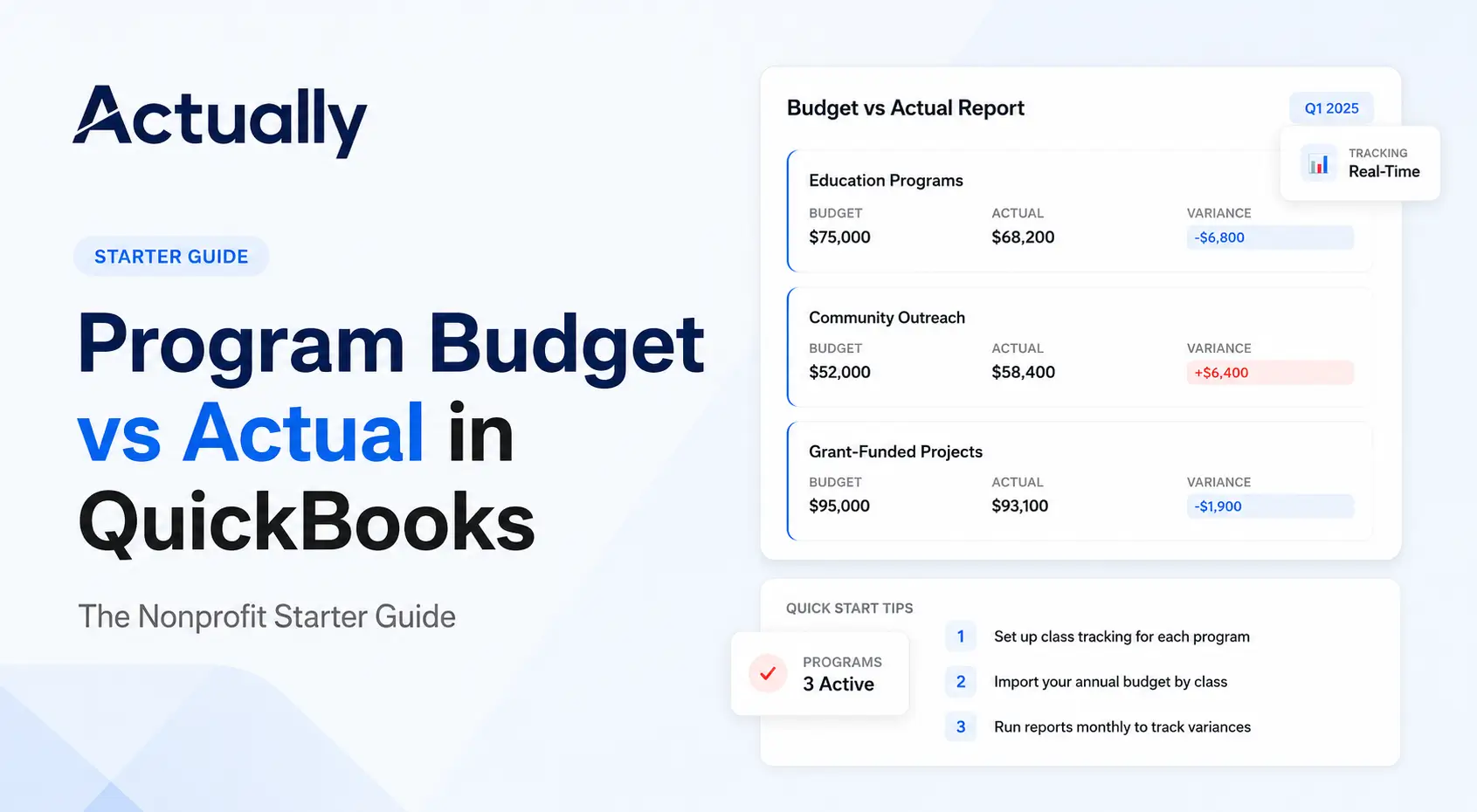
QuickBooks Online Plus and Advanced support budget targets by class and budget-versus-actual reporting. That can be useful when classes are the selected grant dimension. It does not remove the need to confirm that the QuickBooks categories match the funder's approved budget.
Mistake 4: Ignoring the Grant Period
QuickBooks reports often default to the organization's fiscal year, calendar year, or a standard month range. Grants frequently start and end on different dates.
Using the wrong period can include pre-award costs, omit the final months of a grant, or compare twelve months of spending with only part of the award budget.
Better approach: Record the award start date, end date, budget periods, reporting deadlines, and closeout date. Run reports using the exact period of performance unless the award permits costs outside that period. For multi-year awards, separate the total award from annual or budget-period targets when needed.
Mistake 5: Accepting Bank-Feed Categories Without Reviewing Grant Coding
Downloaded bank transactions can reduce data entry, but a suggested expense category does not confirm grant allowability or the correct class, project, customer, or location.
A software subscription may be correctly categorized as an information technology expense while still being assigned to the wrong grant. A recurring rule can repeat that error every month.
Better approach: Review the expense account, payee, grant dimension, program or function, date, support, and allocation before posting. Intuit's bank-feed guidance allows transactions to be split among multiple categories, but the user remains responsible for reviewing the result.
Mistake 6: Charging an Entire Shared Expense to One Grant
Rent, technology, insurance, finance staff, and other shared costs may benefit several grants and programs. Charging the entire amount to the grant with the largest available balance can distort every affected budget.
For federal awards, 2 CFR 200.405 states that costs are allocable according to relative benefit. A cost allocable to one federal award cannot be moved to another simply to cover a shortfall or avoid a restriction.
Better approach: Use a documented allocation basis that reasonably reflects benefit, such as square footage for facilities, full-time equivalents for certain shared staff costs, actual usage for technology, or another suitable driver. Apply the method consistently and retain the calculation.
Mistake 7: Treating Payroll as a Single Grant Expense
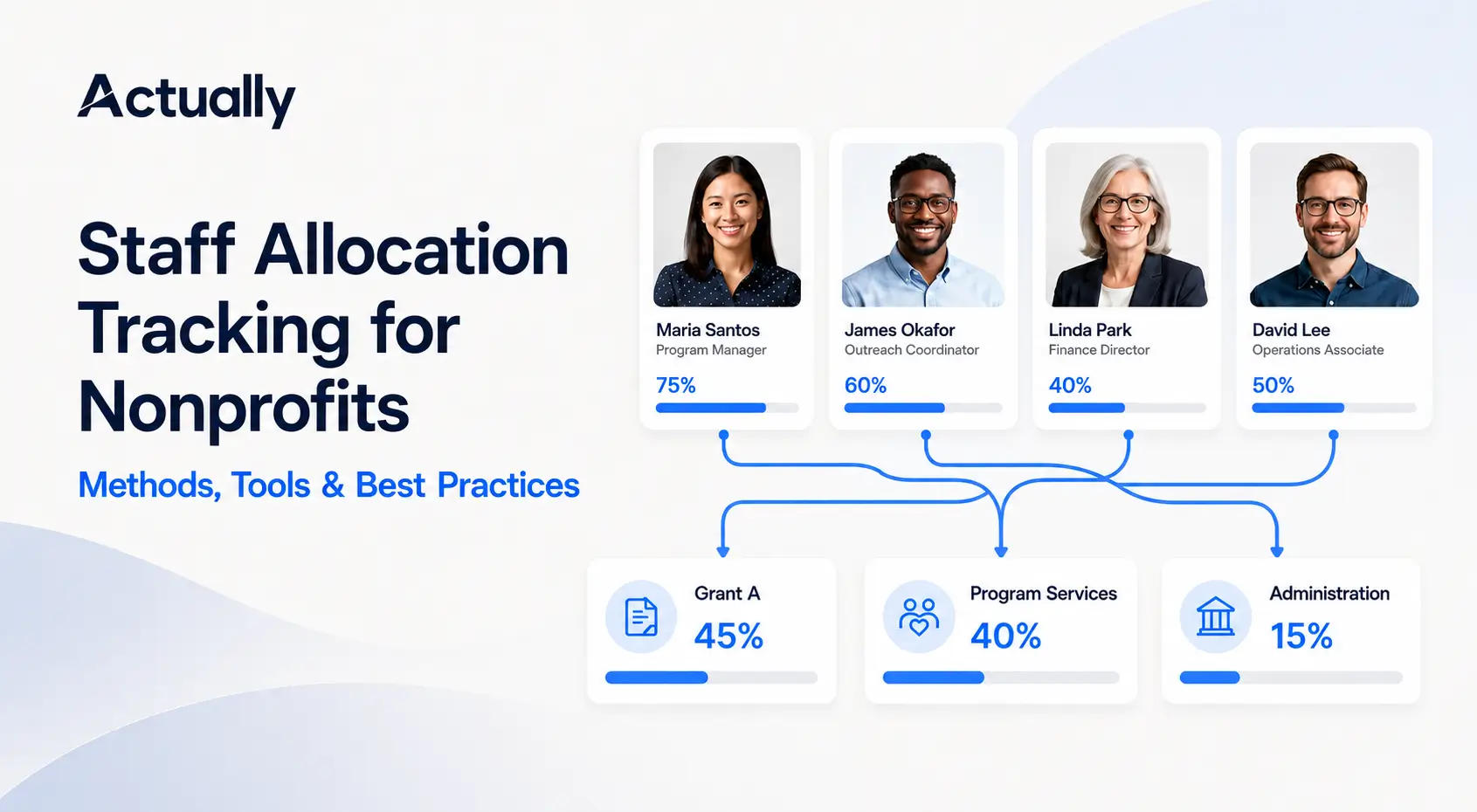
Payroll is often the largest grant-funded cost. If an employee works across multiple programs, grants, administration, and fundraising, charging the employee entirely to one grant can create material misstatements.
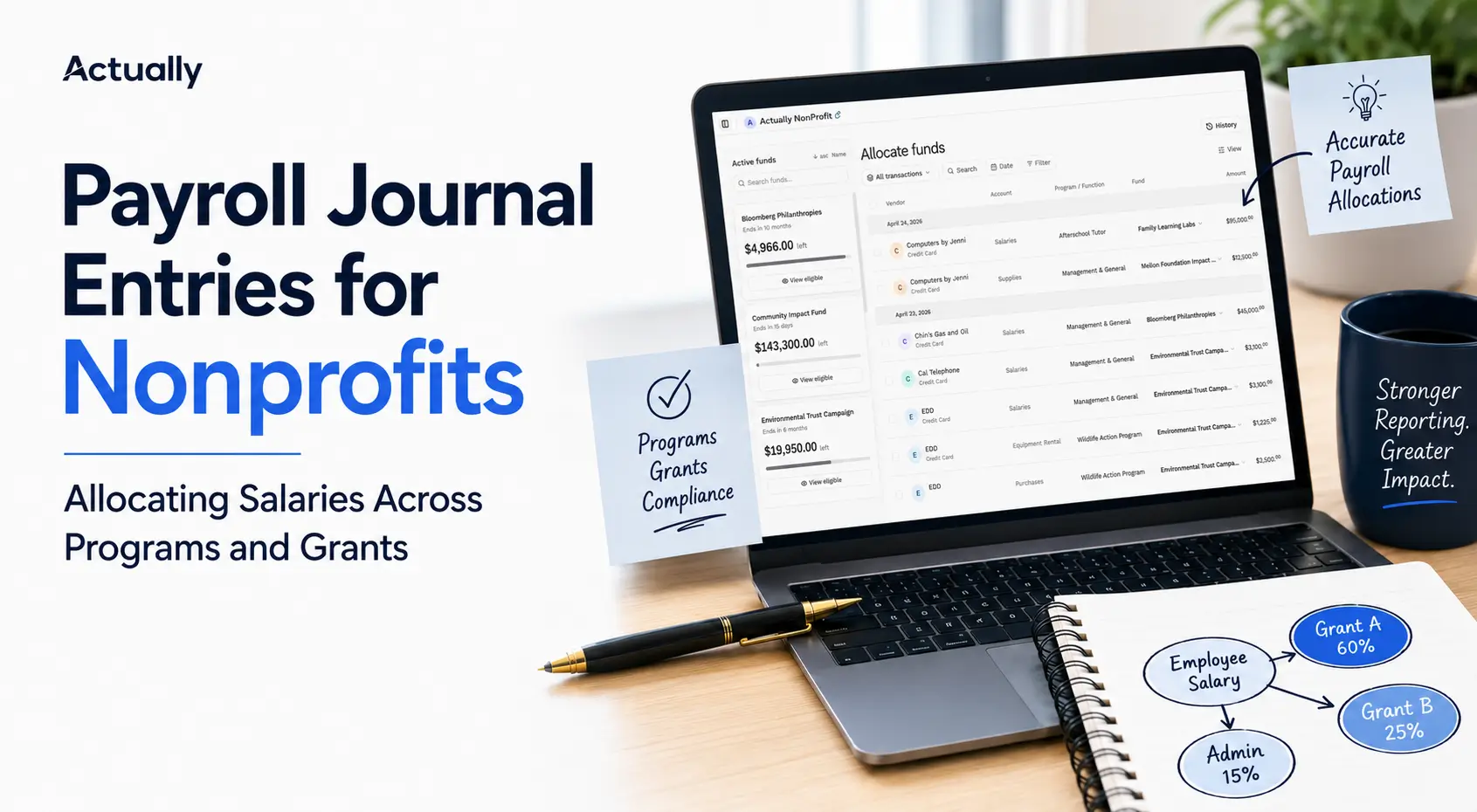
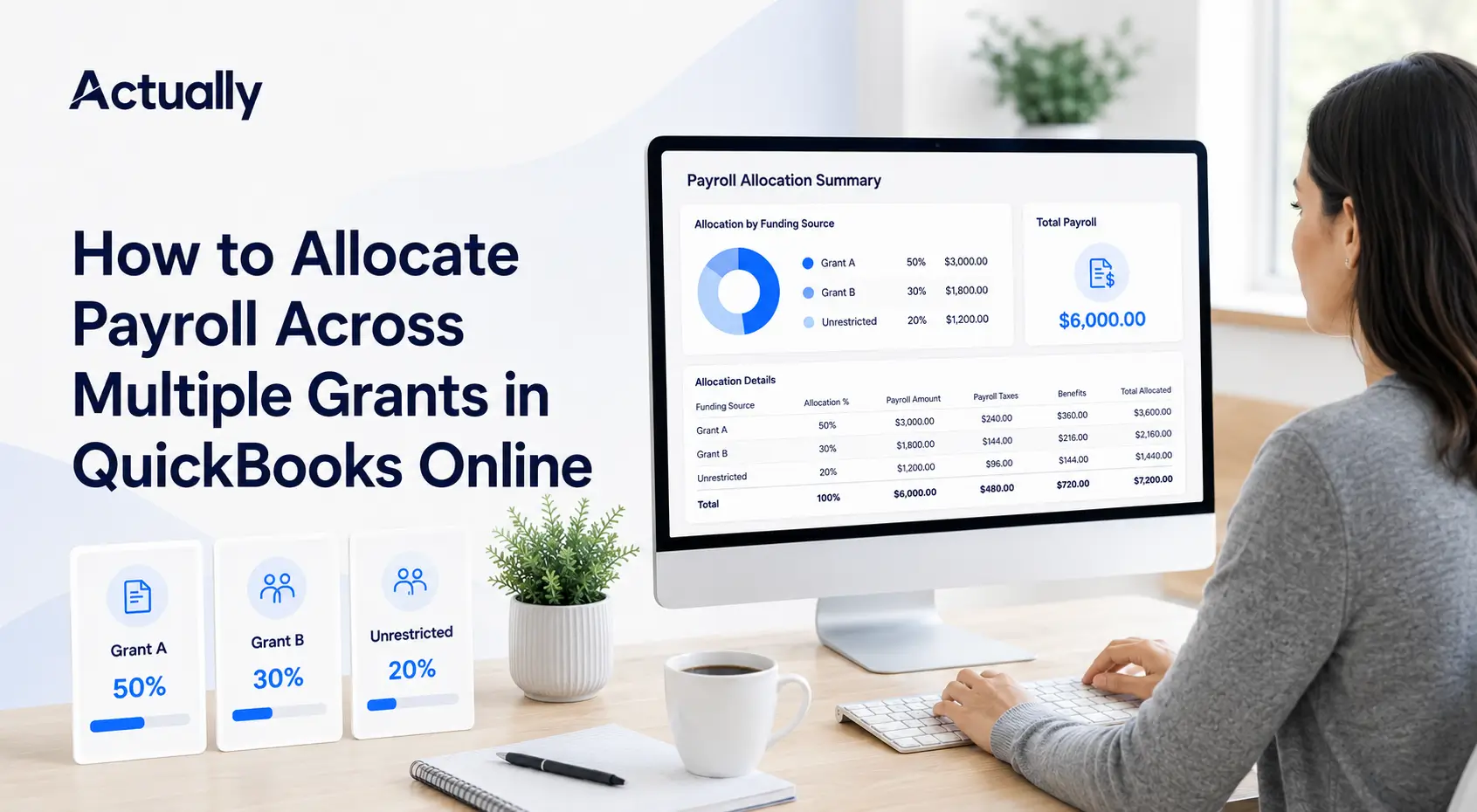
Current Intuit guidance says QuickBooks Online Payroll Premium and Elite can allocate salaried employees by percentage, hourly employees by hours, and certain other pay types by dollar amount across classes and projects. The feature applies within the supported payroll and subscription setup.
Better approach: Base payroll allocations on records that reflect the employee's work and follow the organization's written policy. Allocate related employer taxes and benefits under a consistent, allowable method. Review allocations whenever duties change.
For federal awards, 2 CFR 200.430 requires compensation charges to be supported by records that accurately reflect the work performed and by appropriate internal controls. Learn more in How to Calculate Payroll Allocations by Percentage.
Mistake 8: Treating Budget Availability as Proof That a Cost Is Allowable
An available budget balance does not make a transaction allowable. The cost must still comply with the award terms, applicable cost principles, organizational policy, period of performance, and any required approval.
For example, a grant may have $10,000 left in equipment, but that does not automatically permit an equipment purchase if prior approval is required or the item does not support the funded activity.
Better approach: Add an allowability review before posting or approving material expenses. Keep a record of prior approvals, budget amendments, procurement support, and funder correspondence where applicable.
Mistake 9: Confusing Cash Received With Grant Revenue or Budget Availability
Cash, revenue recognition, reimbursable expenditures, and the approved budget are related but different measures.
A reimbursement grant may permit $200,000 of spending even though only $60,000 has been received to date. A conditional award may not qualify for revenue recognition when the agreement is signed. A restricted contribution may be recognized under the applicable accounting guidance while remaining limited to a specific purpose.
Better approach: Reconcile at least four figures separately:
- Total approved award
- Recognized revenue
- Cash received or reimbursements collected
- Allowable expenditures charged
The remaining budget should be calculated from the approved budget and eligible spending, not from the bank balance alone. Revenue recognition questions should be reviewed with the nonprofit's accountant.
Mistake 10: Failing to Reconcile Grant Reports to the General Ledger
A spreadsheet or funder portal may show one total while QuickBooks shows another. Differences can arise from late entries, journal adjustments, excluded costs, date filters, or inconsistent coding.
Submitting the external report without reconciling it creates two competing records of the same award.
Better approach: Tie every reported category to a saved QuickBooks report or reconciliation schedule. Document reconciling items and verify that the total agrees with the general ledger. Retain the version submitted to the funder and the support used to prepare it.
Mistake 11: Leaving Closed Grant Periods Open to Uncontrolled Changes
Editing a transaction after a grant report is submitted can change historical totals without changing the report already sent to the funder.
QuickBooks Online allows administrators to set a closing date and require a warning or password for earlier transactions. Intuit recommends reviewing completeness and reconciling accounts before locking the books.
Better approach: Complete the monthly or reporting-period close, save the grant reports, approve adjustments, and lock the period according to policy. If a prior-period correction is necessary, record who approved it, why it was made, and whether the funder report must be revised.
How to Build a Better Grant Budgeting Structure in QuickBooks
Correcting isolated transactions will not solve a structural problem. A reliable setup connects the award, budget, chart of accounts, tracking fields, allocation process, and reports.
Step 1: Inventory the Reporting Requirements
For each award, document:
- Funder and award name
- Award number
- Start and end dates
- Approved budget and amendments
- Budget categories and restrictions
- Match or cost-sharing requirements
- Direct and indirect cost rules
- Reporting frequency and format
- Required approvals
- Record-retention terms
This information should guide the accounting design rather than being added after transactions are already entered.
Step 2: Define the Purpose of Every QuickBooks Dimension
Choose what accounts, classes, projects or customers, locations, and custom fields represent. Keep the design as simple as possible while preserving the dimensions needed for grant, management, board, and tax reporting.
Do not assume that the structure used by another nonprofit will work unchanged. An organization with three programs and two grants has different reporting needs from one with twenty grants, several sites, and shared staff.
Step 3: Map Grant Categories to the General Ledger
Create a crosswalk between the funder's budget categories and the nonprofit's accounts. One grant category may contain several accounts.
The crosswalk helps finance staff produce funder reports without changing the underlying chart of accounts for every award.
Step 4: Load the Correct Budget
Enter or maintain the approved budget by category and period. Record amendments as approved changes, not as silent overwrites. Keep the original award budget and a history of revisions.
If a class-based budget is appropriate, Intuit documents monthly, quarterly, and annual class budgets and a Budgets vs. Actuals report in QuickBooks Online Plus and Advanced. If the required grant structure does not fit the native budget design, maintain a controlled connected budget schedule or grant budgeting system.
Step 5: Establish Allocation and Coding Rules
Document how payroll, occupancy, technology, insurance, and other shared costs are assigned. Specify the allocation base, calculation frequency, reviewer, rounding method, and correction process.
Also define who may create new classes, projects, customers, accounts, and vendors. Uncontrolled additions quickly produce duplicates and inconsistent reports.
Step 6: Design the Monthly Reports Before Going Live
Test whether the structure can produce:
- Budget versus actual by grant
- Spending by approved budget category
- Remaining grant balance
- Payroll and shared-cost detail
- Restricted and unrestricted activity
- Functional expenses by program, management and general, and fundraising
- Transactions with missing grant or class coding
The IRS Form 990 instructions require applicable organizations to report expenses by function, including program services, management and general, and fundraising. Functional reporting and grant reporting are different dimensions, so one should not unintentionally replace the other.
Step 7: Add Grant Visibility Around QuickBooks
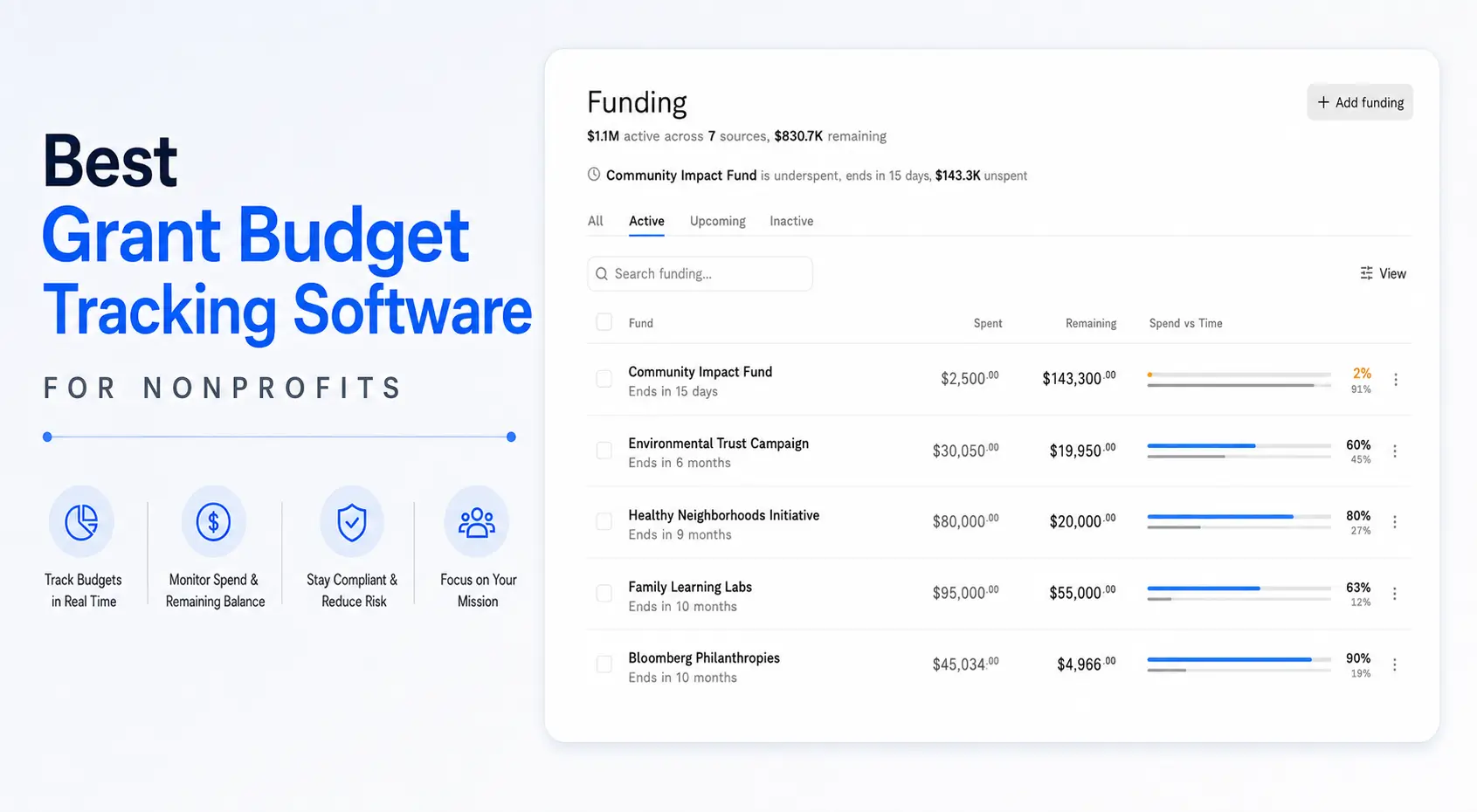
QuickBooks is the accounting record, but grant teams often need a clearer operational view of remaining balances, spending pace, allocations, and funding gaps.
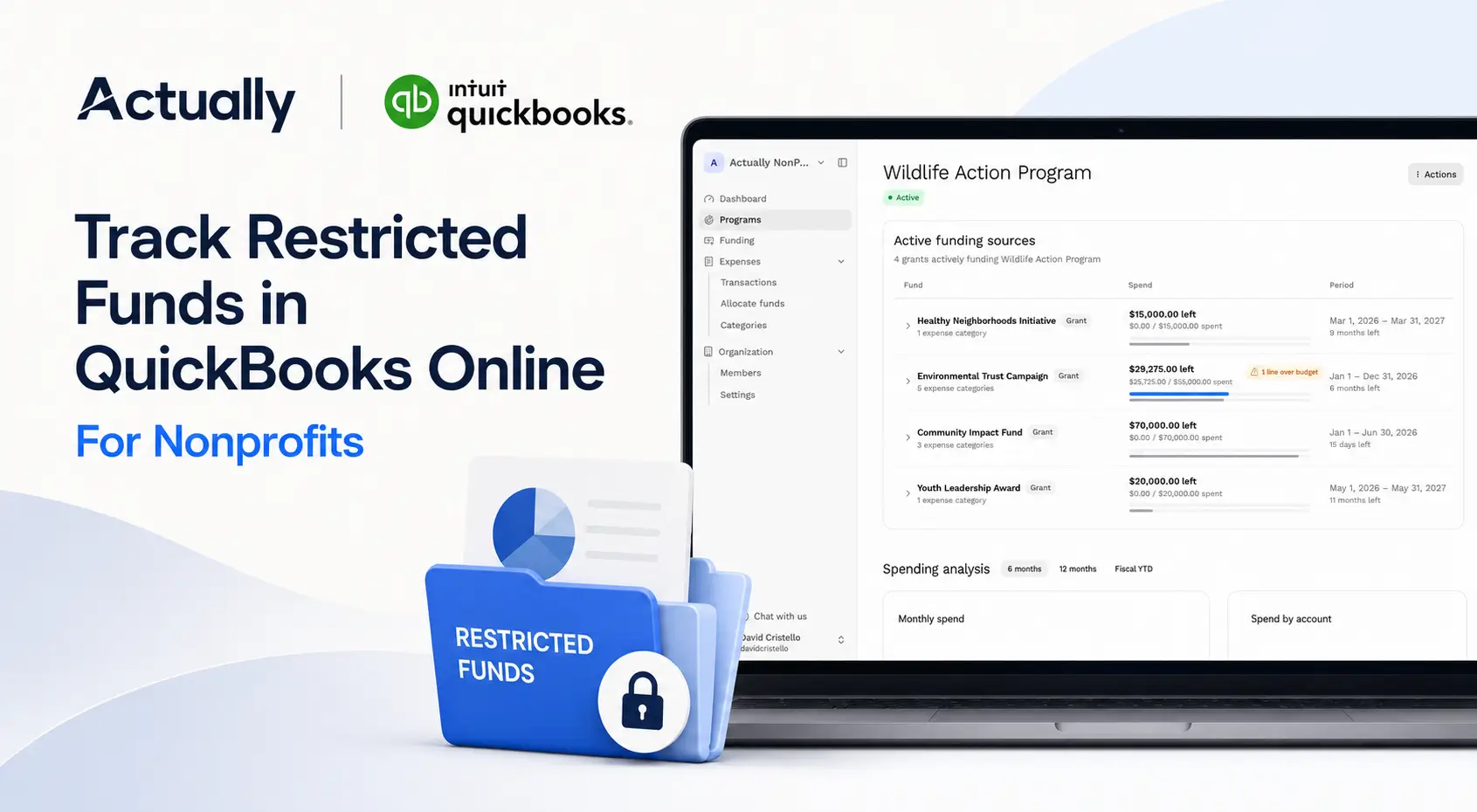
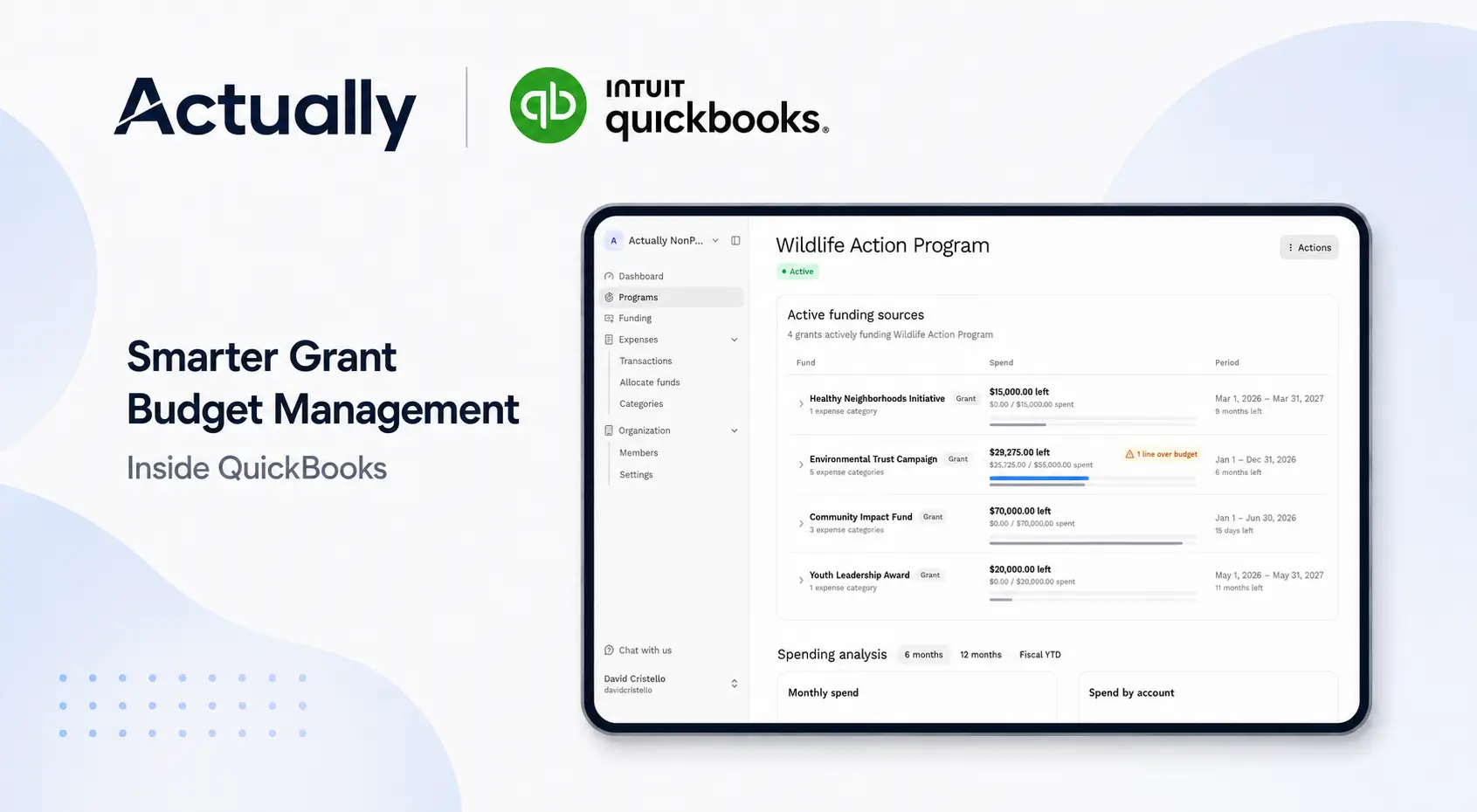
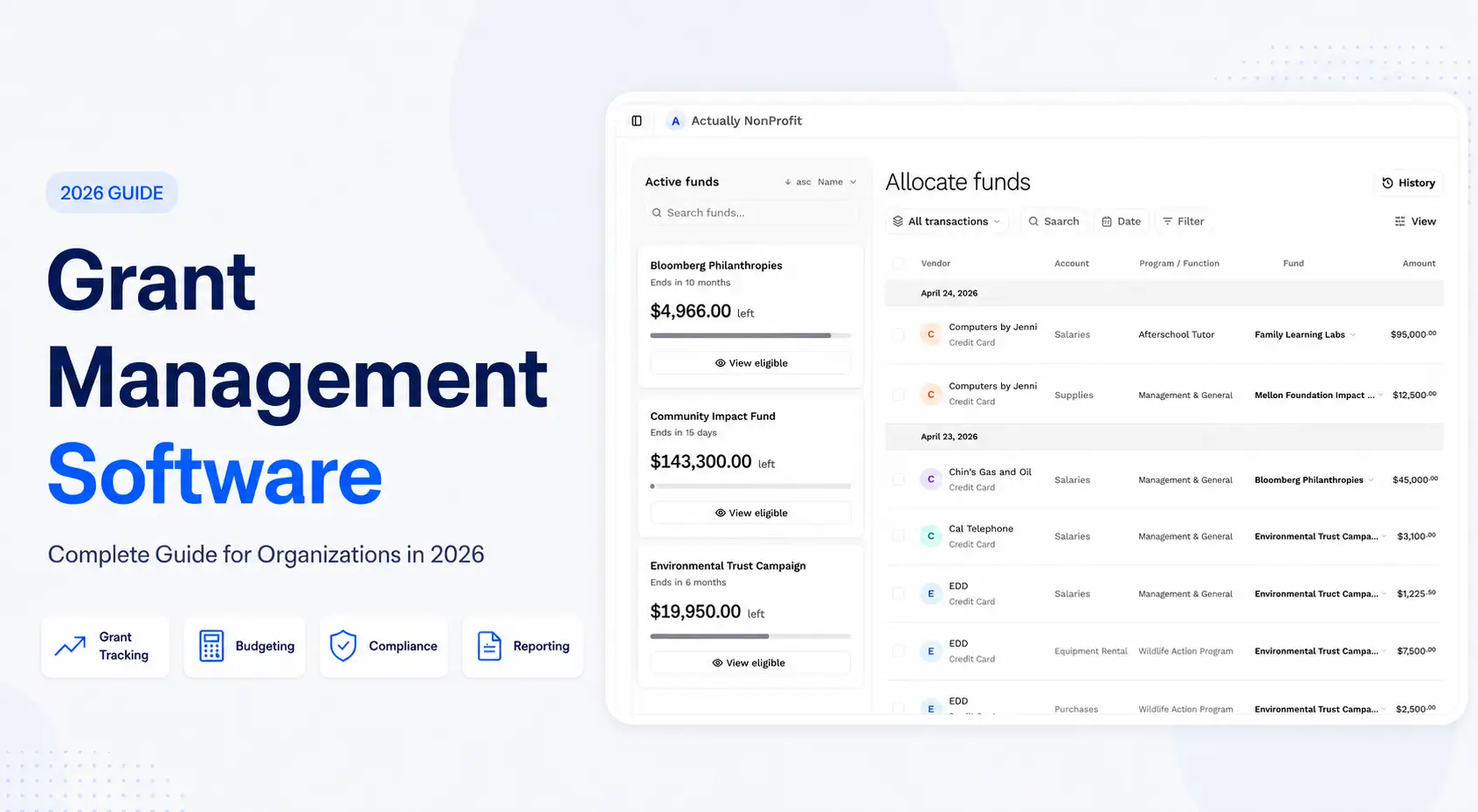
Actually integrates with QuickBooks Online to provide grant budget visibility and spend tracking around the accounting data. It does not decide whether a cost is allowable or replace source documentation. It helps finance and program teams see how recorded activity affects grant budgets without relying on disconnected spreadsheet versions.
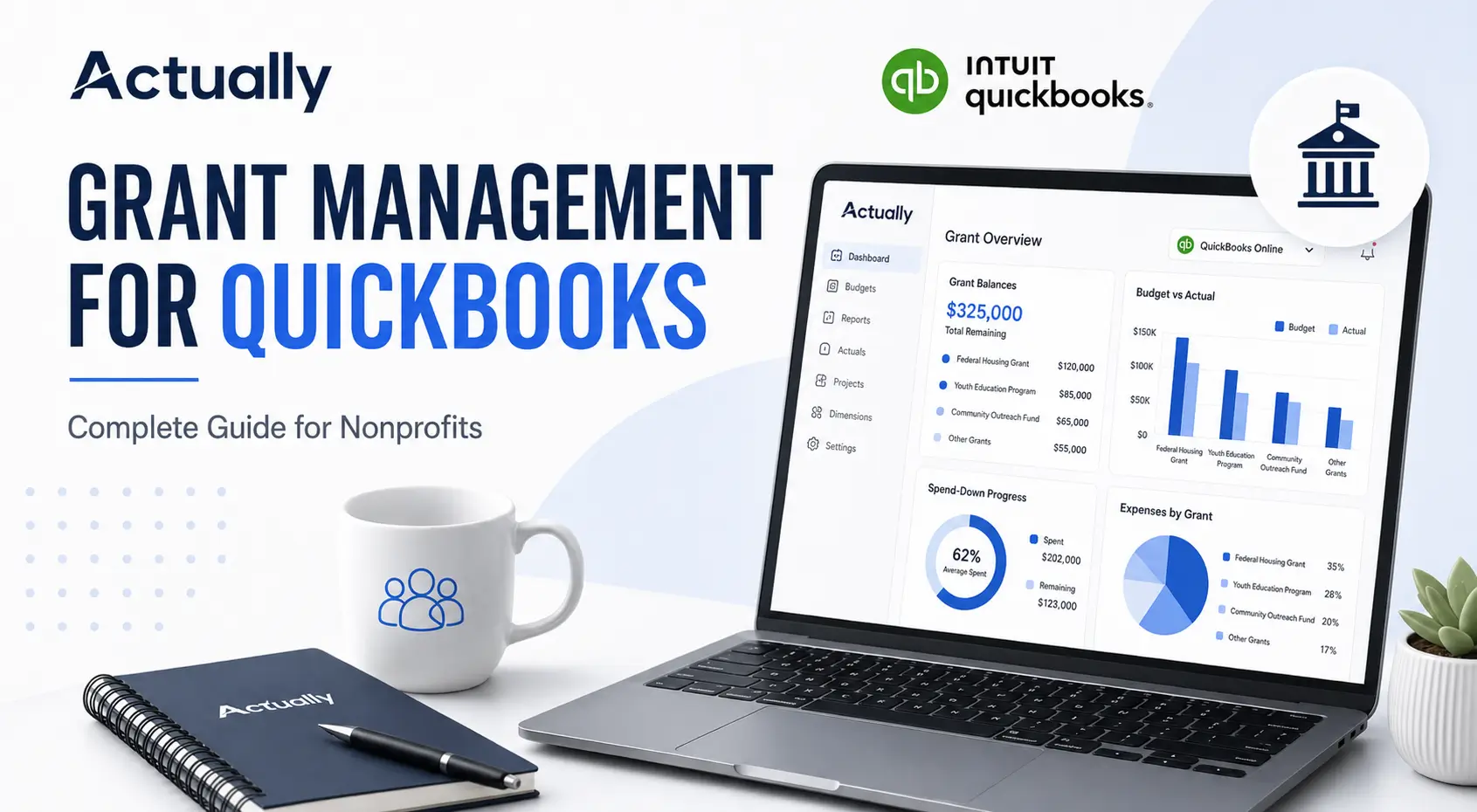
Read the Grant Management for QuickBooks guide for a broader setup framework.
Monthly Grant Budget Review Checklist
A monthly review helps find errors while supporting documents and staff knowledge are still current. Use the following checklist as a starting point and adapt it to each award.
Questions Finance and Program Teams Should Ask
- Are spending levels consistent with the remaining grant period?
- Is any budget category approaching its limit?
- Are employees still charged to grants that ended or changed?
- Are costs being assigned according to benefit rather than available budget?
- Are approved amendments reflected in the current budget?
- Are open commitments included in forecasts even though they have not posted as expenses?
- Can every reported amount be traced to QuickBooks and its source support?
- Does the program team understand the remaining amount it can responsibly spend?
Warning Signs That the Current Process Is Failing
- Grant balances are calculated only in spreadsheets.
- Different team members report different remaining amounts.
- Transactions frequently appear under “Not Specified.”
- Payroll is corrected only at year-end or before an audit.
- Budget amendments overwrite prior versions.
- Grant reports cannot be tied to the general ledger.
- Staff charge costs based on which grant has money left.
- Closed periods change after reports are submitted.
- Program leaders receive grant information weeks after month-end.
These signs do not necessarily mean the accounting data is unusable. They show that the organization needs clearer definitions, controls, and reporting ownership.
Conclusion
The biggest grant budgeting mistakes nonprofits make in QuickBooks come from disconnected systems and inconsistent decisions. A correct expense account is not enough if the grant, program, function, period, and allocation are wrong.
A better process begins with a defined accounting structure. Use the chart of accounts to describe the nature of transactions, assign clear roles to classes and other tracking dimensions, map funder categories to the general ledger, and review budget performance every month.
QuickBooks can support class budgets, segmented reports, payroll allocation, transaction splits, and closing controls in eligible subscriptions. Those features work best when they follow a documented grant management process. They do not replace the award agreement, source documentation, allowability review, or reconciliation.
For nonprofits that need clearer grant visibility alongside QuickBooks Online, Actually helps teams monitor budgets, spending, remaining balances, and allocations without rebuilding every report in a separate spreadsheet.
Frequently Asked Questions
Can QuickBooks Online track grant budgets for nonprofits?
Yes. QuickBooks Online can record grant-related income and expenses and can support segmented tracking with features such as classes, projects or customers, locations, and budgets. The available features depend on the subscription. The nonprofit must still design the structure around its reporting and compliance requirements.
Should each grant be a separate class in QuickBooks?
Not always. Using one class per grant can work for some organizations, especially when grant-level Profit and Loss and budget reporting are the main needs. Other nonprofits use classes for programs or functional categories and another dimension for grants. Each field should have one defined purpose.
What is the biggest grant budgeting mistake in QuickBooks?
The most damaging mistake is inconsistent tracking. When grants, programs, and functions are mixed across accounts, classes, projects, and spreadsheets, the nonprofit cannot produce a reliable budget-versus-actual report or explain how a cost was assigned.
Can a nonprofit charge a cost to whichever grant has money remaining?
No. An available balance does not establish that the cost belongs to the grant. Costs must follow the award terms and a reasonable allocation method. Federal rules prohibit shifting a cost to another award merely to cover a shortfall or avoid restrictions.
How often should nonprofits review grant budgets in QuickBooks?
Monthly review is a practical baseline. Higher-risk awards or rapidly changing programs may need more frequent monitoring. The review should cover actual spending, allocations, remaining balances, grant dates, commitments, and reporting deadlines.
Why do grant reports show “Not Specified” in QuickBooks?
“Not Specified” generally indicates that transactions or related entries lack the selected reporting dimension. The cause can vary by report and transaction type. Review the transaction detail, related payments, payroll setup, and field assignments before correcting the entry.
Does QuickBooks confirm whether a grant expense is allowable?
No. QuickBooks records and categorizes transactions, but it does not determine whether a cost complies with a particular grant agreement or regulation. The nonprofit needs written procedures, trained reviewers, and supporting documentation.
How does Actually work with QuickBooks Online for grant budgeting?
Actually adds grant budget visibility around QuickBooks Online data. It helps nonprofits monitor budget versus actual results, spending, remaining balances, and allocations. QuickBooks remains the accounting record, while the organization remains responsible for cost allowability and documentation.

David Cristello
.svg)
About the Author
David Cristello is the Co-Founder of Actually Finance. He's been an entrepreneur in the accounting and nonprofit space for over 10 years, previously building a company that made the Inc5000 list
.png)







.webp)