

- What Are the Main QuickBooks Online Limitations for Nonprofits?
- Class Tracking Limitations in QuickBooks Online
- Budgeting Limitations: Fiscal-Year Budgets vs. Grant Periods
- Restricted Funds, Shared Costs, and Spend-Down: Where Spreadsheets Creep In
- When to Add a Tool Alongside QuickBooks Online
- Conclusion
Table of contents
Last updated: October 8, 2026
QuickBooks Online works well for many nonprofits, but it has real limits. Class tracking and budgets need the Plus or Advanced plan, Plus caps classes and locations at 40 combined, budgets follow your fiscal year instead of grant periods, and there's no true fund accounting module. Most of these have practical workarounds.
If you're the person who builds the board packet or answers the program officer's "how much is left on our grant?" email, you've probably bumped into a few of these already.
This guide walks through the limitations nonprofit finance teams hit most often, what's actually going on in each case, and how to work around it inside QuickBooks first. At the end, we'll talk about when it makes sense to add a separate tool.
Key Takeaways
- Class tracking, location tracking and budgeting are only available on QuickBooks Online Plus and Advanced.
- Plus allows 40 classes and locations combined. Advanced removes that cap.
- Each transaction line takes one class, so shared costs have to be split across lines manually.
- QuickBooks budgets are built by fiscal year, which doesn't match most grant periods.
- There's no native fund accounting module. Nonprofits approximate it with classes, projects and the chart of accounts.
- Good setup solves a lot. When you're managing many grants at once, a tool that syncs with QuickBooks can take over the tracking that usually lives in spreadsheets.
What Are the Main QuickBooks Online Limitations for Nonprofits?
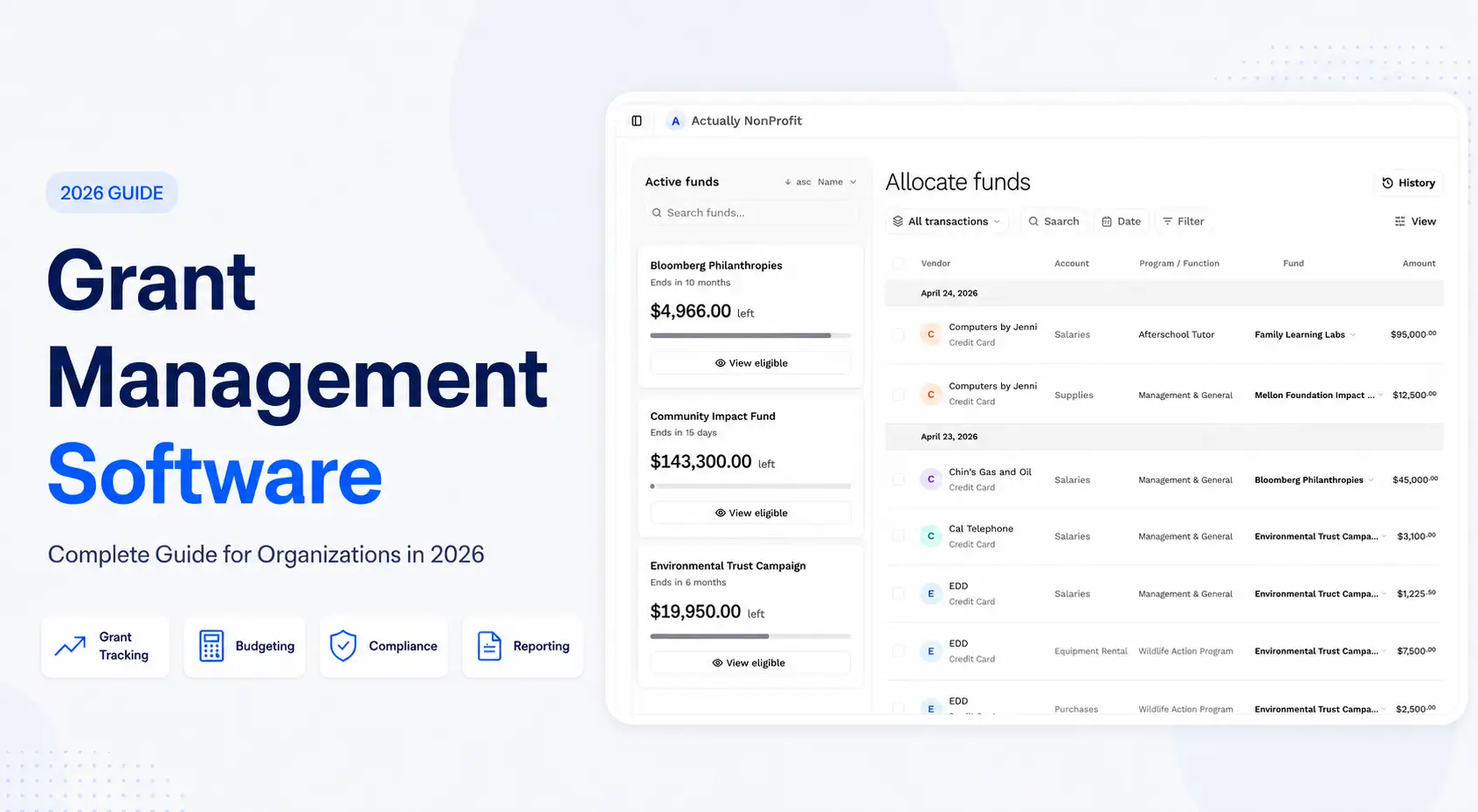
The short version: QuickBooks Online was built as general small business accounting software, and nonprofit features sit on top of that foundation. It does more for nonprofits than people give it credit for, but grant-level budgeting is where the gaps show up.
When you set up QuickBooks Online as a nonprofit, it adjusts the language for you. According to Lutz's overview of QuickBooks Online for nonprofits, the nonprofit setting adds the Statement of Activity and Statement of Financial Position to your standard reports, and relabels customers as donors and invoices as pledges. That's helpful. It just doesn't change how the underlying data is structured.
Here are the limitations that come up most often, with the usual workaround for each:
| Limitation | What it means | Common workaround |
|---|---|---|
| Plan restrictions | Classes, locations, and budgets aren't on Simple Start or Essentials | Start on Plus; on Essentials, use separate accounts per program |
| Class caps | Plus allows 40 classes and locations combined | Classes for programs and functions, Projects for individual grants, or upgrade to Advanced |
| One class per line | Shared costs can't be split automatically | Assign classes per row and split lines using a written allocation method |
| Fiscal-year budgets | Grant periods that cross fiscal years span two budgets | Enter the grant in both years and use custom date ranges, or track it with Projects |
| No fund accounting module | Nothing stops an expense hitting a restricted grant it isn't allowed on | Separate restricted income in the chart of accounts and reconcile monthly |
| Manual allocations and spend-down | Allocation percentages and remaining balances live outside QuickBooks | Recurring allocation journal entry plus a spend-down tracker |
Let's take them one at a time.
Class Tracking Limitations in QuickBooks Online
Classes are the backbone of nonprofit reporting in QuickBooks Online, and they come with three practical limits: you need the right plan, Plus caps how many you can have, and each line on a transaction can carry only one class.
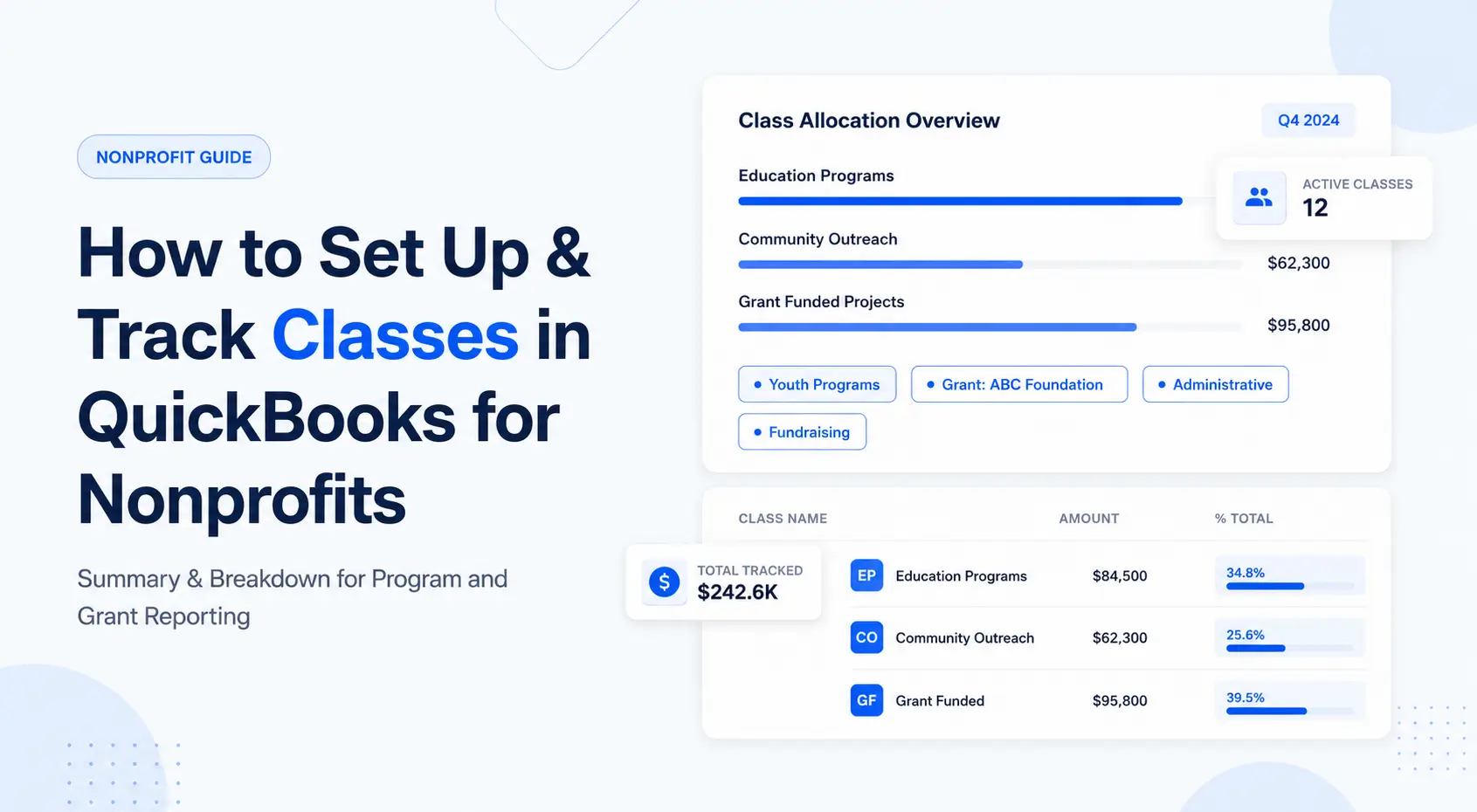
If you haven't set classes up yet, our guide on how to set up and track classes in QuickBooks for nonprofits covers the basics. Here's where they tend to run out of road.
You need QuickBooks Online Plus or Advanced
Intuit's own help article on turning on class tracking is written for Plus and Advanced, and Intuit's usage limits page lists classes and locations as not available on Simple Start or Essentials. Budgets follow the same pattern.
Workaround: If you're on Essentials and only have one or two programs, you can get by with separate income and expense accounts for each program. It gets messy fast, though. For most nonprofits with even a handful of grants, Plus is the realistic starting point.
Plus caps classes and locations at 40 combined
On Plus, you get 40 classes and locations total, not 40 of each. Advanced has no limit. Plus also caps the chart of accounts at 250 accounts, per the same Intuit usage limits page.
Workarounds:
- Keep classes for programs and functions. A common setup uses classes for Program, Management and General, and Fundraising, with sub-classes for individual programs.
- Use Projects for individual grants. Lutz notes that Projects can track individual grants from award to close, including grants that span fiscal years. That keeps your class list from growing every time you win an award.
- Don't create a class for every restriction. Lutz recommends reflecting restricted and unrestricted net assets in the chart of accounts instead.
- Upgrade to Advanced if you've genuinely outgrown 40 and the structure above doesn't fit how your funders want reporting.
Each line gets one class
In QuickBooks Online settings, you can assign classes either "one to entire transaction" or "one to each row in transaction." Either way, a single line can only belong to one class.
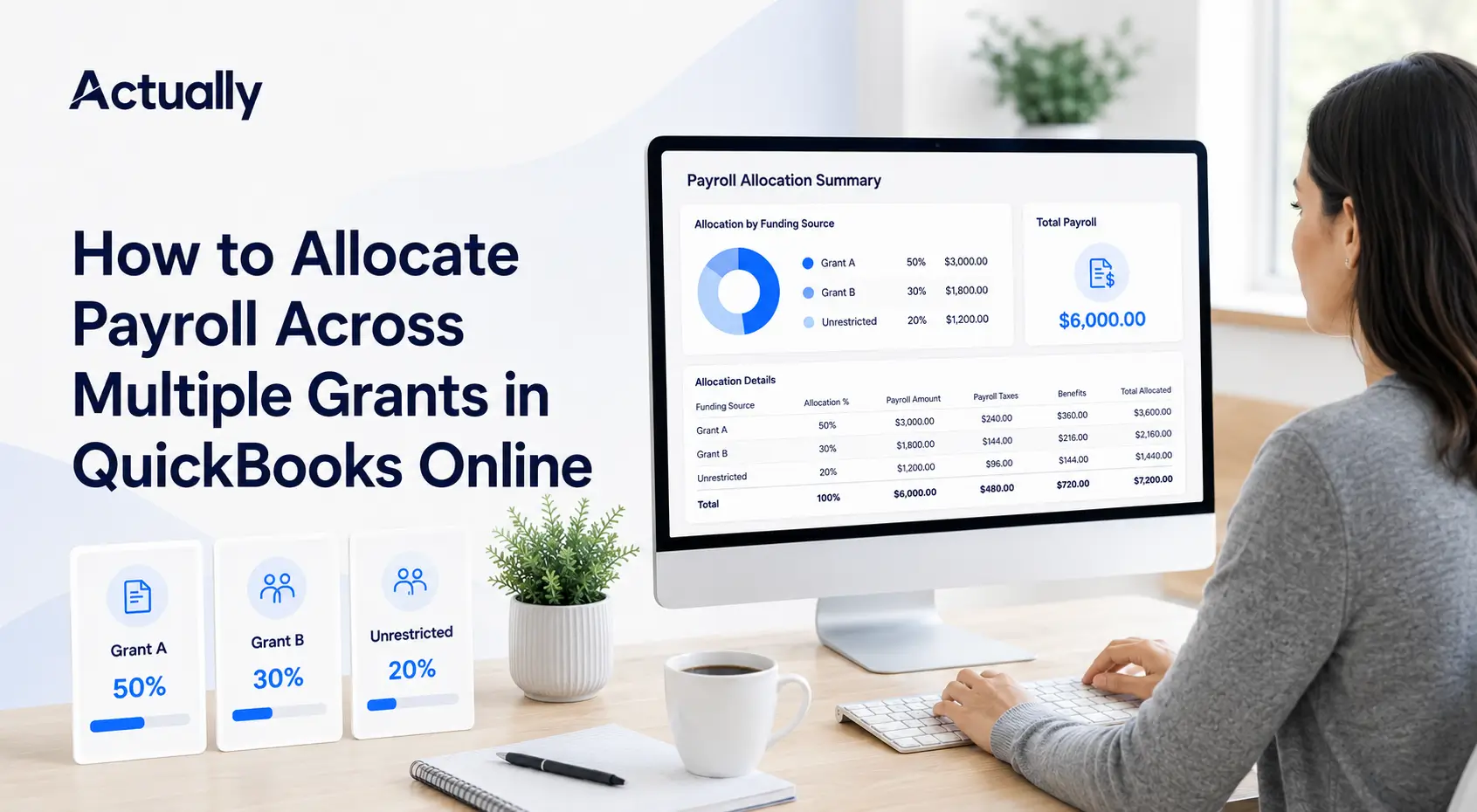
That matters for shared costs. If your program director's salary is funded 50% by one grant, 30% by another and 20% by general operations, QuickBooks won't split it for you. You have to enter it as three lines, with the math done ahead of time.
Workarounds:
- Set class assignment to "one to each row" so you can split bills and journal entries across multiple classes.
- Write down your allocation method (time sheets, square footage, headcount) and use the same percentages every period.
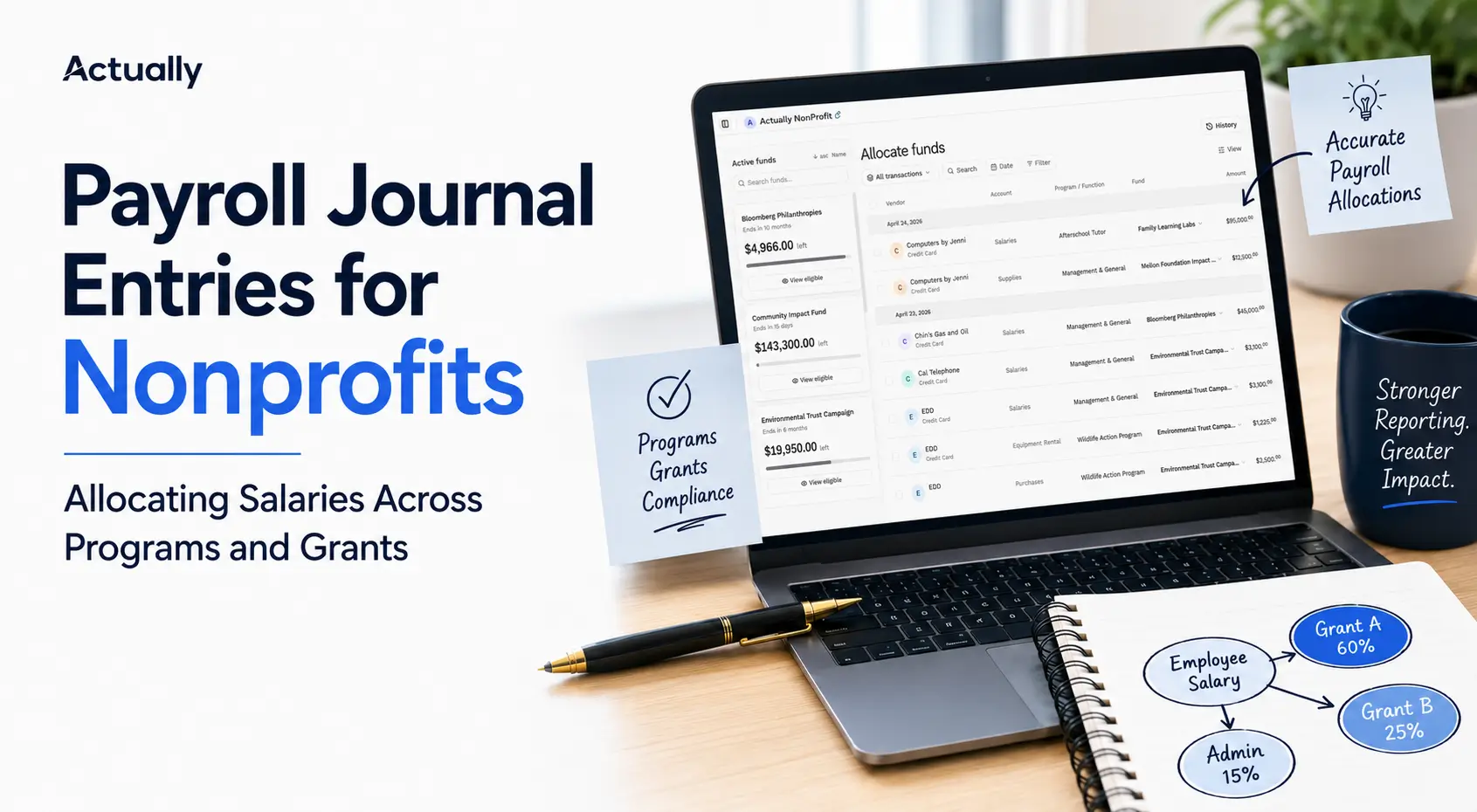
- For payroll, post a monthly reallocation journal entry instead of trying to split every paycheck. Our walkthrough on allocating payroll across multiple grants in QuickBooks Online shows how.
Budgeting Limitations: Fiscal-Year Budgets vs. Grant Periods
QuickBooks Online budgets are built around your fiscal year, and they can be broken out by class or location. That works well for an annual operating budget. It works less well for grants, which usually have their own start dates, end dates and budget categories.
How budgets work in QuickBooks Online
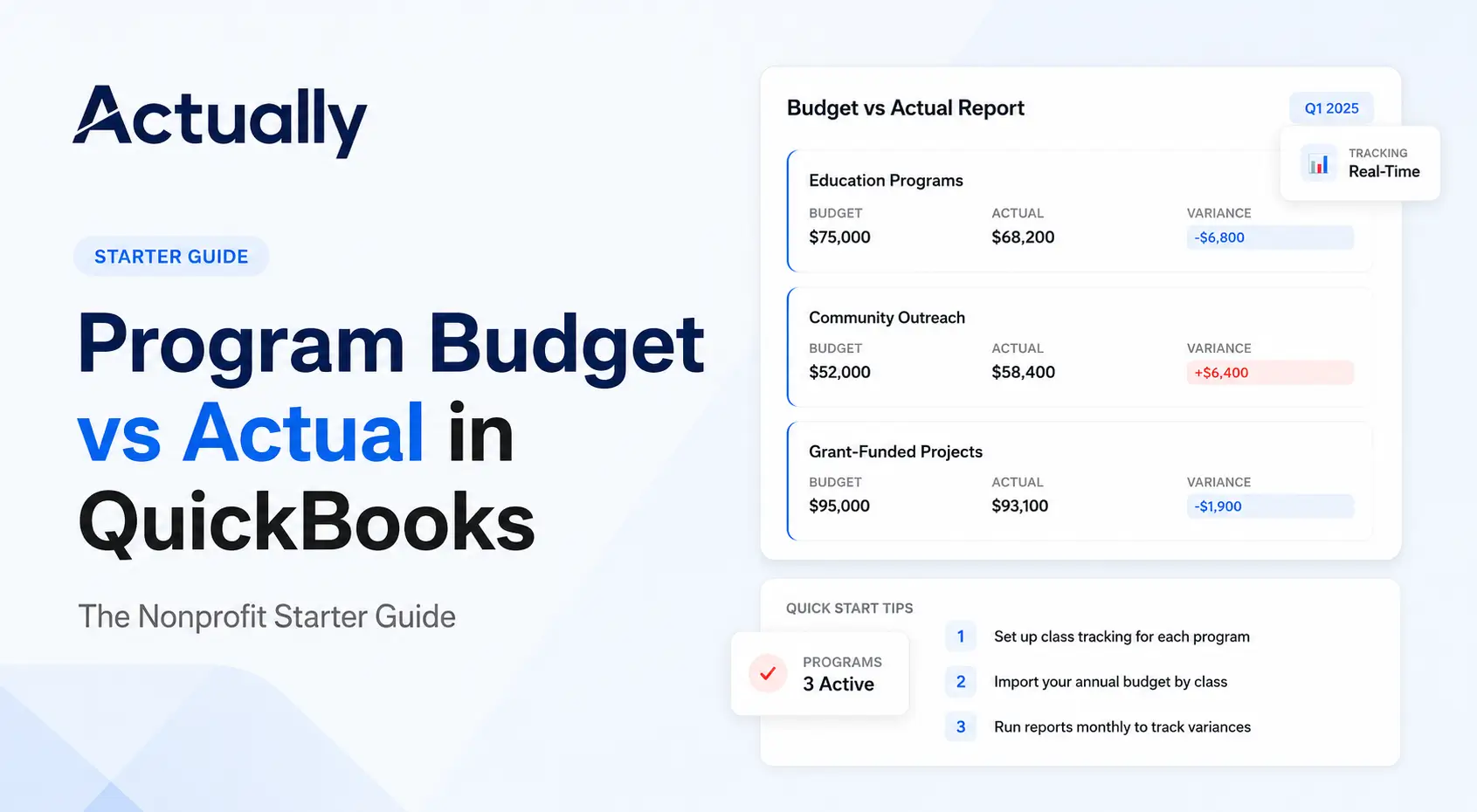
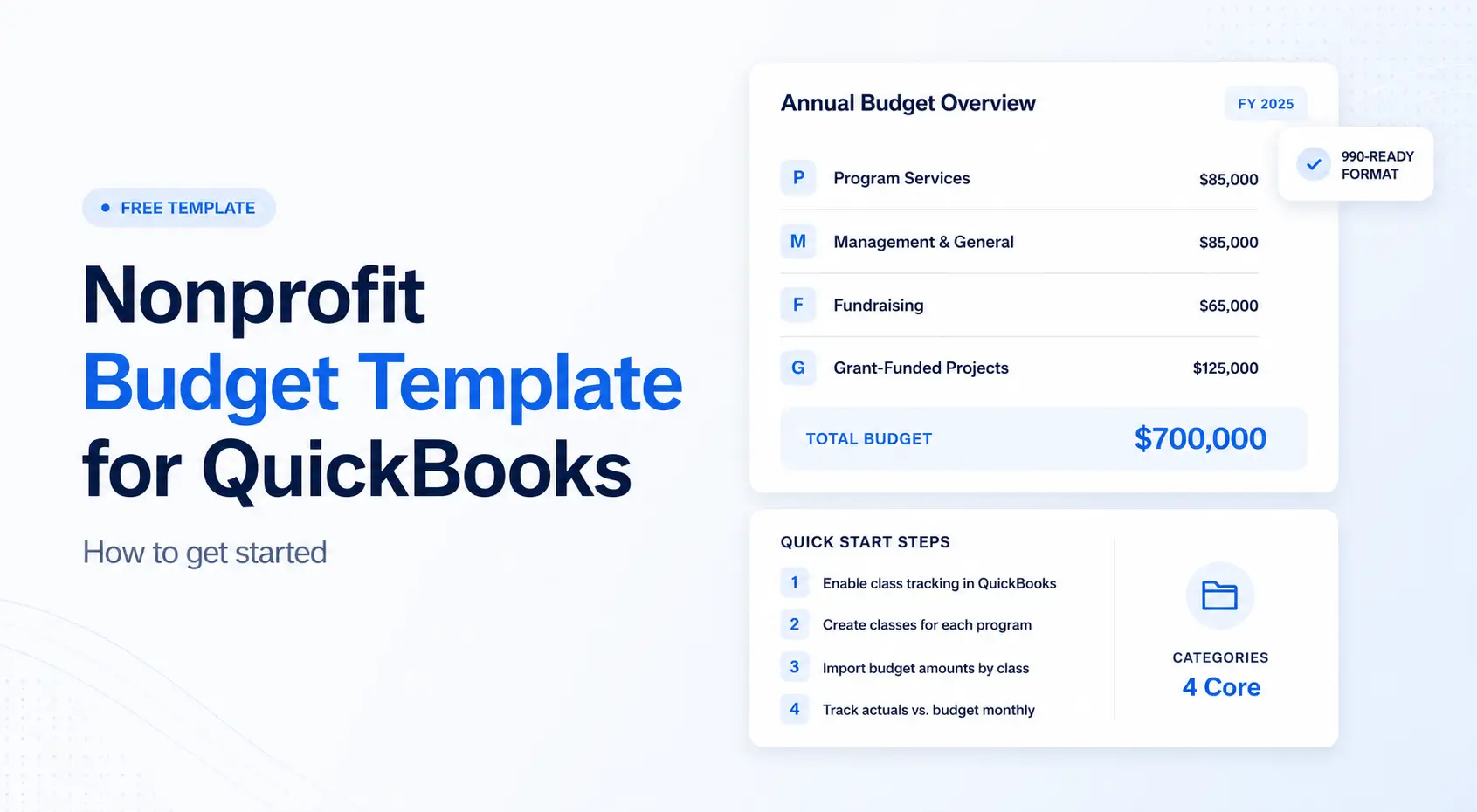
You pick a fiscal year, choose monthly, quarterly or yearly amounts, and optionally subdivide by class or location. Intuit's guide to setting budget targets for each class confirms this is available on Plus and Advanced, and suggests pre-filling from last year's actuals using the Profit and Loss by Class report. Once a budget exists, you can run a Budget vs. Actuals report from the budgeting screen.
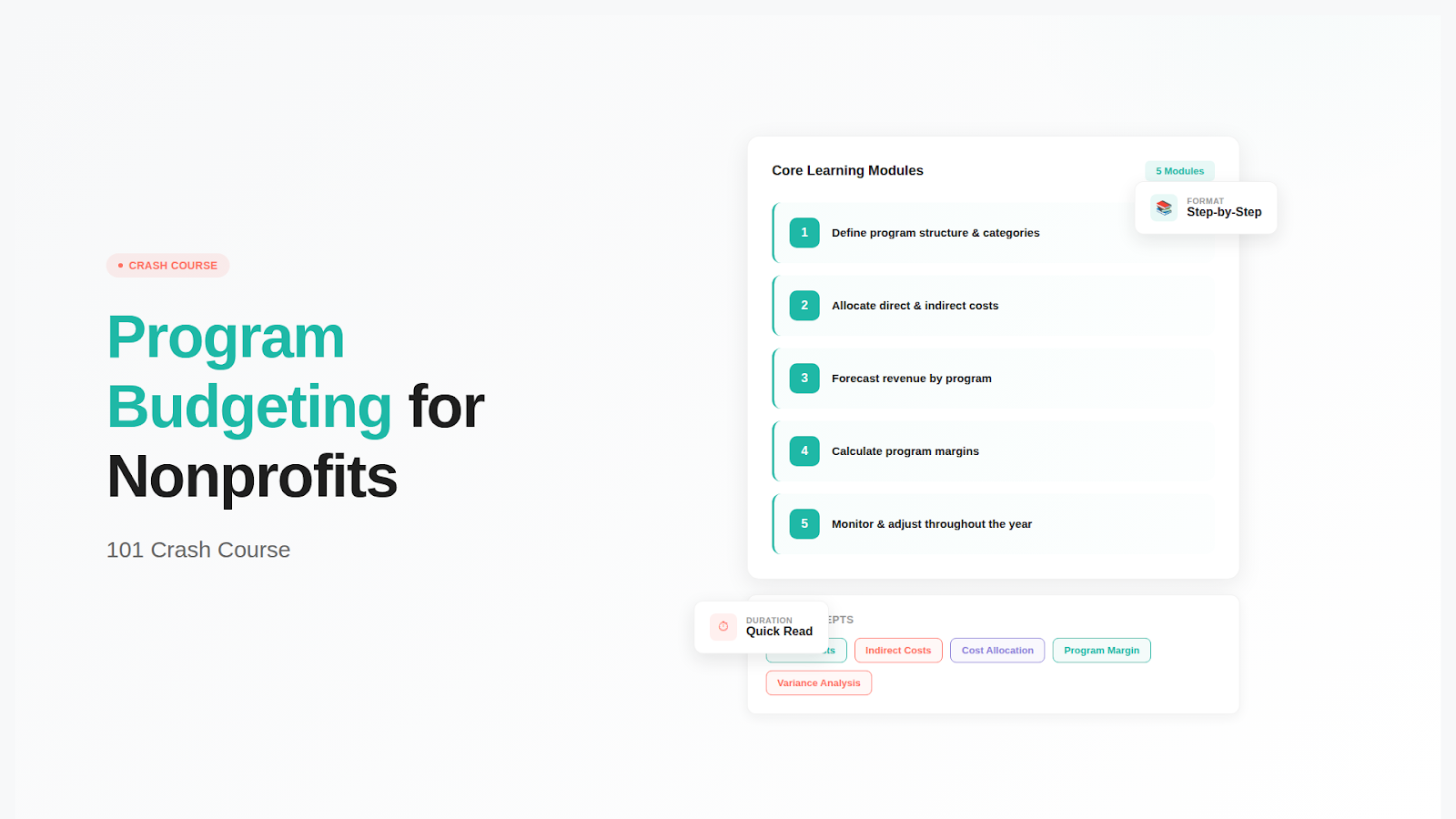
For a program budget that lines up with your fiscal year, this is genuinely useful. Our program budget vs. actual starter guide walks through it step by step.
The problem with grant periods
Say your fiscal year runs January to December, and a foundation grant runs July 2026 through June 2027. In QuickBooks, that grant budget lives in two separate fiscal-year budgets. To answer "how much of this grant have we spent?" you're running two reports and adding them together.
Workarounds:
- Build the grant budget in both fiscal years. Enter the months that fall in each year, then use a custom date range on your reports to see the full grant period.
- Use Projects for grant-to-date reporting. Projects aren't tied to a fiscal year, so they give you a cleaner cumulative view of spending on a single award.
- Keep a simple grant summary sheet. Award amount, period, budget by category, and spent to date. Update it monthly from a QuickBooks export.
Budget vs. actual by grant takes setup
There's no "grant budget" report out of the box. If grants are classes, you can budget by class and run Budget vs. Actuals filtered to that class. If grants are Projects, you'll compare actuals against a budget you keep somewhere else.
Also keep in mind that funder budget categories often don't match your chart of accounts. A funder might want "Personnel," "Supplies" and "Indirect," while your books have twenty expense accounts. Someone has to map one to the other, and that usually happens in a spreadsheet.
Restricted Funds, Shared Costs, and Spend-Down: Where Spreadsheets Creep In
QuickBooks Online doesn't include true fund accounting, doesn't automate shared cost allocations, and doesn't show grant spend-down on its own. Nonprofits handle all three with structure, routine and, usually, a spreadsheet or two.
No native fund accounting
Lutz puts it directly: QuickBooks Online doesn't include a true fund accounting module. Organizations approximate fund tracking with classes, locations and projects. WISS makes a similar point, noting that QuickBooks doesn't track grants natively, even though thousands of nonprofits use it successfully.
In practice, QuickBooks will happily let you code an expense to a restricted grant that the grant doesn't allow. Nothing stops it. The control has to come from your process.
Workarounds:
- Separate restricted and unrestricted income in the chart of accounts.
- Reconcile restricted balances monthly, not just at year-end.
- Record releases from restriction consistently, on a set schedule.
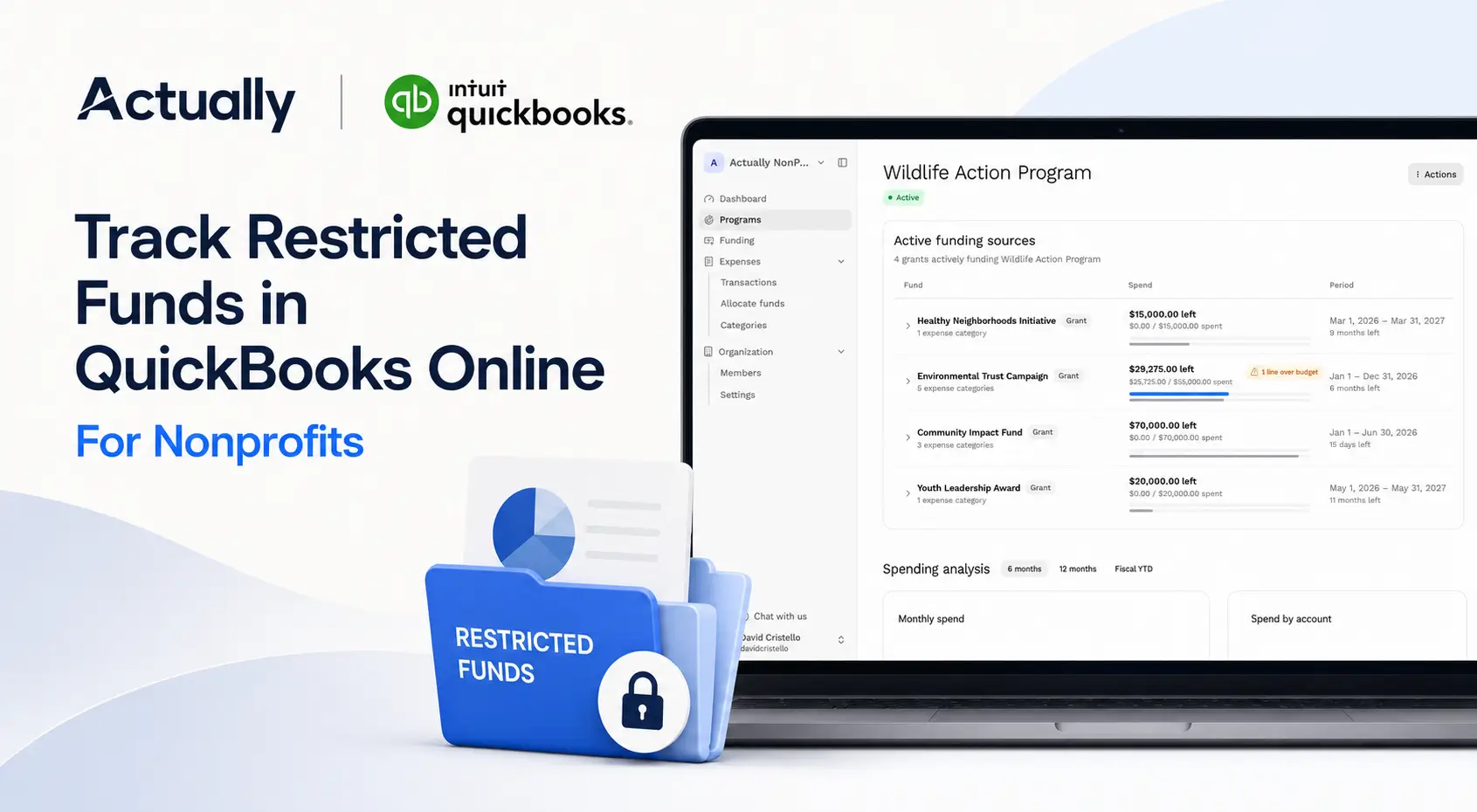
Our guide on tracking restricted funds in QuickBooks Online covers the setup in more detail.
Shared expense allocations are manual
Rent, utilities, admin salaries and software often get split across several funders. As covered above, QuickBooks can hold the split once you enter it line by line, but it won't calculate or apply allocation percentages for you. WISS calls this out specifically: cost allocation isn't automated.
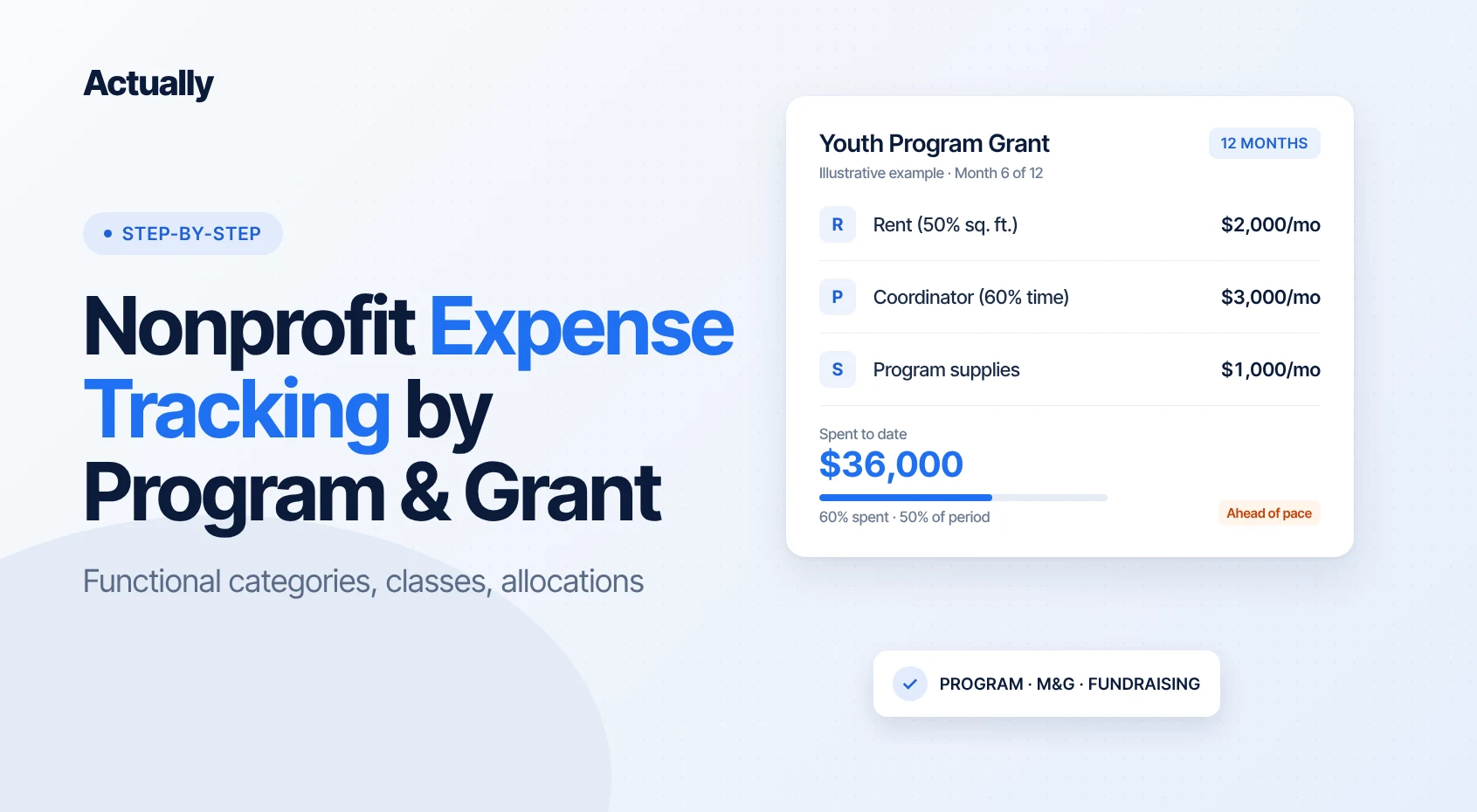
The practical fix is a standing allocation schedule that you apply the same way every month, usually through a recurring journal entry. It's not glamorous, but it's defensible in an audit. Our guide to nonprofit expense tracking by program and grant walks through a full month of allocations.
Spend-down visibility
Program staff want to know, right now, how much is left on a grant and whether you're on pace to spend it before the end date. QuickBooks can tell you what's been spent. It can't tell you what's left against a grant period that doesn't match your fiscal year, or how fast you're burning through it.
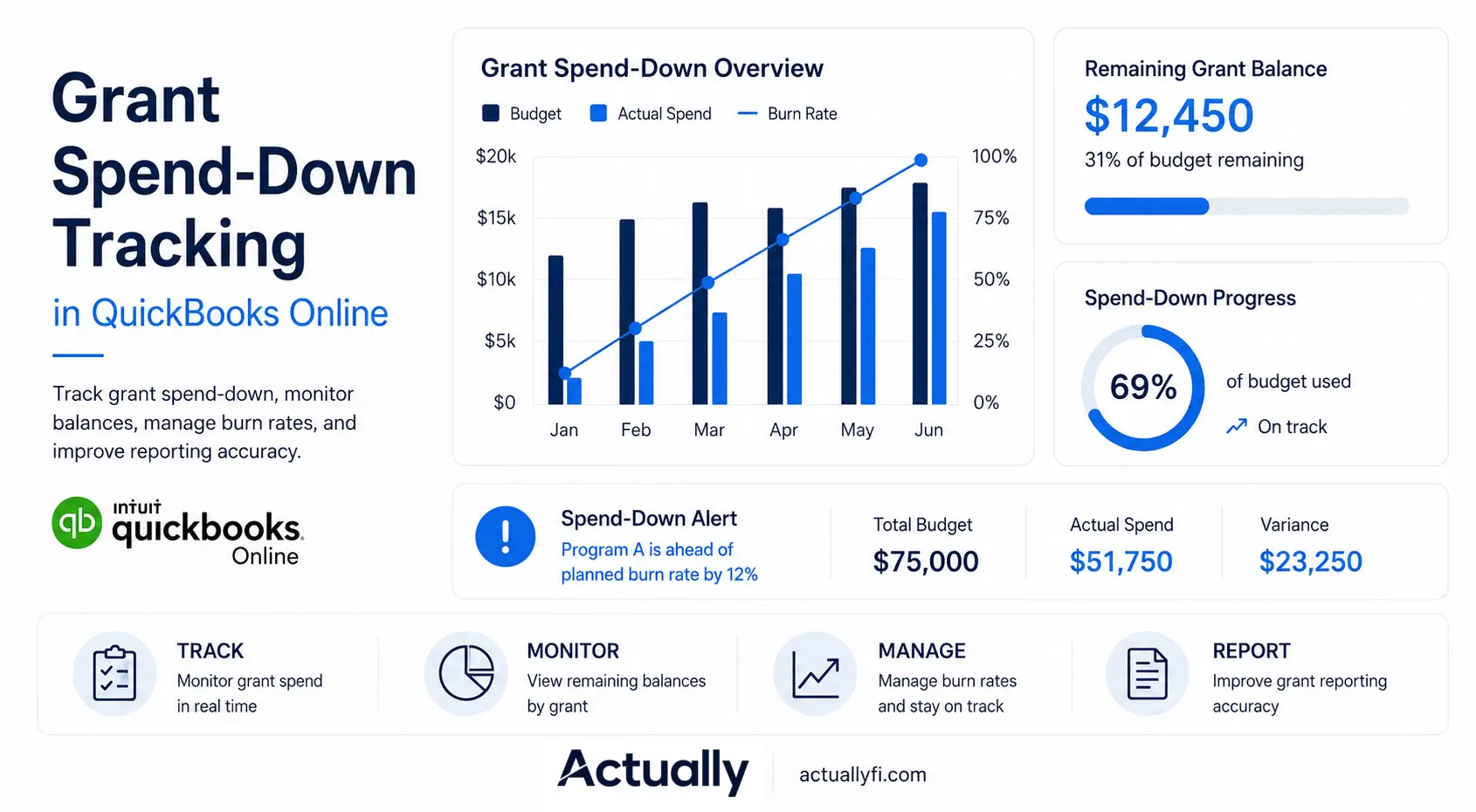
So most finance teams build a spend-down tracker in Excel: award amount, months elapsed, spent to date, remaining balance and expected spend per month. If you want a structure for that, see our guide on grant spend-down tracking in QuickBooks Online.
When to Add a Tool Alongside QuickBooks Online
If QuickBooks plus a tidy spreadsheet covers your grants, keep it. You probably don't need anything else. It's worth looking at another tool when the spreadsheets have become the real system and QuickBooks is just the data source.
Blue & Co. describes the traditional approach well: classes for programs, grants set up as sub-customers, and a budget for each grant to monitor spending. That's a solid foundation. The strain shows when the number of grants grows and each funder wants something slightly different.
Signs you've outgrown spreadsheets
- You manage several active grants with different start and end dates.
- Staff time or shared costs are split across more than two funders.
- Month-end includes re-keying QuickBooks exports into a grant workbook.
- Only one person really understands how the tracker works.
- Program managers can't see their remaining balance without asking finance.
Your options
- Stay in QuickBooks and tighten your process. Clean class structure, Projects for grants, a monthly allocation entry, a standard grant summary sheet.
- Move to full fund accounting software. This makes sense for larger or more complex organizations, but it means replacing your accounting system and retraining your team.
- Add a grant budgeting tool that works alongside QuickBooks. Your books stay where they are, and the tool handles the grant-level view.
Where Actually fits
Actually is in that third category. It's built to work alongside QuickBooks Online, not replace it. It syncs with QuickBooks Online and focuses on the grant-level work that usually lives in spreadsheets:
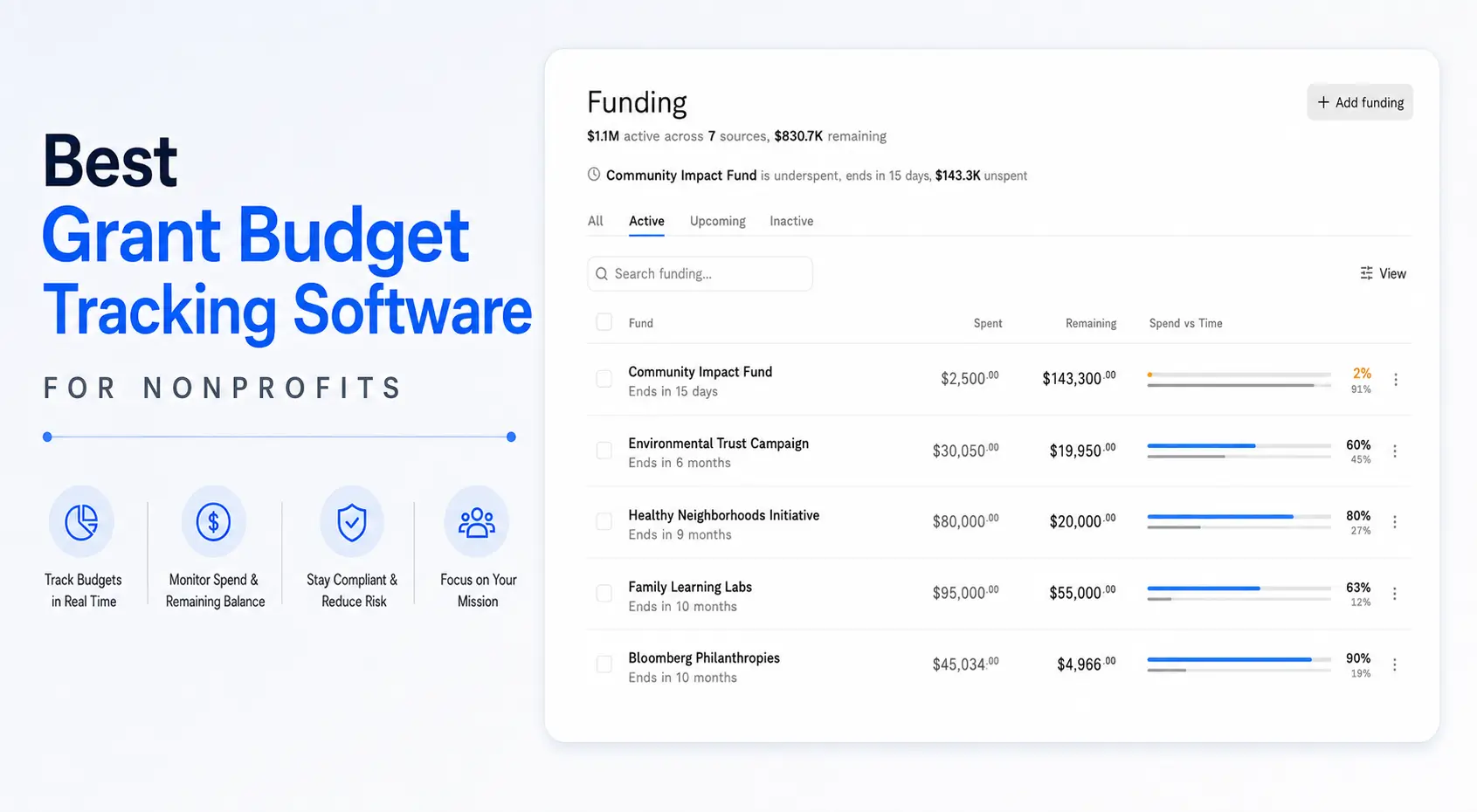
- Grant budget tracking
- Budget vs. actual by grant and program
- Restricted fund tracking
- Expense allocation across funders
- Spend-down visibility
We're building Actually with a group of founding customers right now. If the limitations in this post sound like your month-end, you can join the Actually waitlist and help shape what we build.
Conclusion
QuickBooks Online is a reasonable accounting system for a lot of small and mid-sized nonprofits. Its limitations are mostly about grant-level budgeting: plan requirements, the 40-class cap on Plus, one class per line, fiscal-year budgets and no built-in fund accounting.
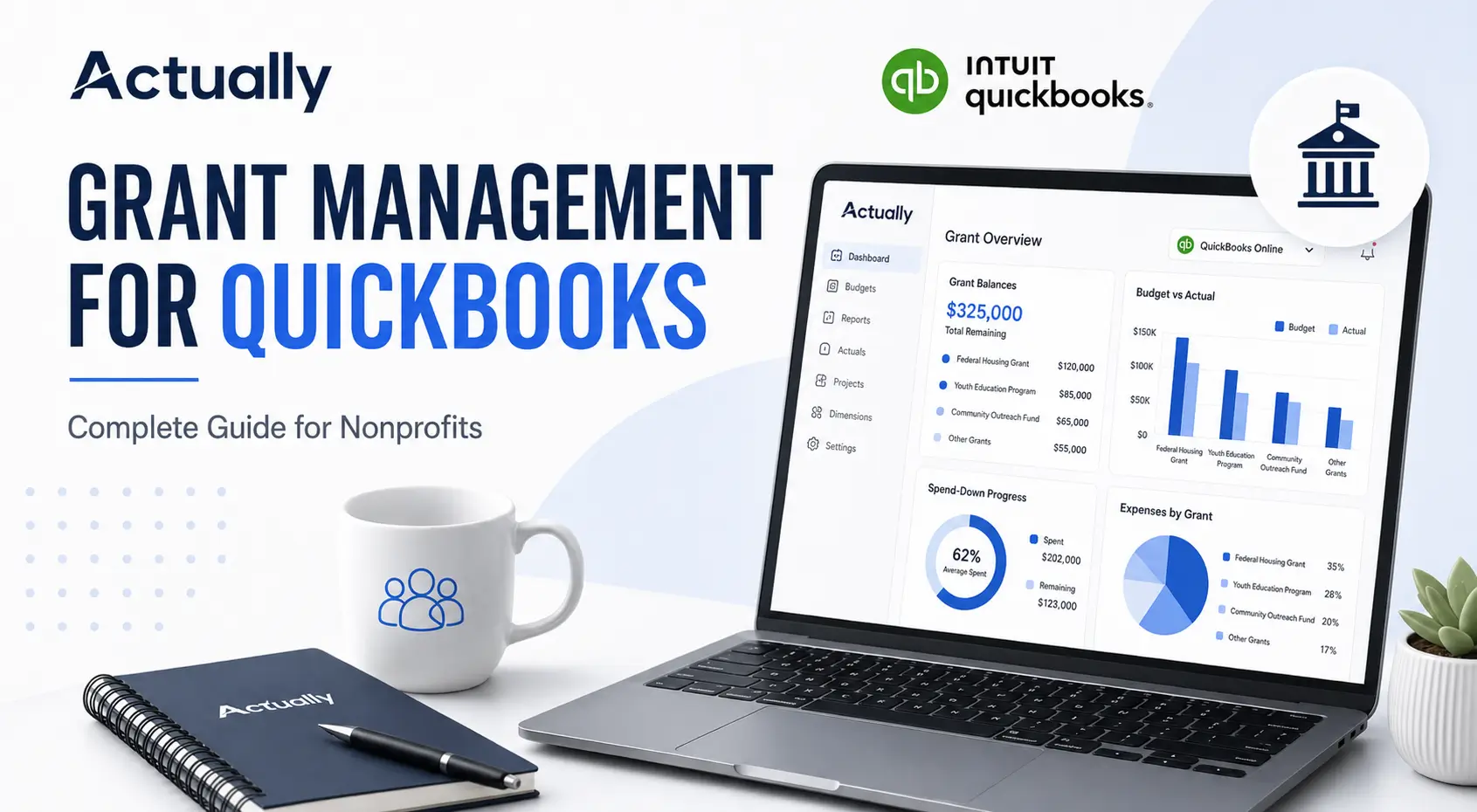
Most of those can be handled with good structure. Use classes for programs, Projects for grants, a documented allocation method and a monthly review of restricted balances. For a fuller picture, our complete guide to grant management for QuickBooks pulls it all together.
When the workarounds start taking more time than the accounting itself, that's the signal to look at a tool that works alongside QuickBooks rather than around it.
Frequently Asked Questions
Which QuickBooks Online plan do nonprofits need for class tracking and budgets?
You need QuickBooks Online Plus or Advanced. Simple Start and Essentials don't include class tracking, location tracking or budgets. Plus allows 40 classes and locations combined, while Advanced has no cap.
Can QuickBooks Online do budget vs. actual by grant?
Yes, with some setup. If each grant is a class, you can create a budget subdivided by class and run the Budget vs. Actuals report for that class. Budgets are tied to your fiscal year, so grants that cross fiscal years need budgets in each year and custom date ranges on reports.
How do you manage multiple grants in QuickBooks Online?
Most nonprofits use classes for programs or functions, Projects or sub-customers for individual grants, and a consistent chart of accounts. Shared costs are split across lines or allocated with a recurring journal entry. Many teams also keep a grant summary sheet for spend-down and remaining balances.
Does QuickBooks Online support fund accounting?
Not natively. QuickBooks Online doesn't include a true fund accounting module. Nonprofits approximate it using classes, projects and separate restricted and unrestricted accounts, along with regular reconciliation of restricted balances.
What happens when you hit the 40 class limit in QuickBooks Online Plus?
You'll need to free up room or upgrade to Advanced. Common fixes are moving individual grants to Projects, using classes only for programs and functions, and making closed-out grants inactive.

David Cristello
.svg)
About the Author
David Cristello is the Co-Founder of Actually Finance. He's been an entrepreneur in the accounting and nonprofit space for over 10 years, previously building a company that made the Inc5000 list
.png)






.webp)